Accounts Table
The accounts table has tools to make it easy to use:
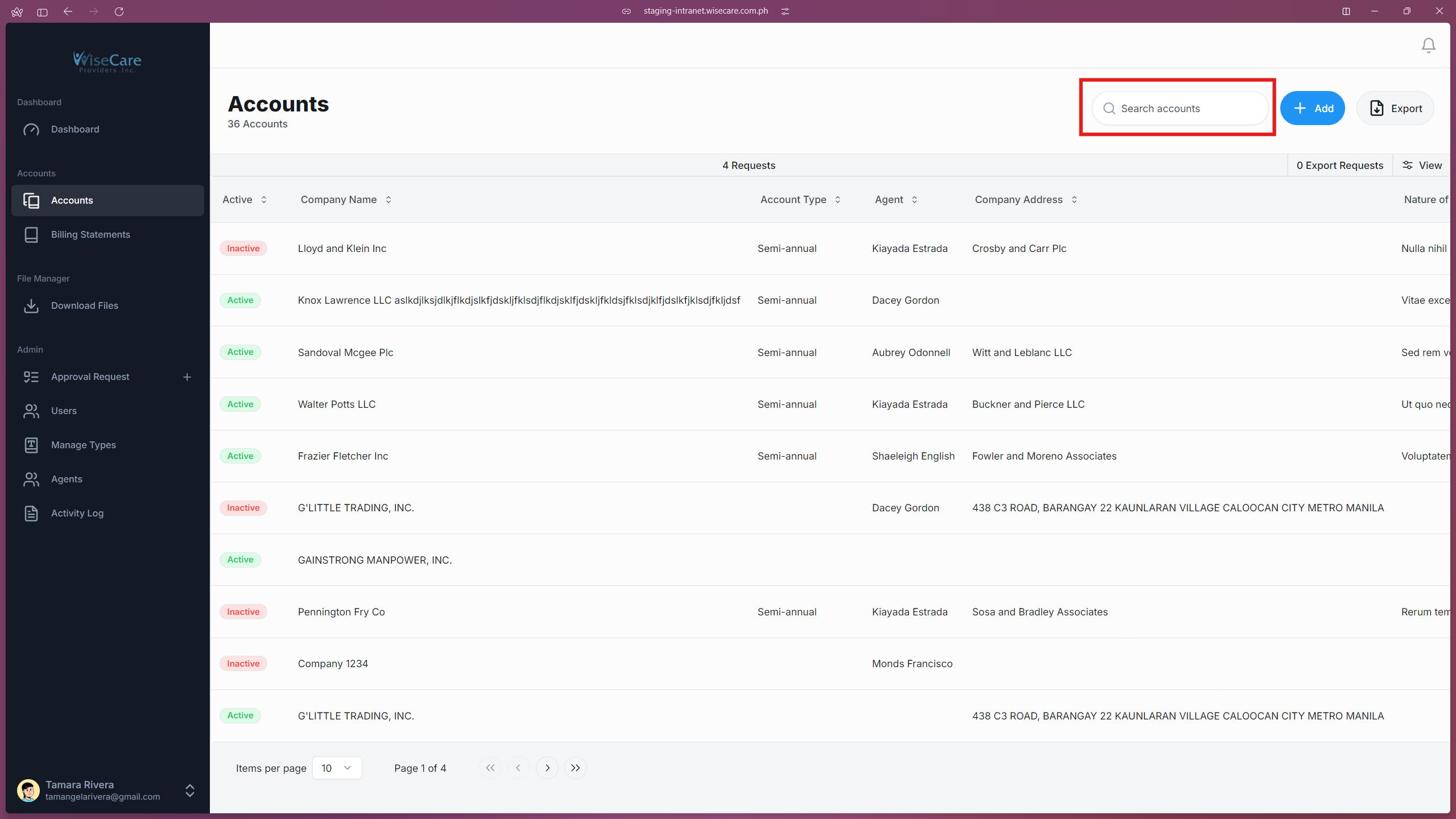
Search for Information
You can look for specific details in the table by typing in the search bar. The table will instantly show results that match your search.
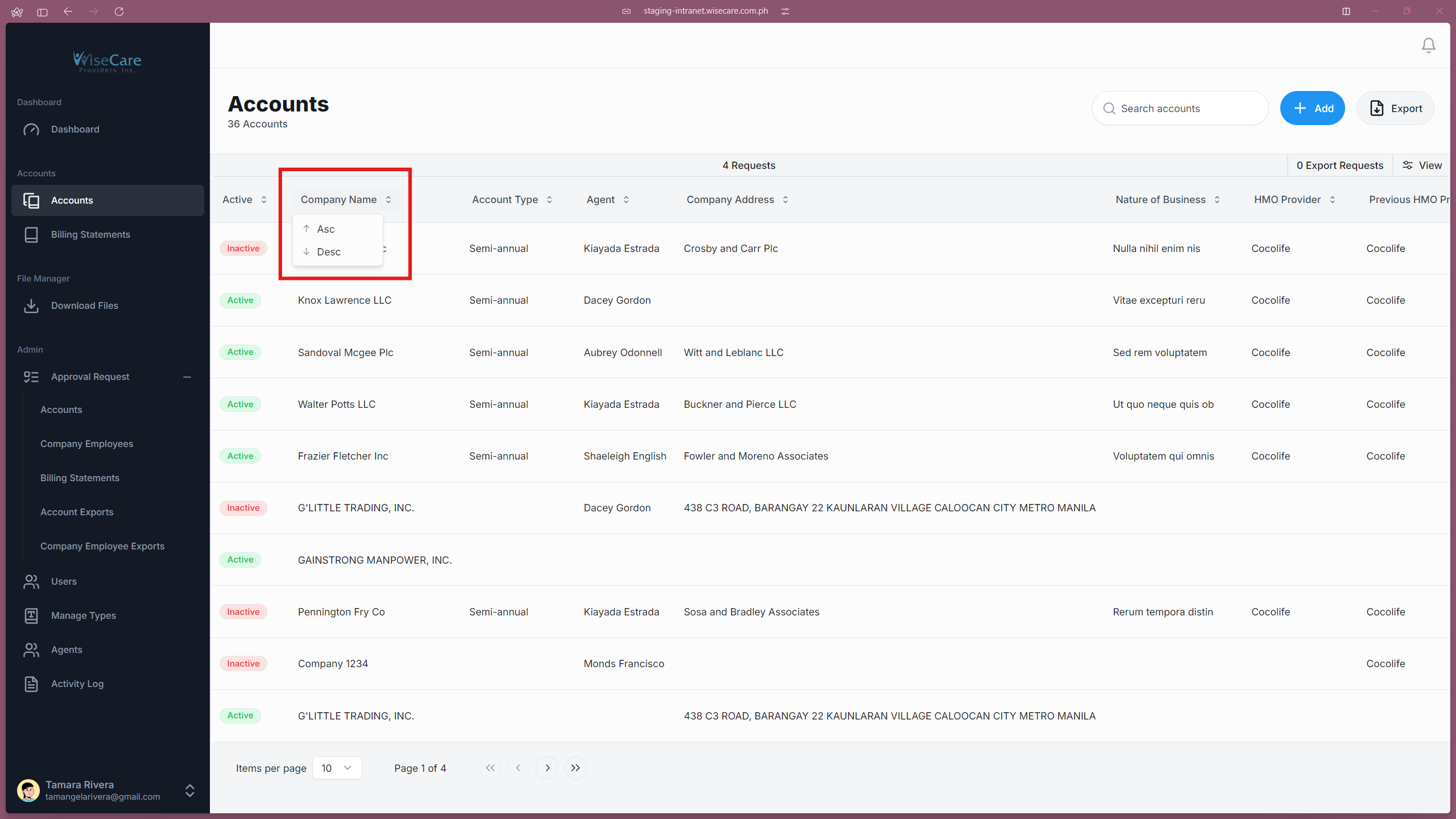
Sort the Table
To change the order of items in a column, click on the arrows beside the column's title.
A menu will pop up where you can choose "Asc" (ascending) to sort from smallest to largest or "Desc" (descending) to sort from largest to smallest.
Show or Hide Columns
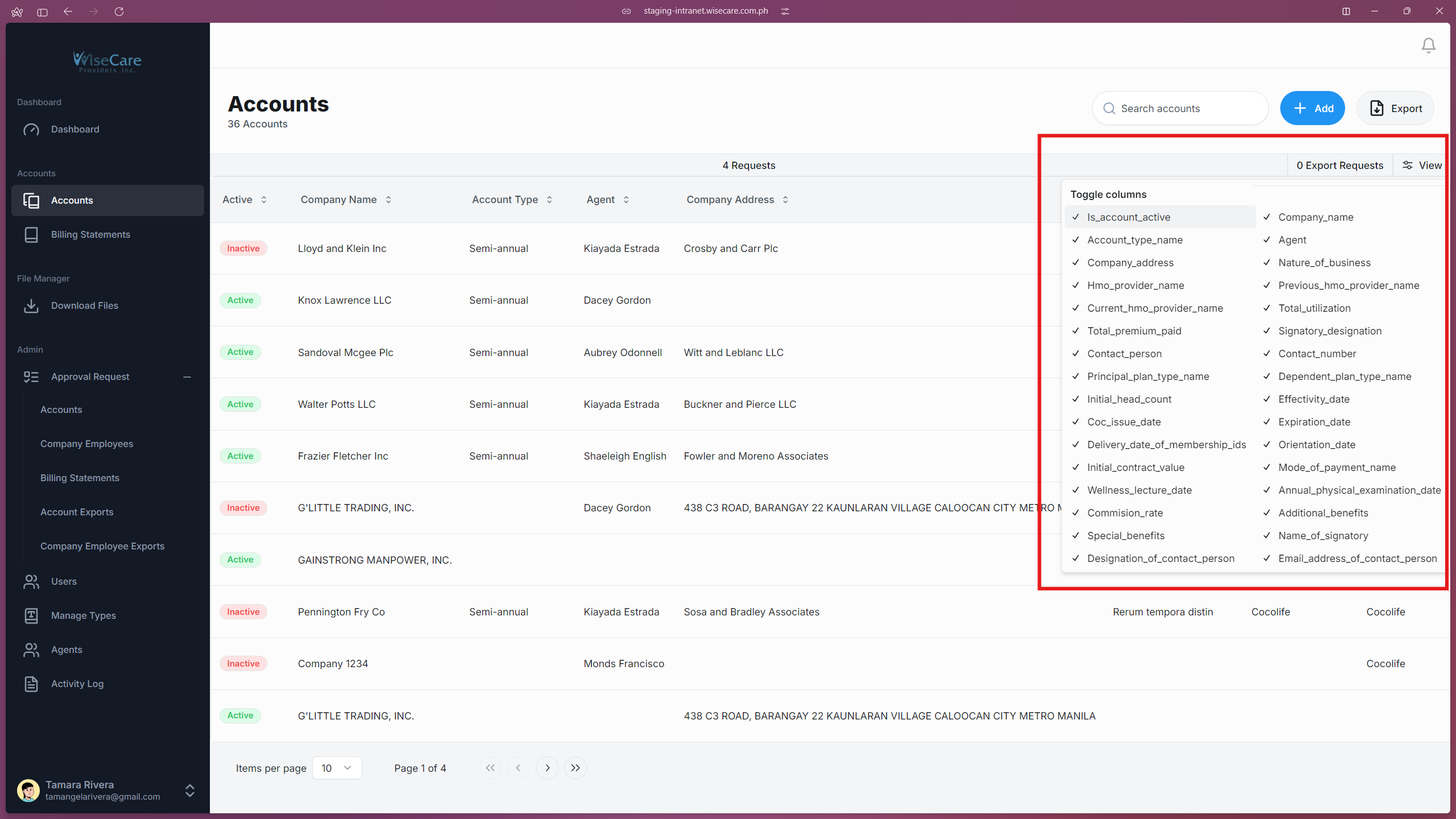
Click on the "View" button to pick which columns you want to see.
Just check or uncheck boxes to show or hide columns.
Requests Tab and Export Requests
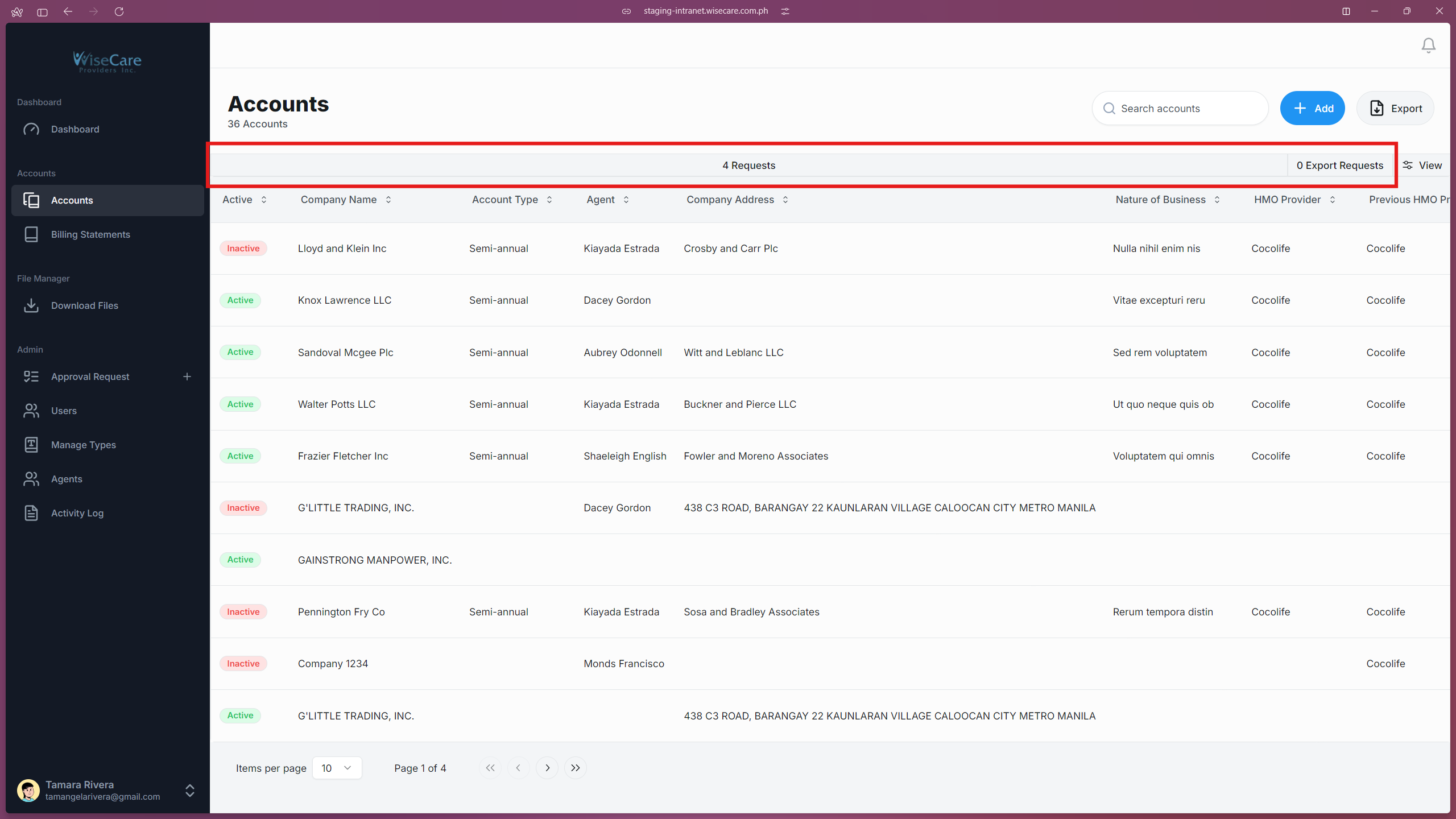
The Requests and Export Requests Tabs keeps track of actions like adding, deleting, editing, or exporting accounts.
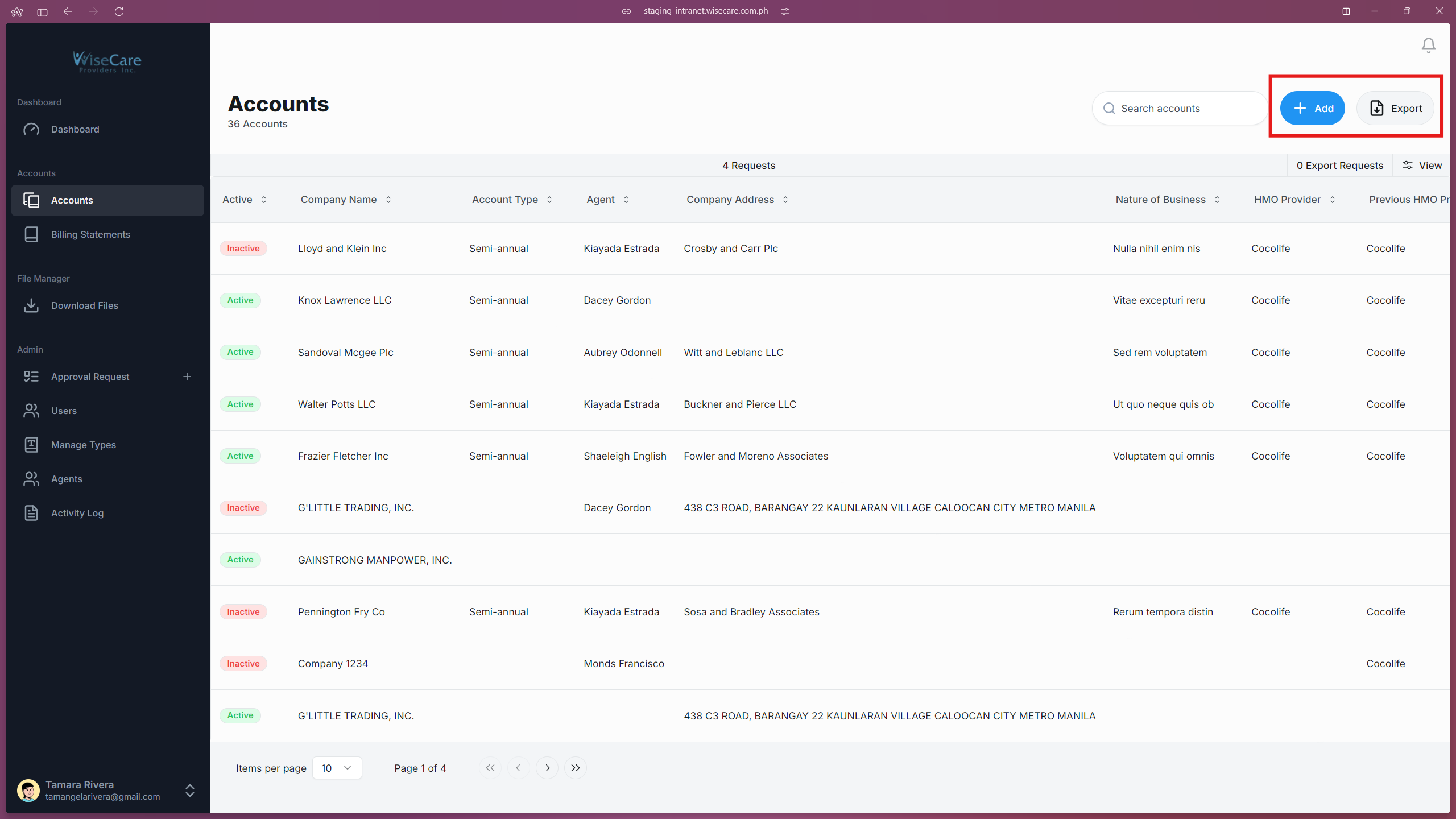
Add and Export Accounts
Add Button: Click this to add new accounts to the table.
Export Button: Click this to save and download account details.
Adjust Table Items and Navigation
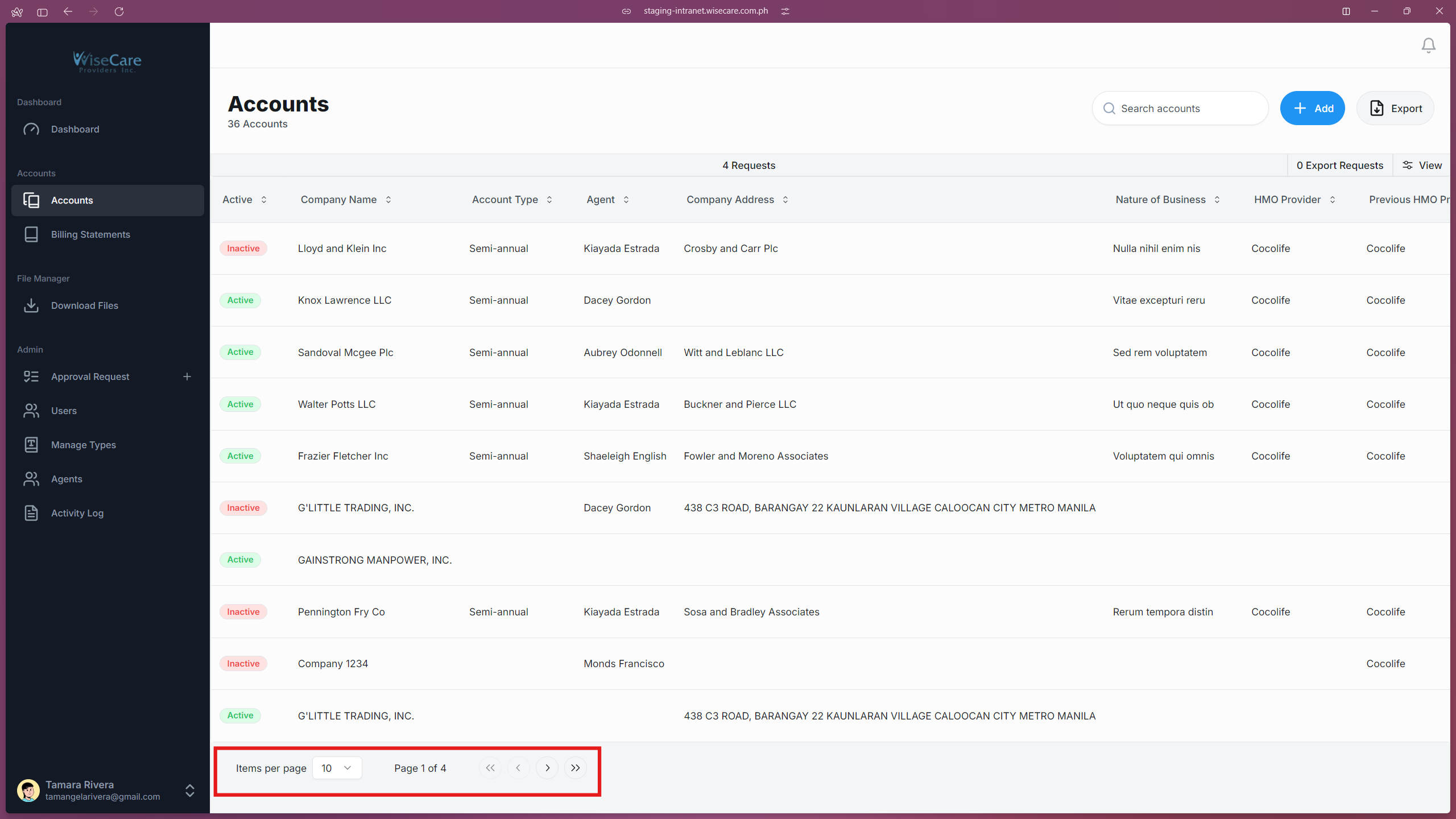
You can change how many items are shown in the table by clicking on the "Items per page" dropdown at the bottom of the table.
To move between pages, use the arrow buttons next to the dropdown.
Company Profile
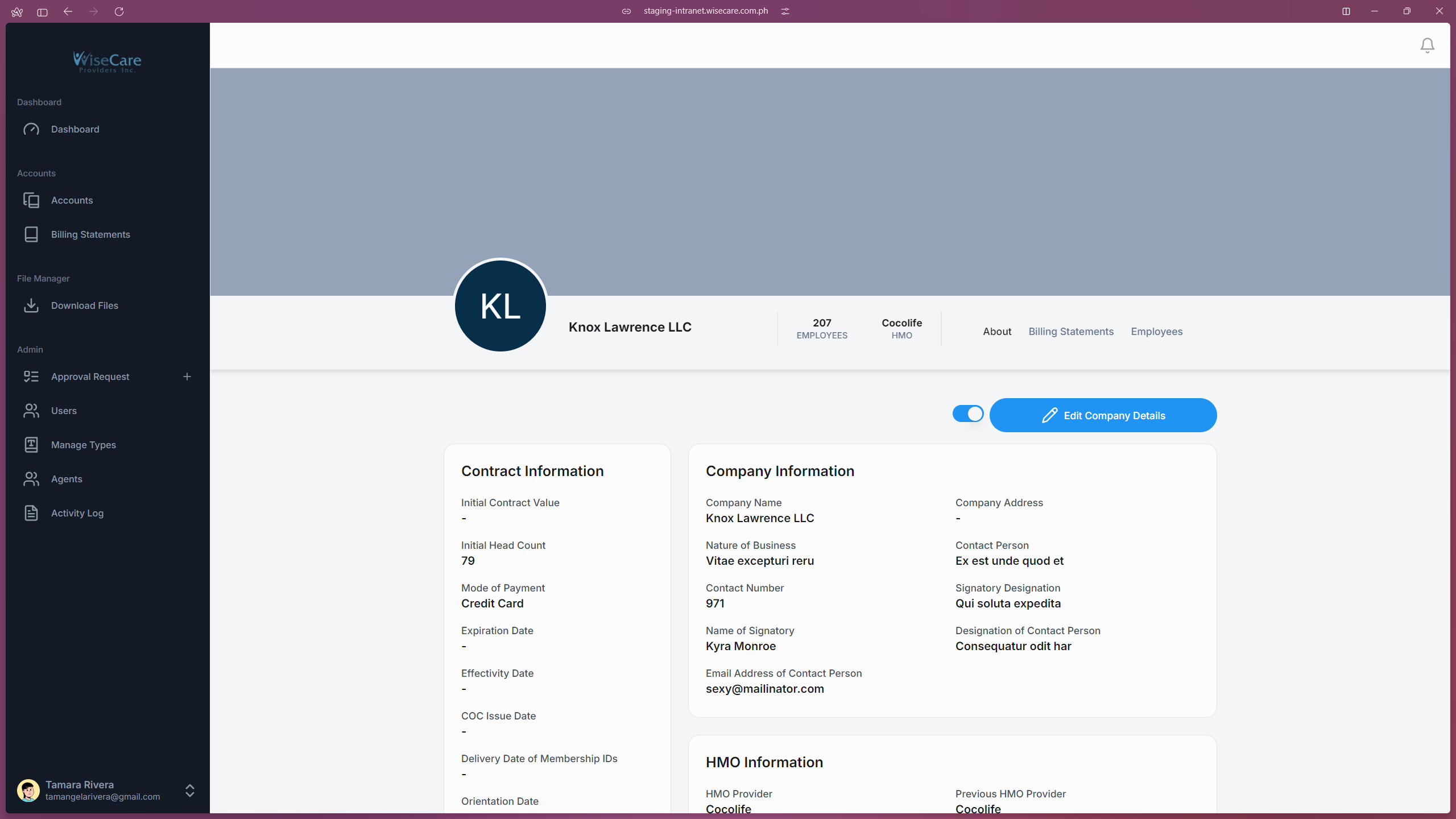
You can click on each row so you can view the Company's Profile containing a summary of the Account's Information.
In the Company's Profile, you can edit, delete, change the status of an Account and view the account's Billing Statements and Employees.
Adding an Account
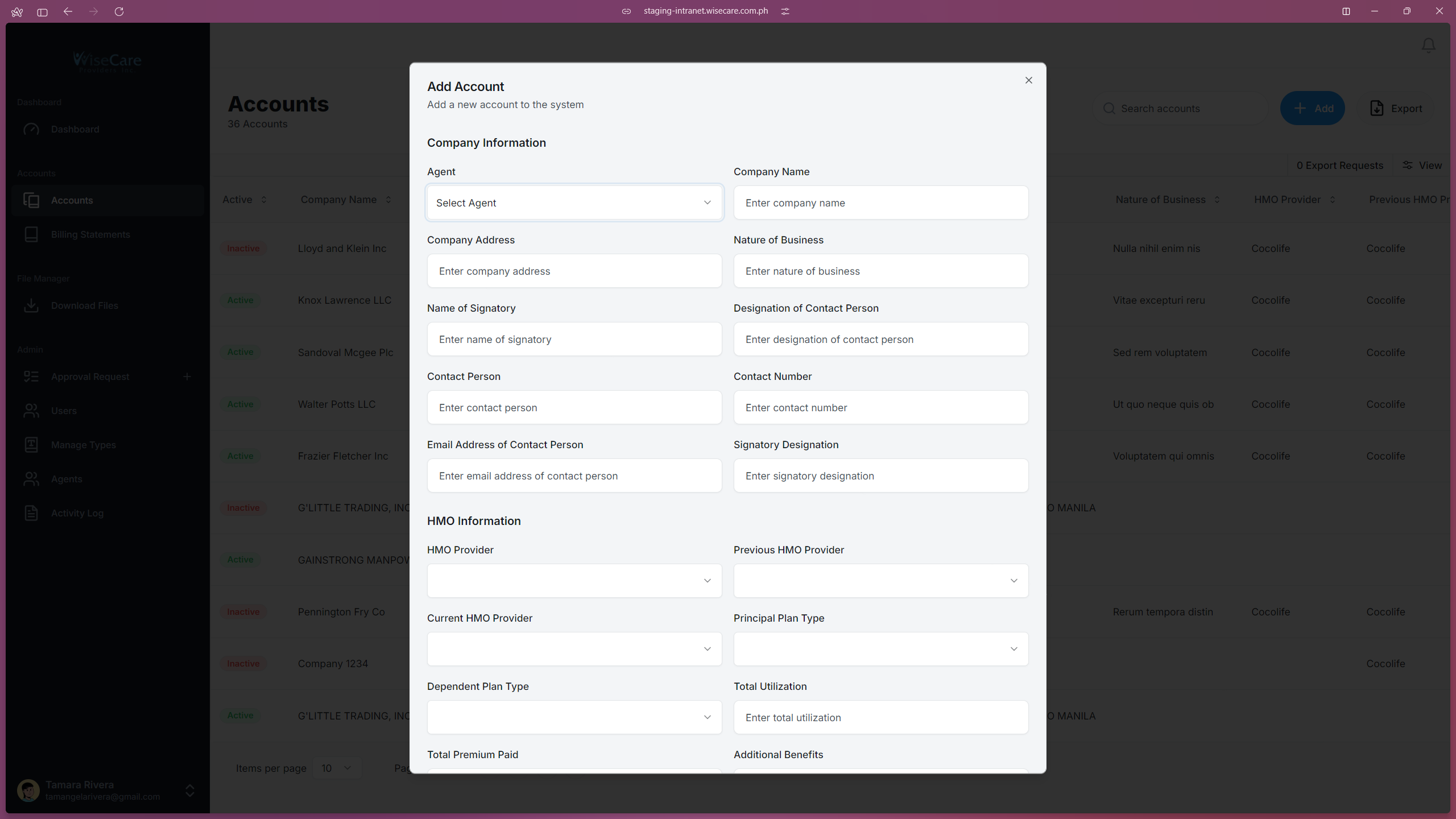
Click the "Add" Button
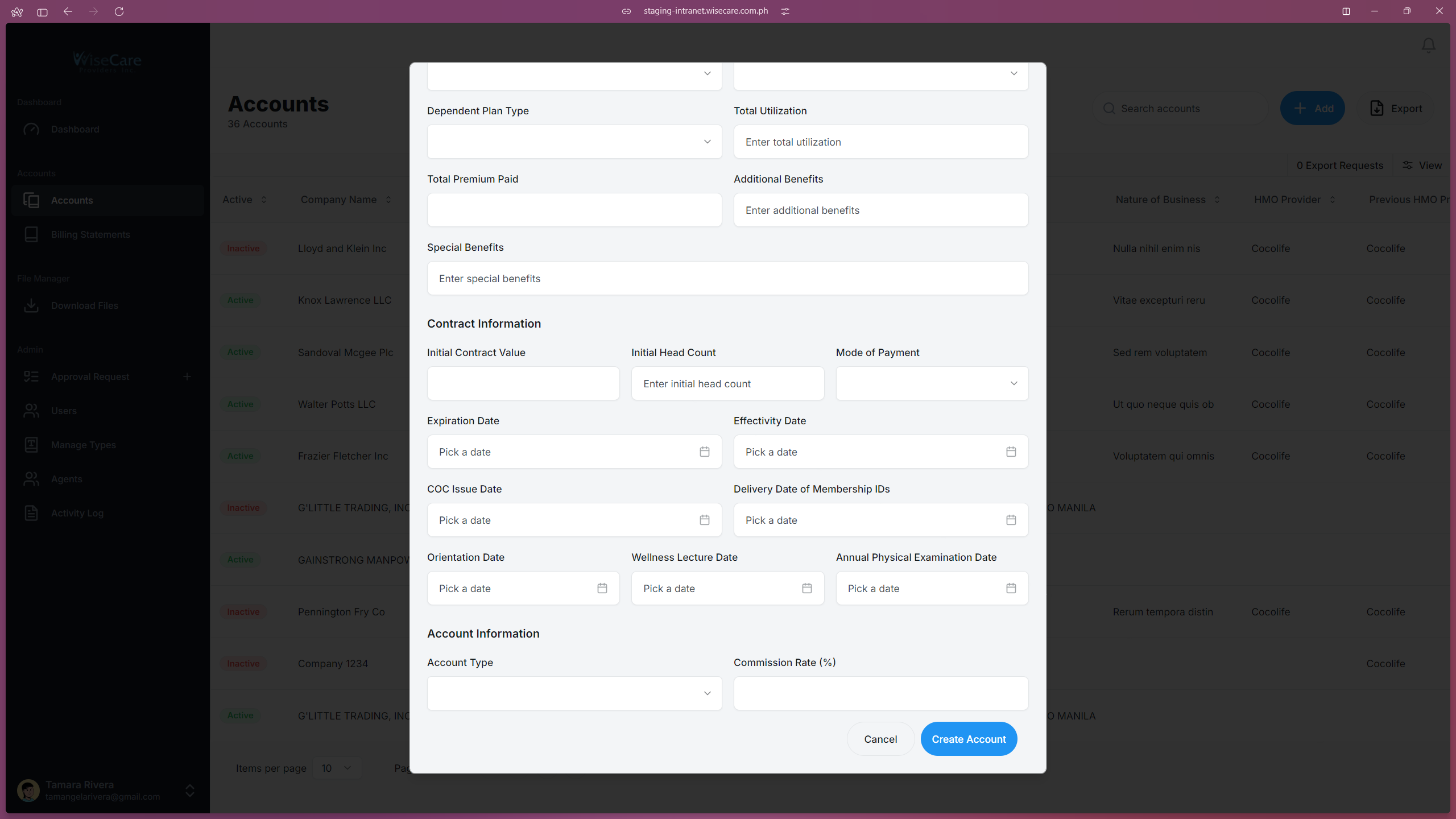
On the accounts page, click the "Add" button. A form will pop up in a modal window.
Fill Out the Form
Enter all the necessary details in the form fields.
Create the Account
Scroll to the bottom of the form and click "Create an Account" to save the new account.
Wait for Admin Approval
After creating the account, this will be submitted to the admin for approval.
Exporting the Accounts Table
Click the "Export" Button
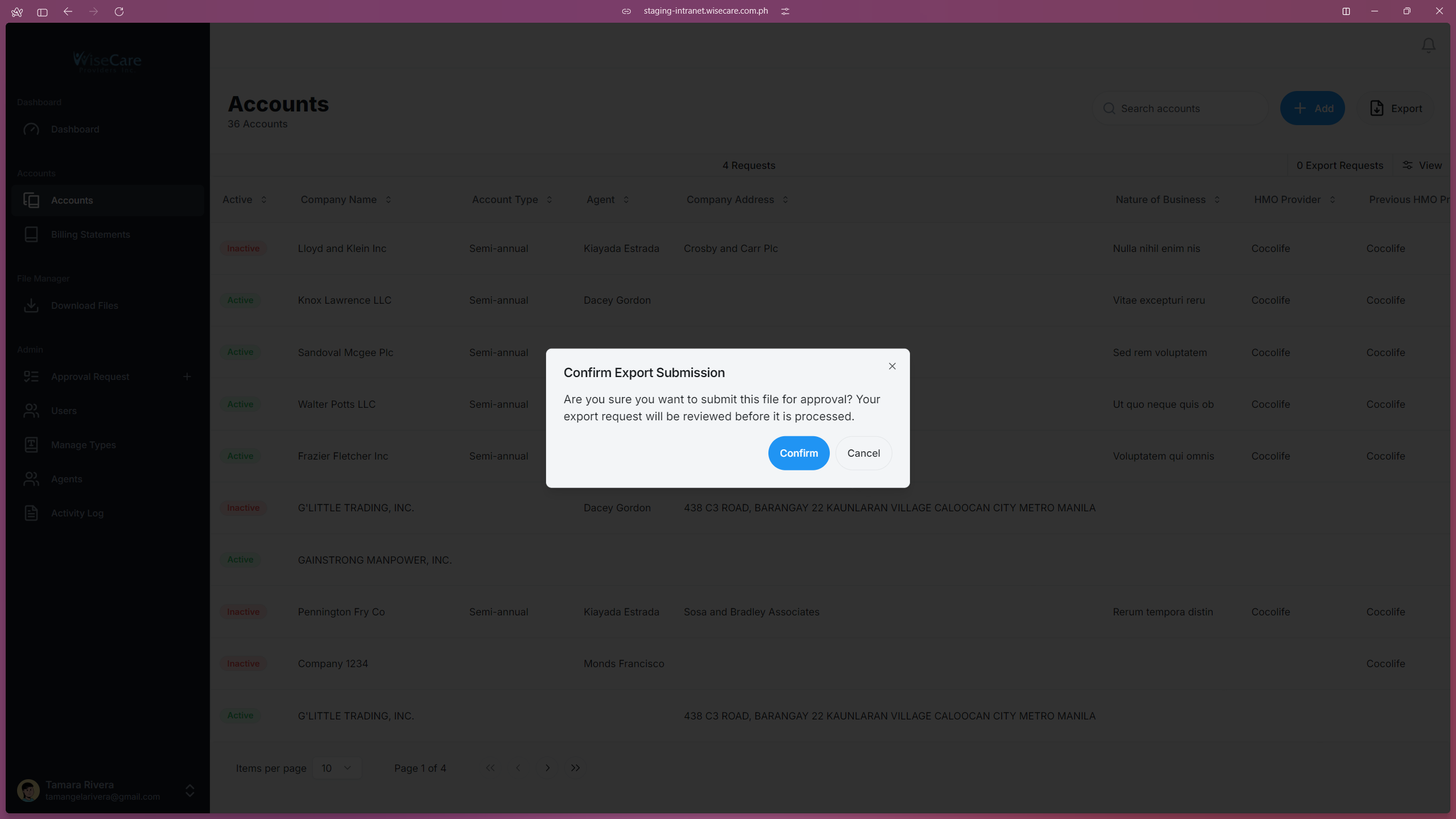
On the accounts page, click the "Export" button. A confirmation modal will appear.
Confirm or Cancel the Request
In the modal, click "Confirm" to submit your export request.
If you don’t want to proceed, click "Cancel" to close the modal.
Wait for Admin Approval
Once you click "Confirm", your request will be sent to the admin for approval.
Viewing and Cancelling Requests
You can view and cancel your requests using the "Requests" and "Export Requests" tabs:
Viewing Accounts Requests
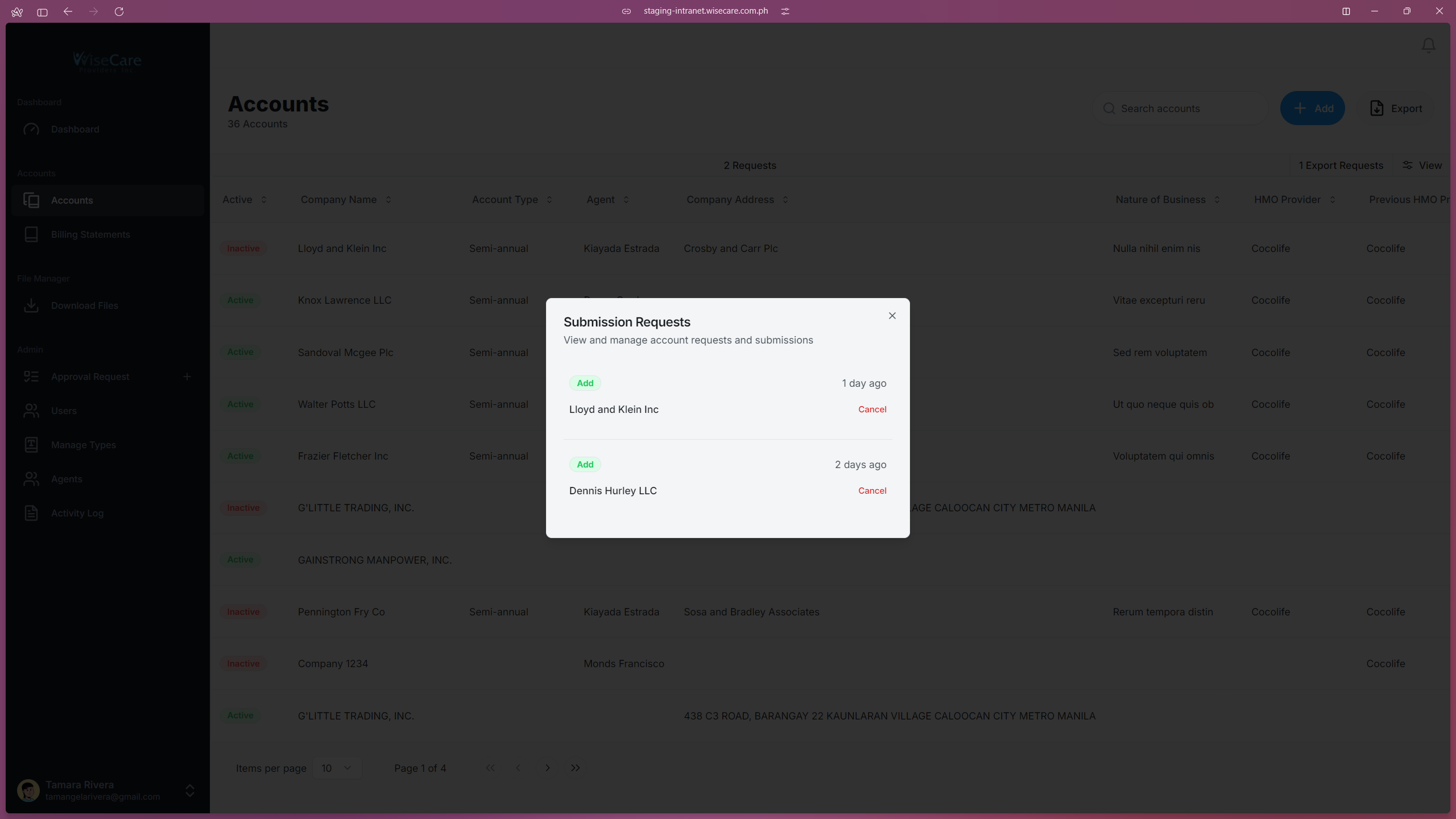
Click on the "Requests" tab to see all your requests for adding, editing, or deleting accounts.
Viewing Export Requests
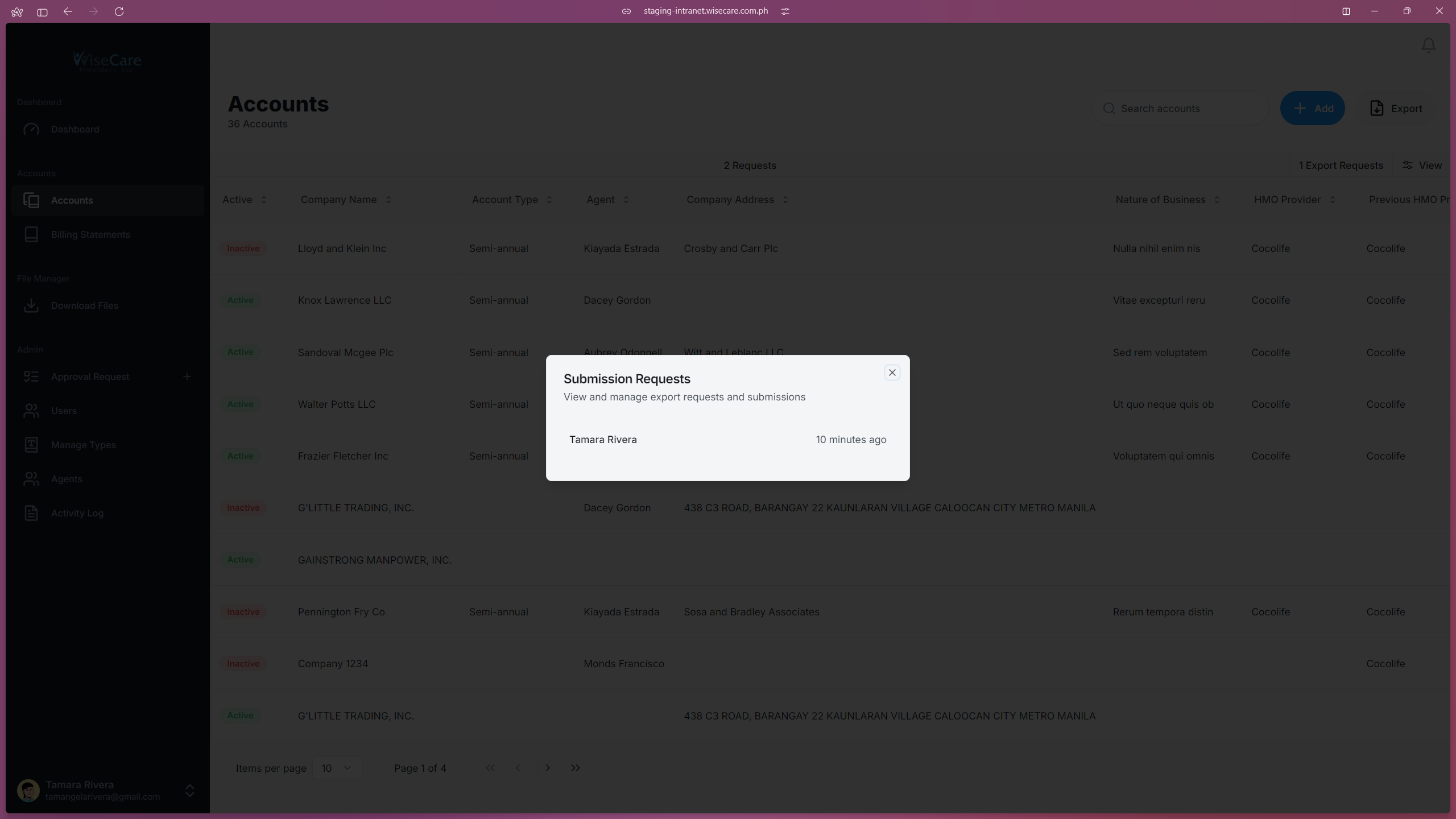
Click on the "Export Requests" tab to see the requests for exporting accounts.
Canceling a Request
For Addition, Edits, and Deletion of Accounts
Click the "Requests" Tab and click on Cancel beside the Account's Name.
For Export Requests
Click the "Export" button. A window will pop up telling you that you still have a pending Export Request. Click on "Delete Request"