Company Profile
Each account has its own company profile. Here’s how you can manage the company profile:
Access the Company Profile
To view a company’s profile, click on a row in the "Accounts" table.
Manage Company Details
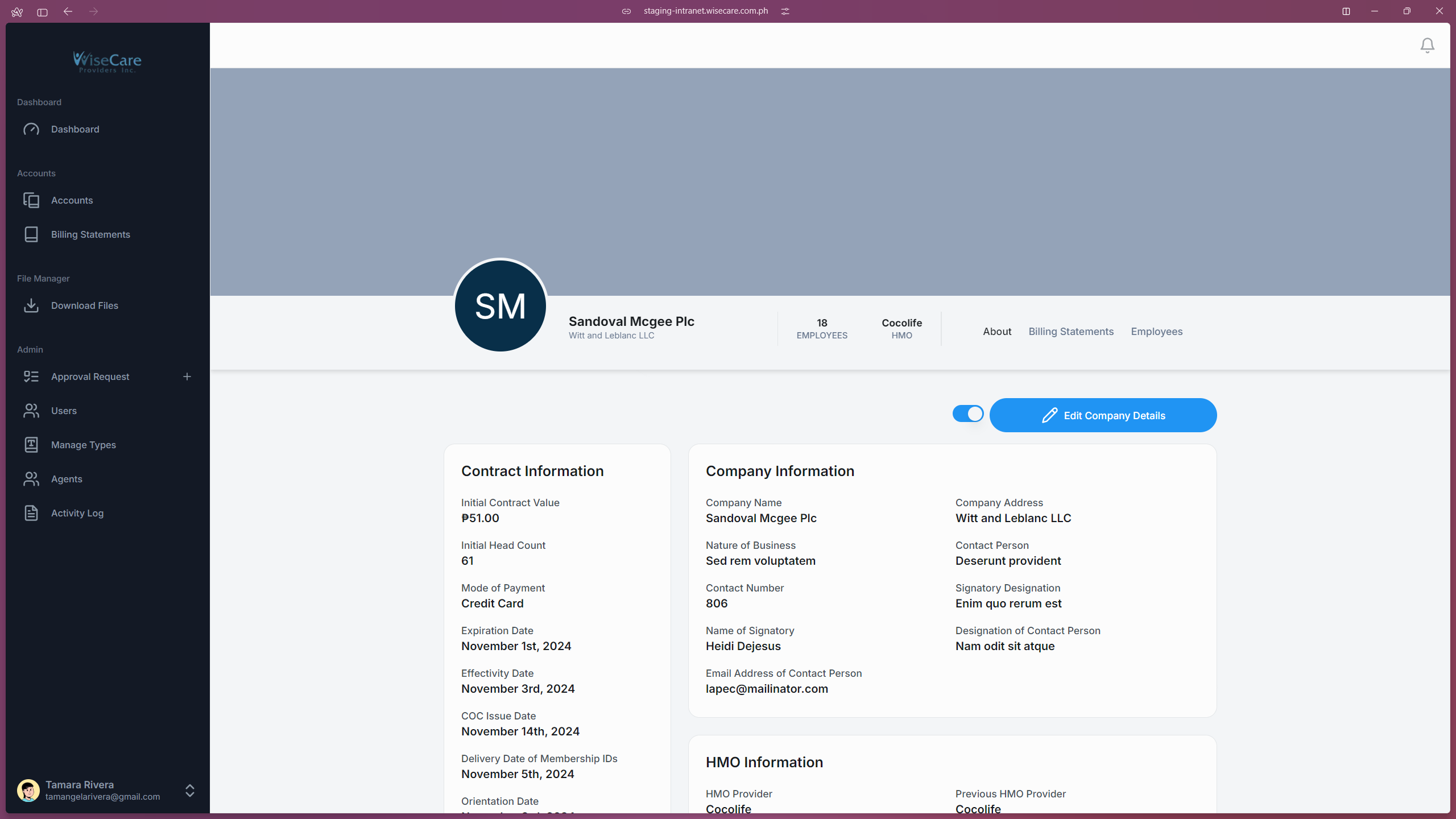
In the "About" tab, you can see all the information of an Account that includes their Contract Information, Account Information, Company Information, and HMO Information.
You can also edit and delete an account in this tab.
Change Account Status
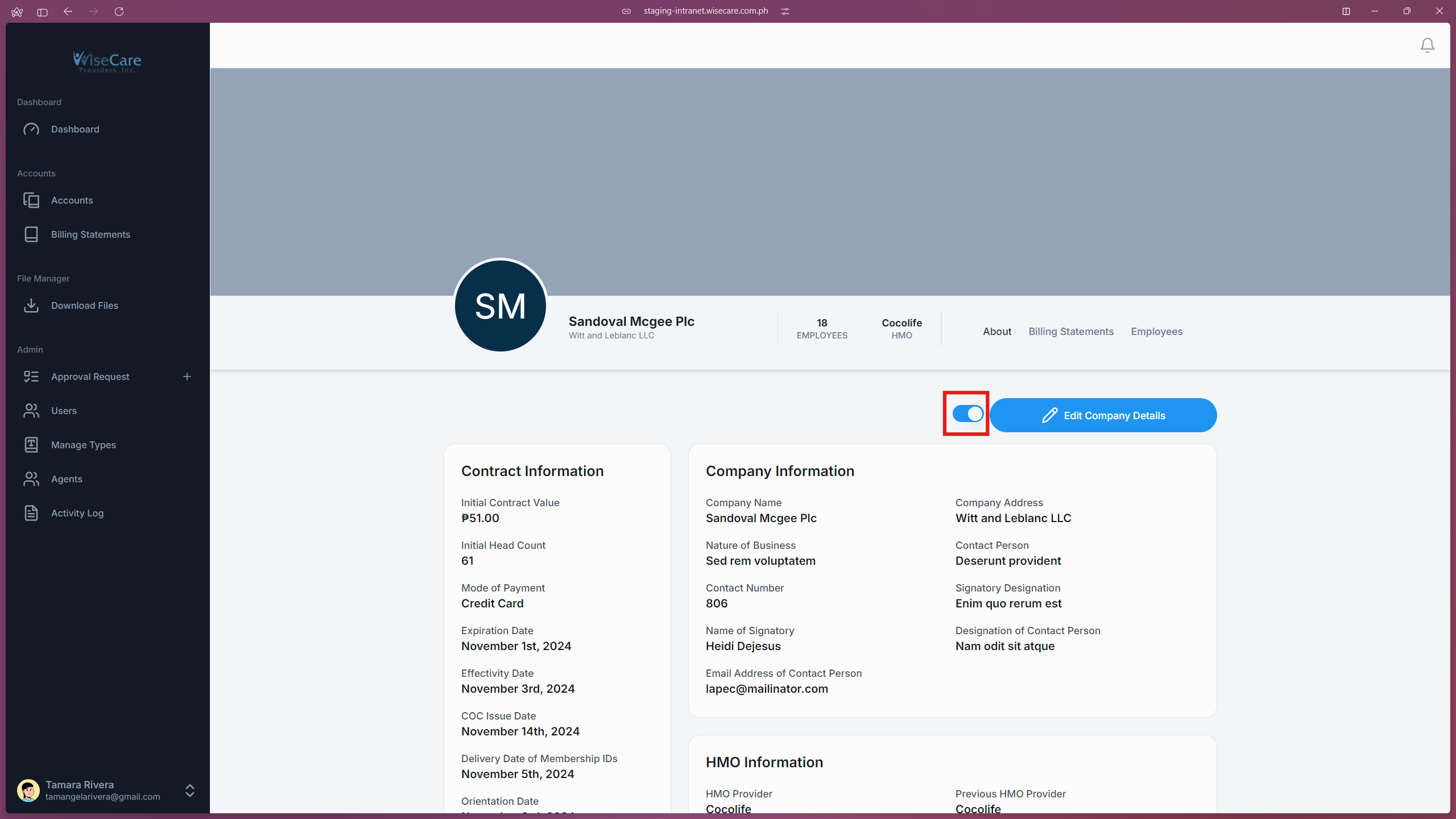
You can change the status of the account by clicking on the toggle button next to "Edit Company Details".
Manage Billing Statements
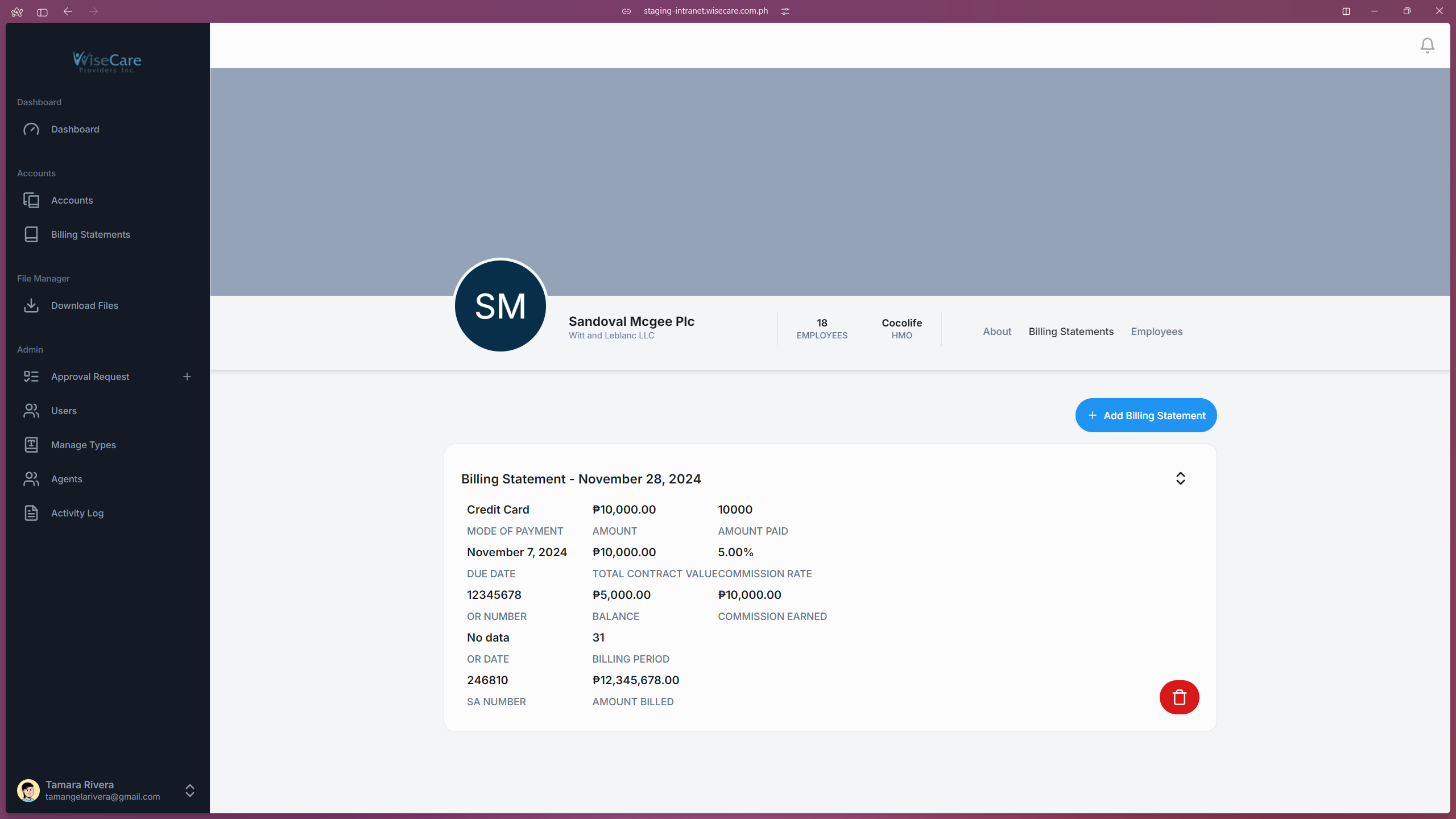
In the "Billing Statements" tab, you can view the billing statements for the account by clicking on the arrows next to each billing statement.
You can also add and delete a billing statement in this tab.
Manage Employees
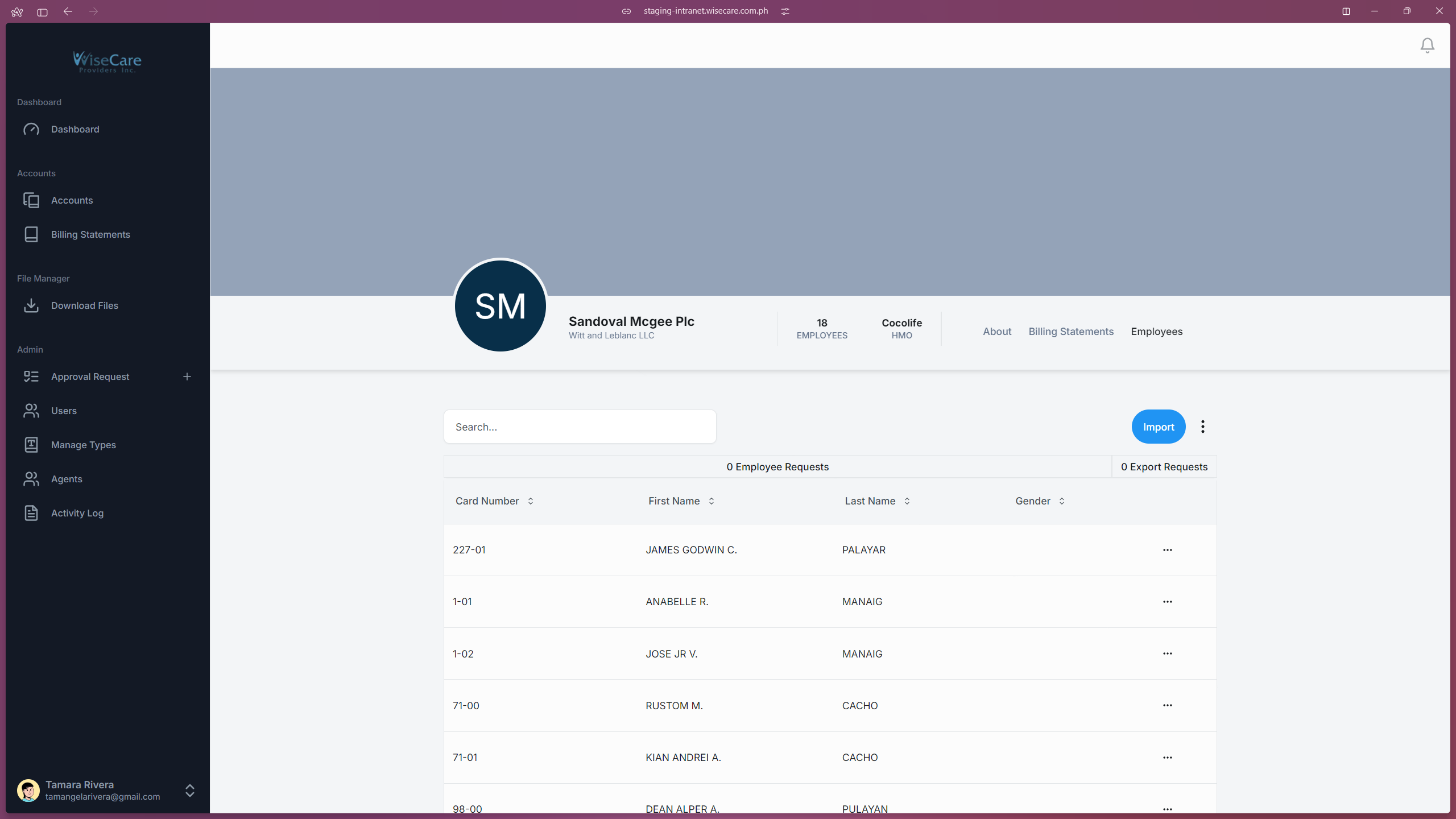
In the "Employees" tab, you will see a table with the company’s employees.
You can view, add, edit, delete, export, and import employee sheets in this tab.
Editing an Account
Open the Edit Form
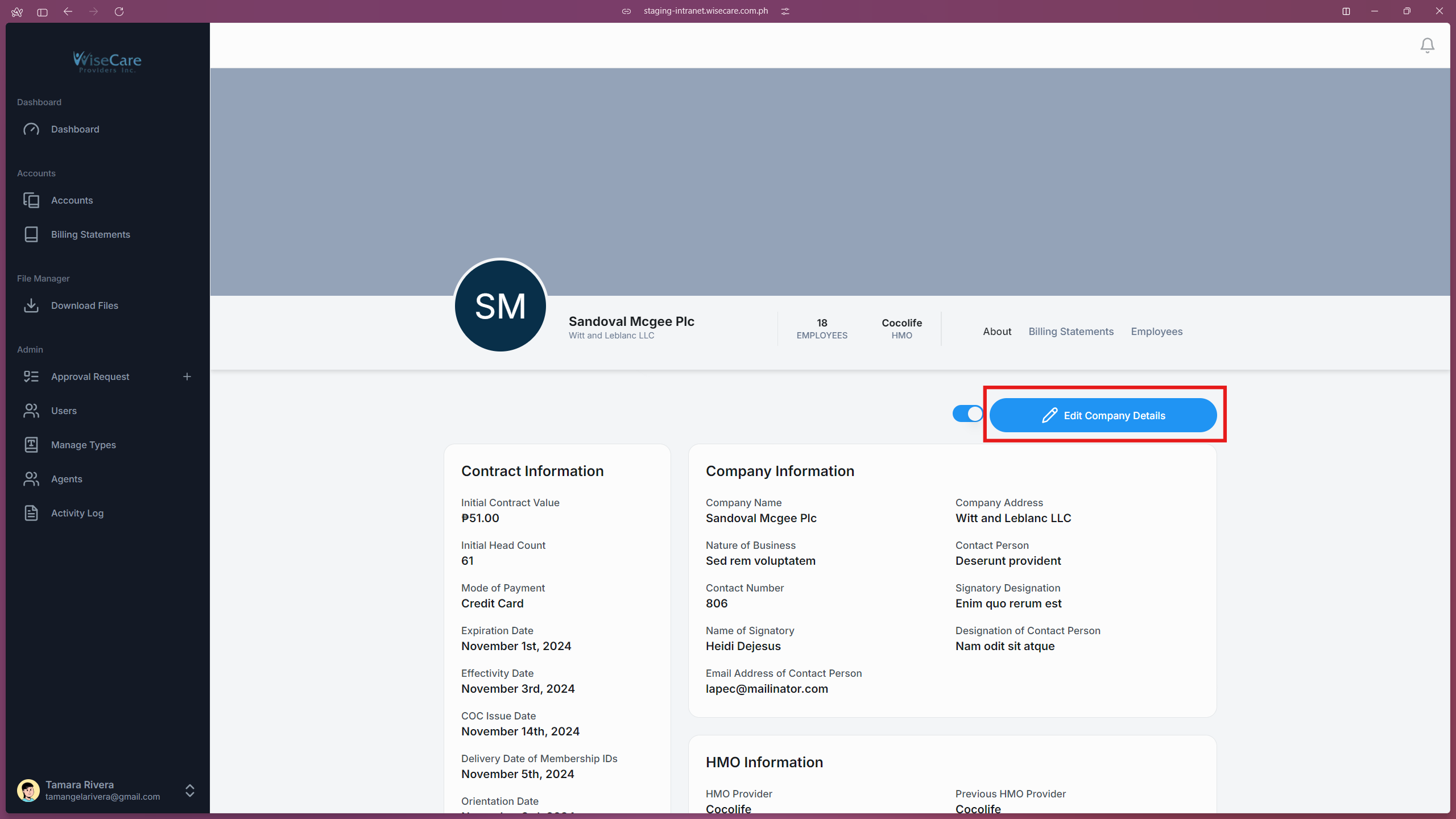
Go to the "About" tab in the company profile and click the "Edit Company Details" button. This will open a form where you can make changes.
Make Your Changes
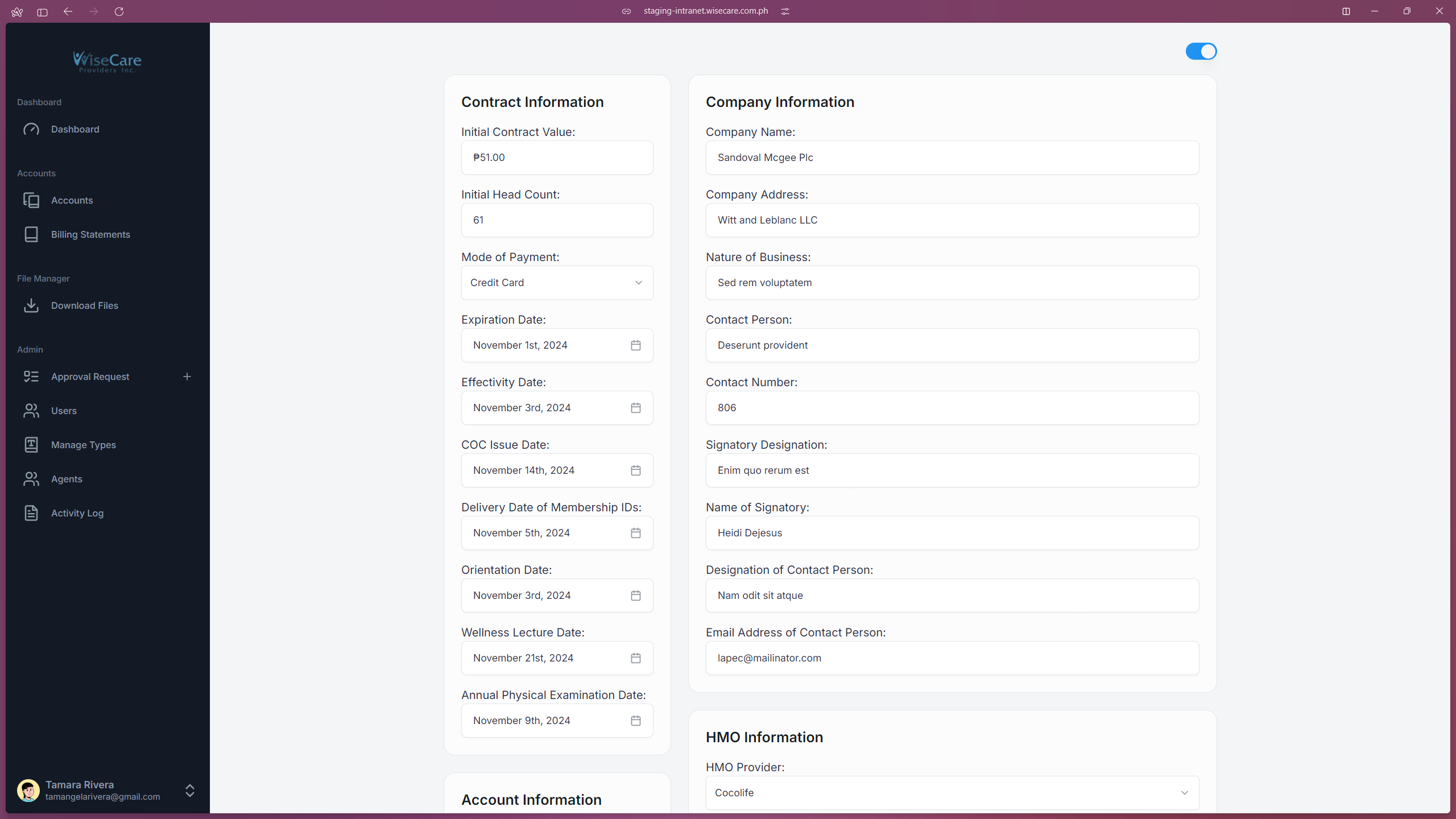
Update the account details as needed by filling out the form fields.
Submit Your Changes
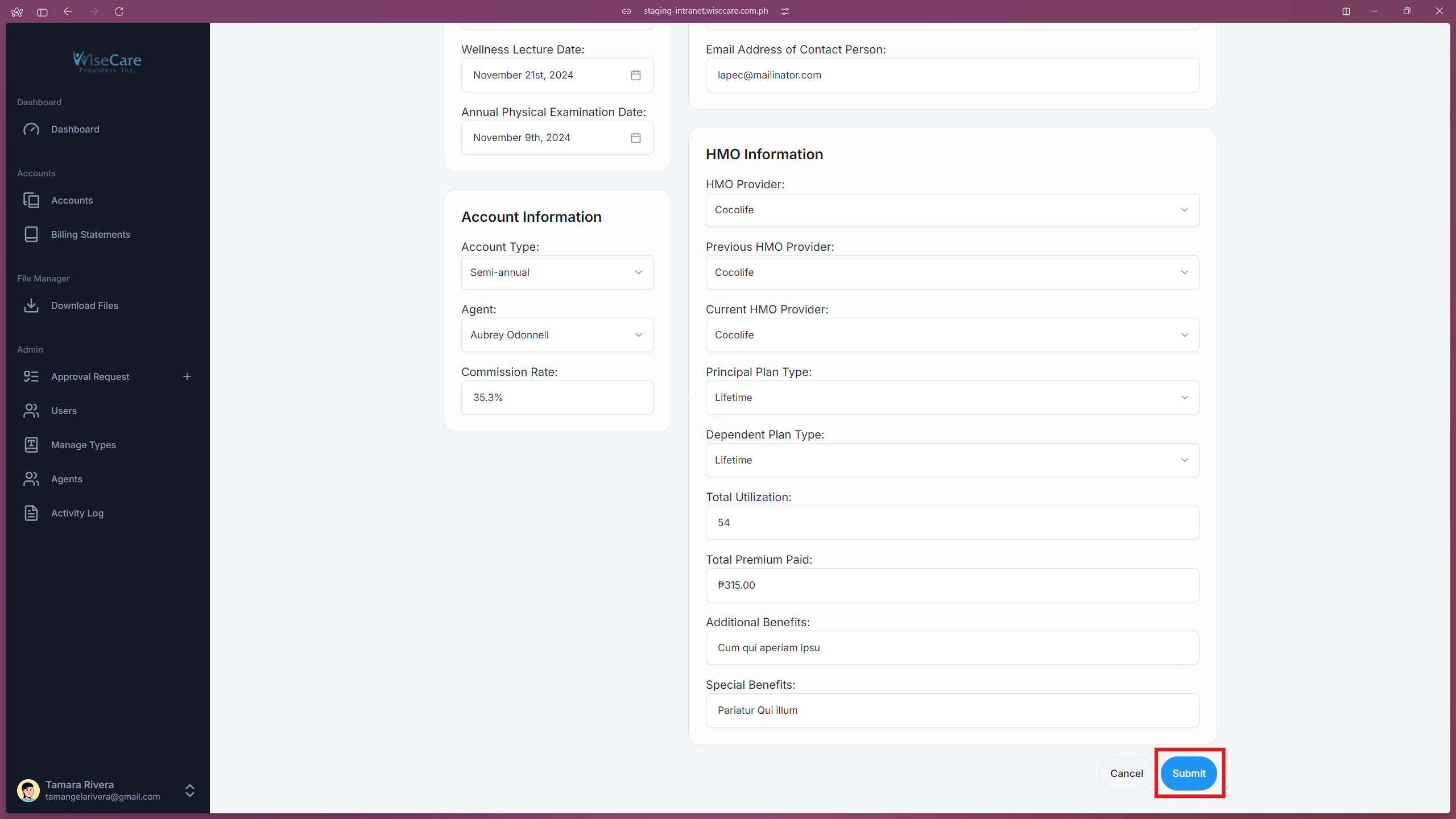
Scroll to the bottom of the form and click the "Submit" button to save your changes.
Admin Approval
After submission, your edited account details will be sent to the admin for approval.
Track Your Edit Requests
To view your edit requests, go back to the "Accounts" table and click on the "Requests" tab.
Deleting an Account
Locate the Delete Option
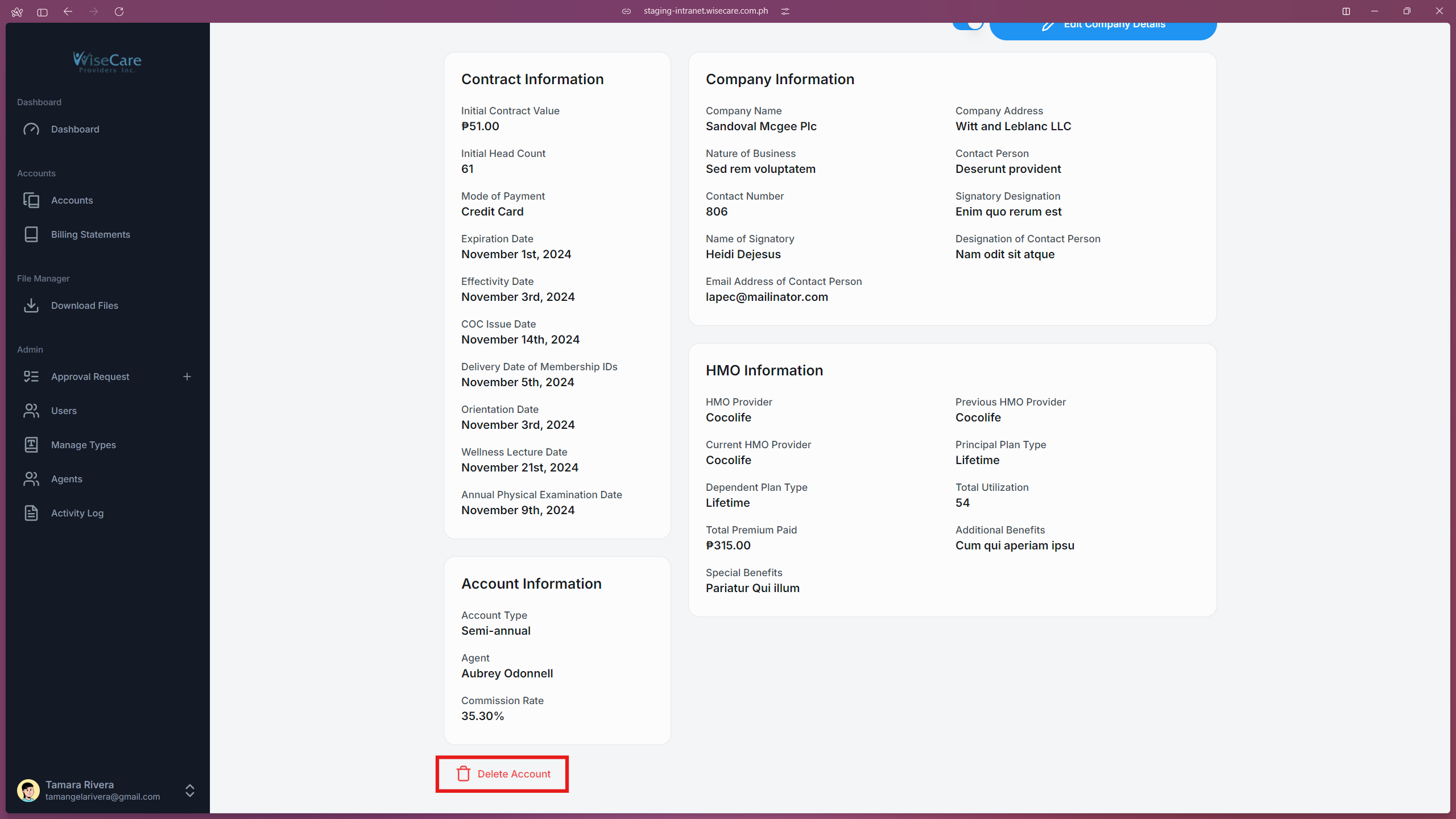
Go to the "About" tab in the company profile and scroll to the bottom of the page.
Click on the "Delete Account" button, located below the Account Information section.
Confirm Deletion
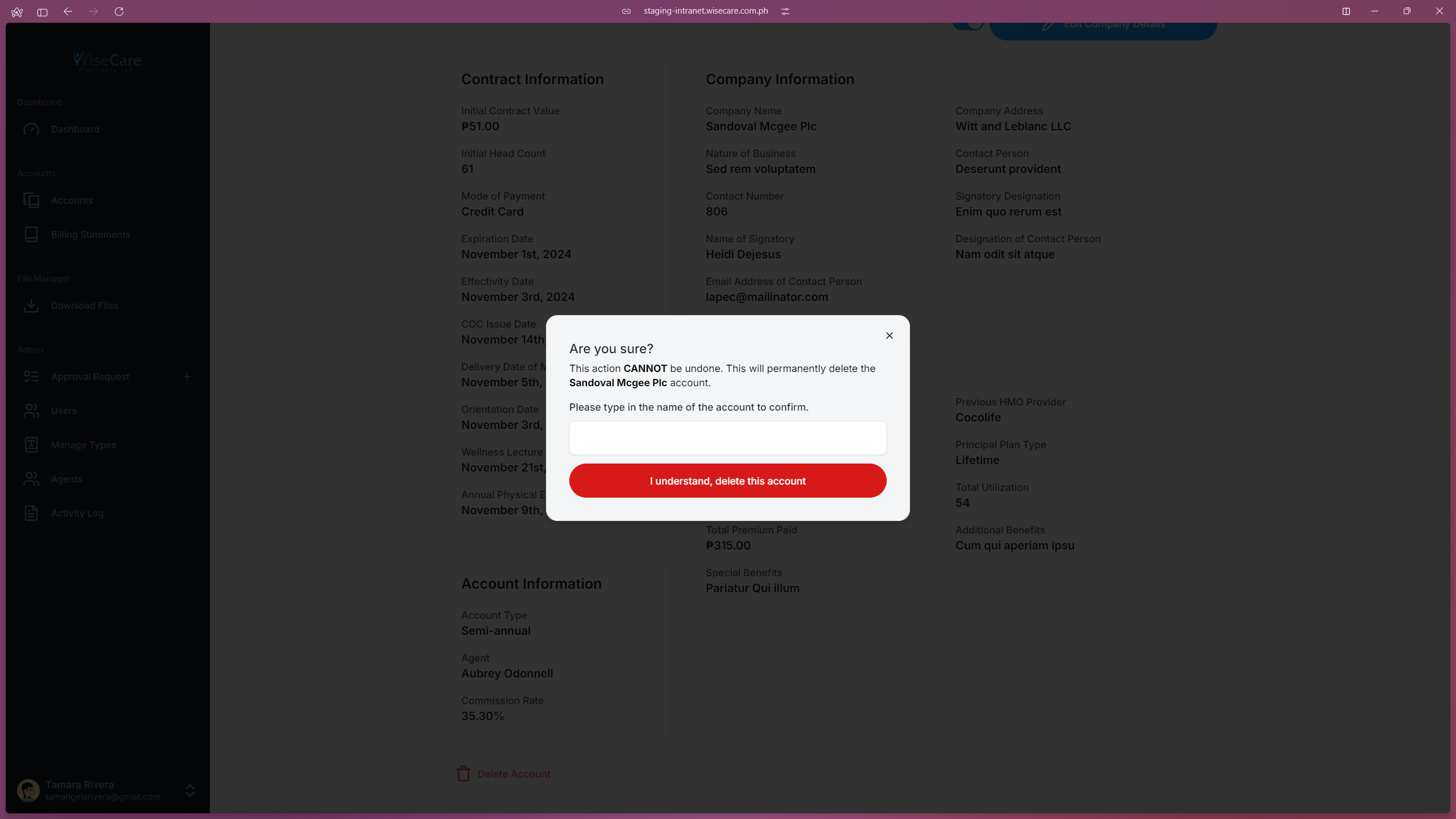
A confirmation prompt will appear, asking if you’re sure about deleting the account.
Input the Account Name
Enter the name of the account to confirm the deletion.
Submit Deletion Request
Click the "I understand, delete this account" button to proceed.
If you decide not to delete, simply click the "X" icon to cancel the process.
Admin Approval
The deletion request will be sent to the admin for approval.
Adding a Billing Statement
You can add Billing Statements in the Company Profile Page or in the Billing Statements Table. Refer to the Adding a New Billing Statement section in the "Billing Statements Features" chapter for detailed steps.
Open the Add Billing Statement Form
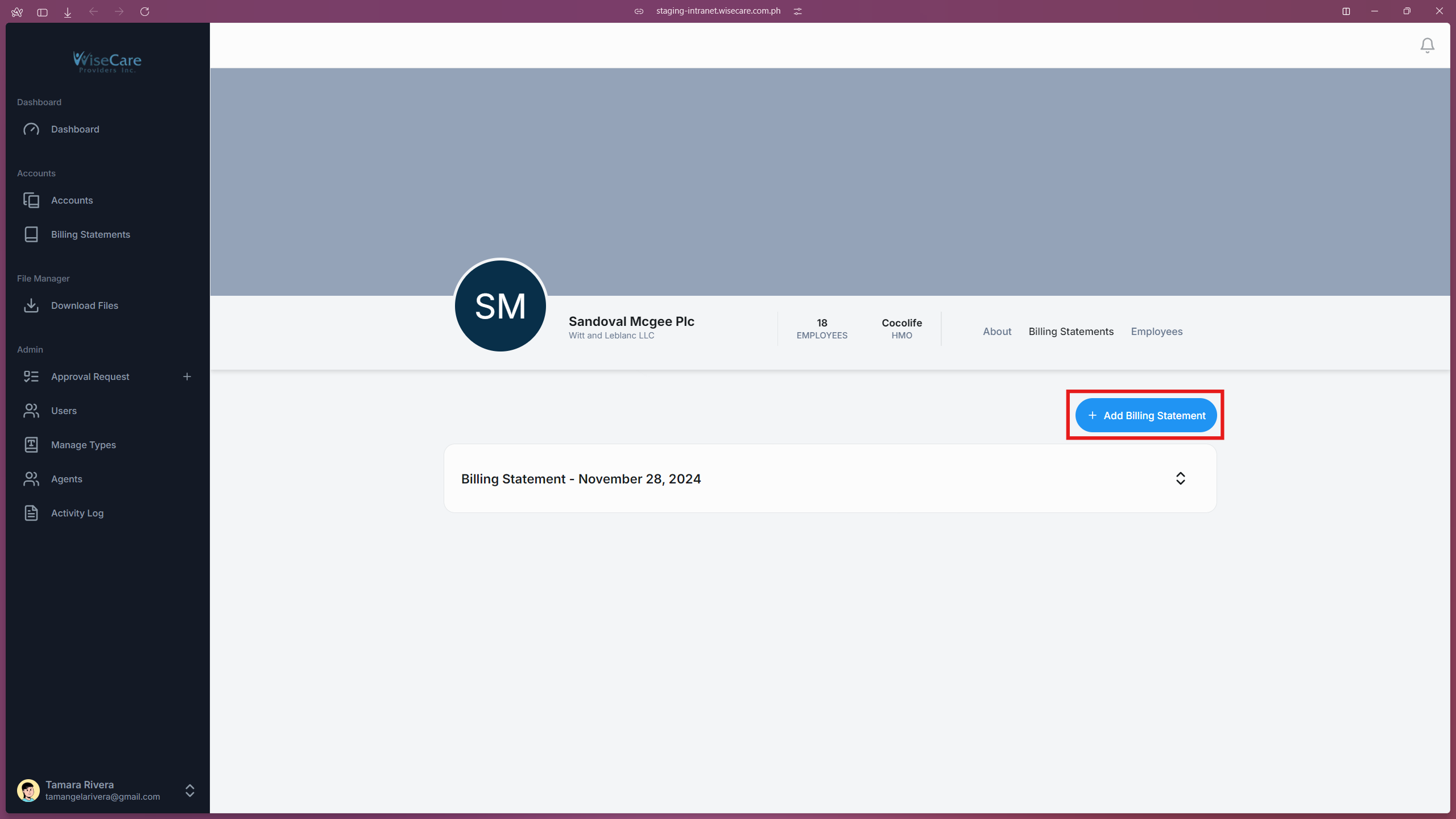
Navigate to the "Billing Statements" tab.
Click the "Add Billing Statement" button to open the form.
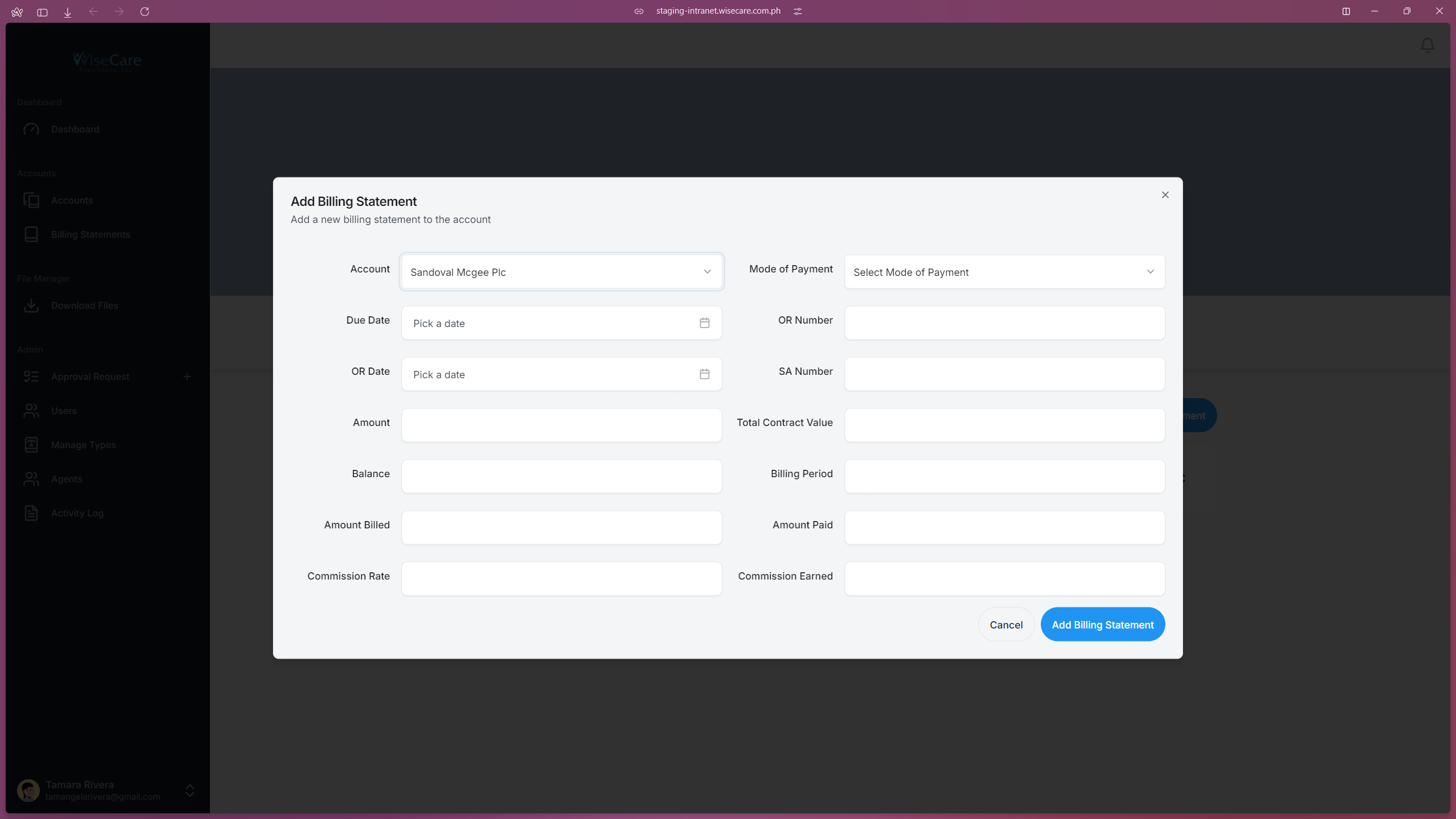
Fill Out the Form
Enter all the necessary details in the fields provided.
Submit the Billing Statement
Once all fields are filled, click the "Add Billing Statement" button and this will reflect on the "Billing Statements" Table and "Billing Statements" Tab here on the "Company Profile" page.
Deleting a Billing Statement
Expand the Billing Statement Details
Navigate to the "Billing Statements" tab.
Click the arrow next to the billing statement you want to delete to reveal its details.
Select the Delete Option
Locate the "Trash" icon at the lower right of the expanded details and click on it.

Confirm Deletion
A confirmation prompt will appear.
Click "I understand, delete this billing statement" to confirm and complete the deletion.
Review Deletion
The billing statement will be removed from the "Billing Statements" Tab as well as in the "Billing Statements" Table.
Adding an Employee to an Account Individually
You can add employees individually or in batches (via importing). Below are the steps for adding an employee manually:
Open the Add Employee Form
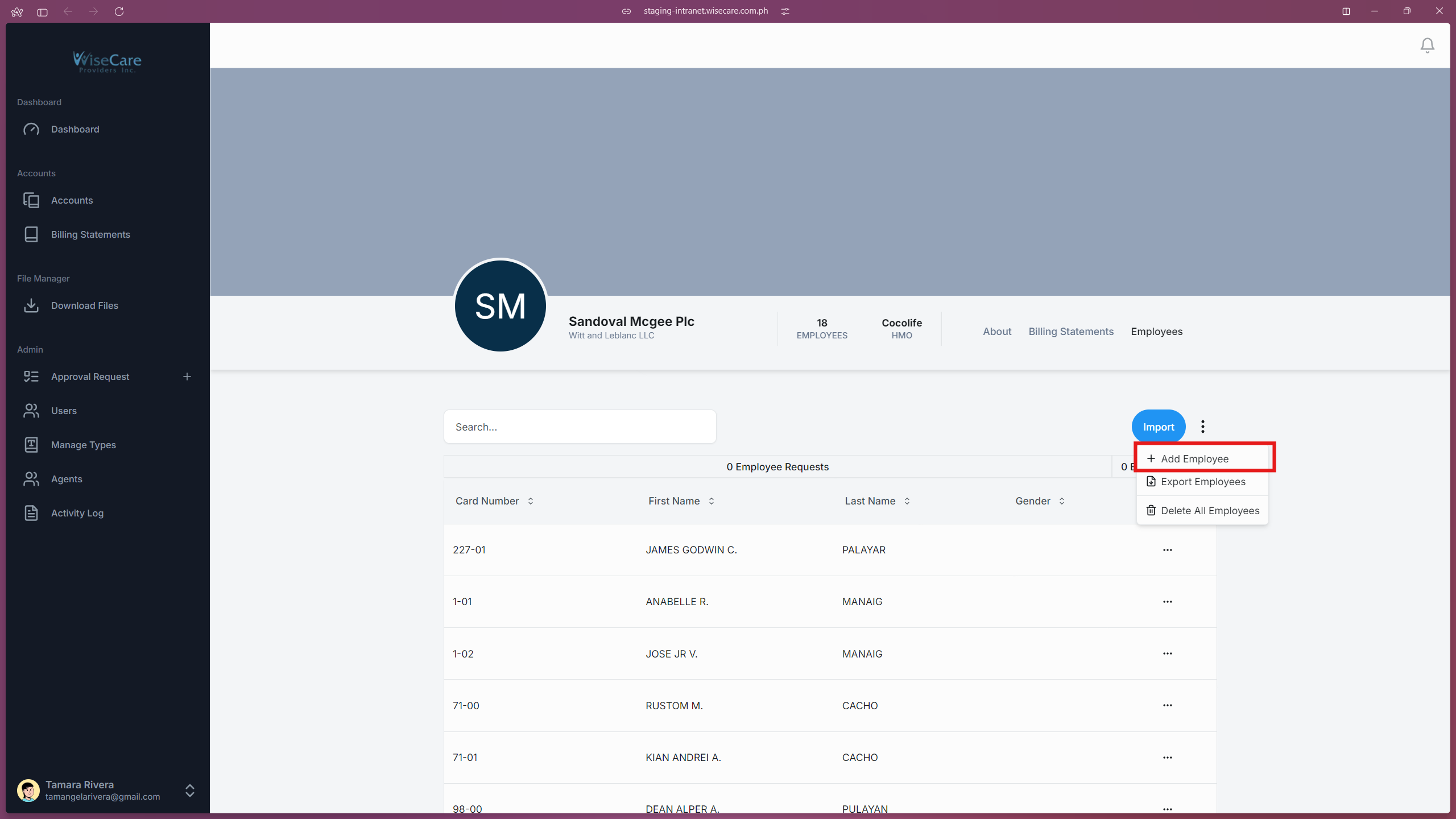
Click the three dots above the employee table.
From the dropdown menu, select "Add Employee" to open the form.
Fill Out the Employee Details
Enter all required information in the provided fields.
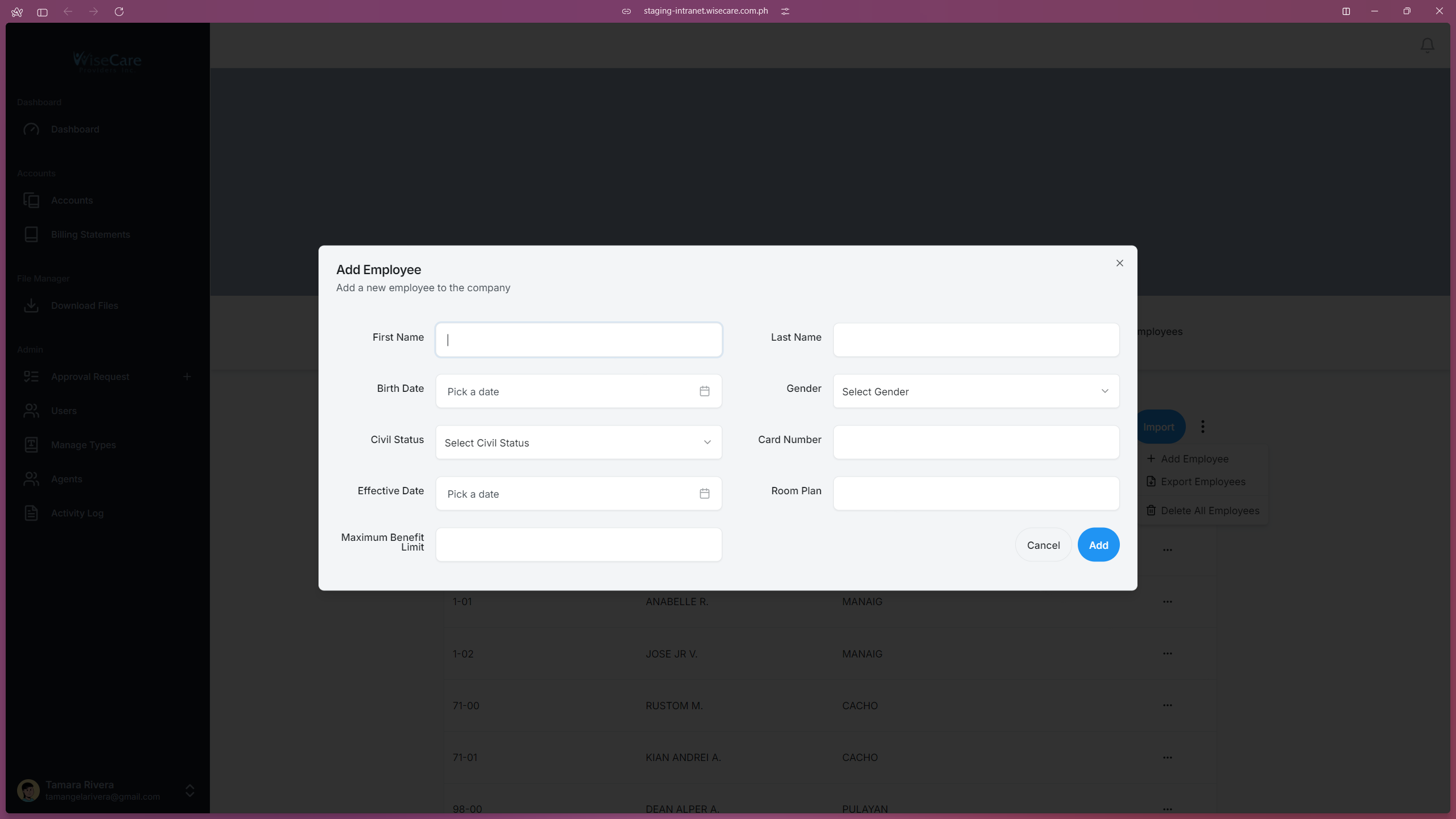
Save your changes
Click the "Add" button to save your changes. You can click on the "Cancel" button if you decide not to add the Employee.
Adding Employees via Importing
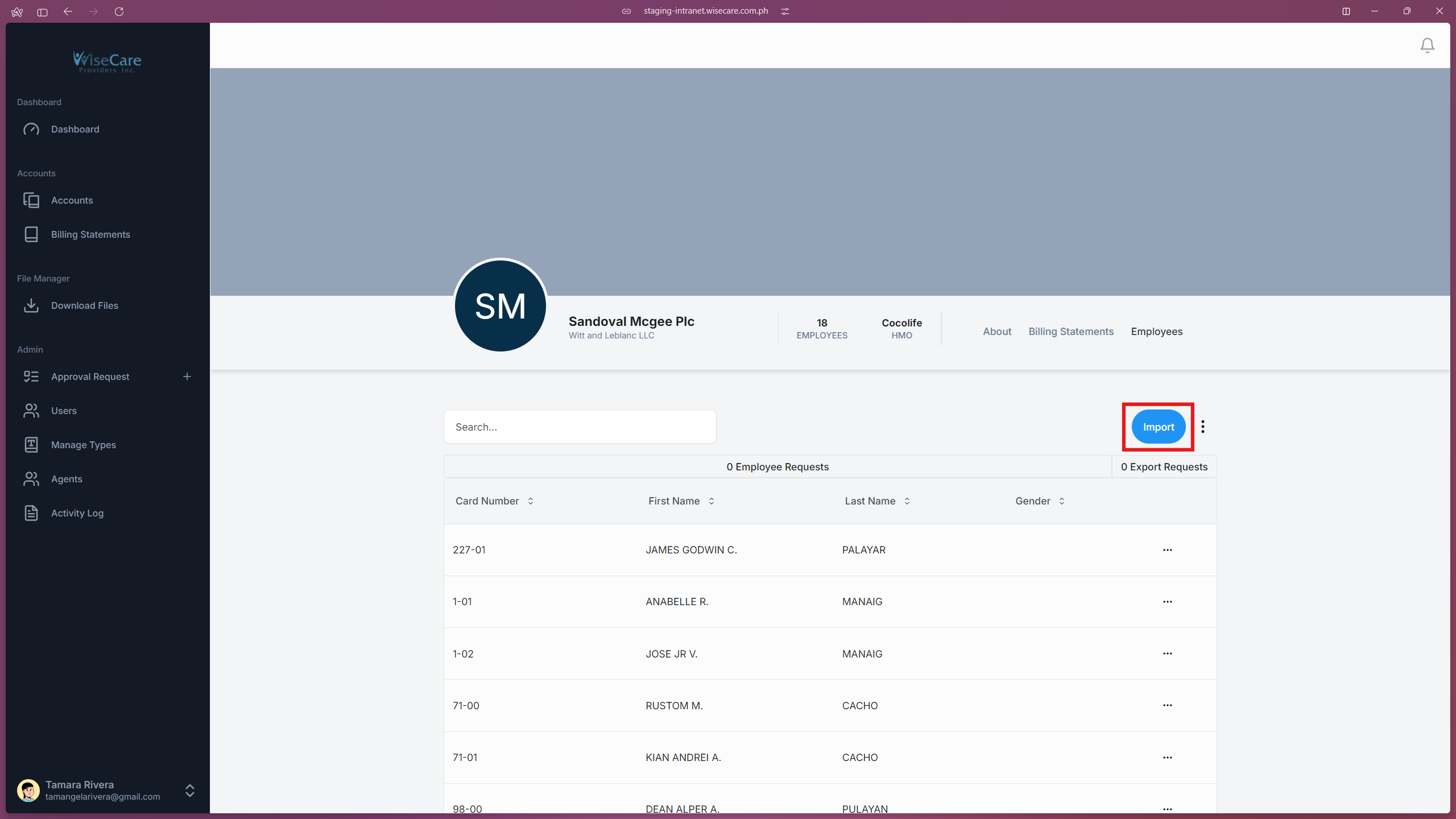
Click the Import Button
Locate the "Import" button at the top of the table and click it.
A window will pop up showing four steps: Upload File, Select Header Row, Match Columns, and Validate Data.
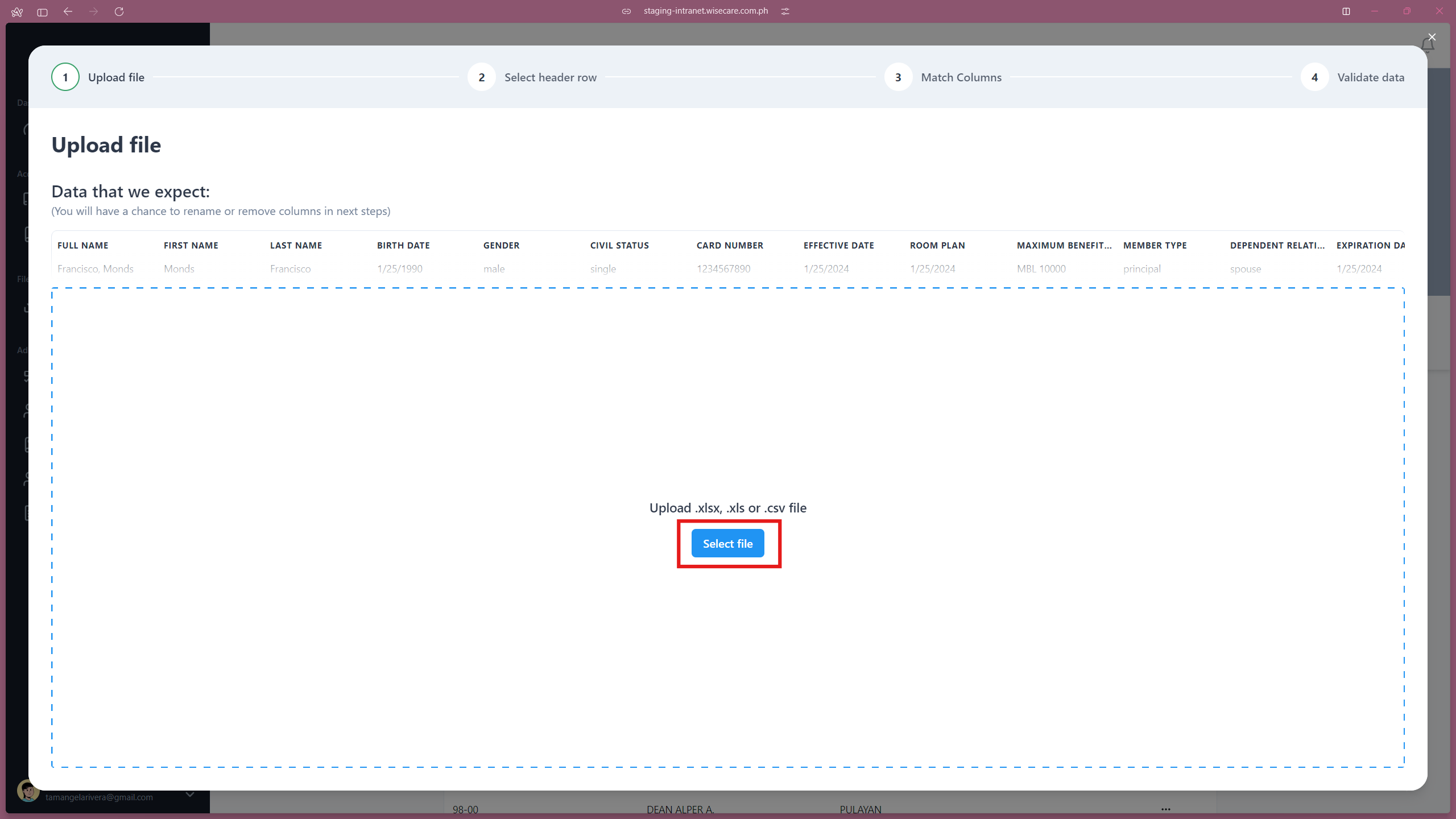
Step 1: Upload File
Click "Select File" or drag the file into the pop-up window.
You can upload files in the following formats:
.xlsx,.xls, or.csv.After selecting the file, proceed to the next step.
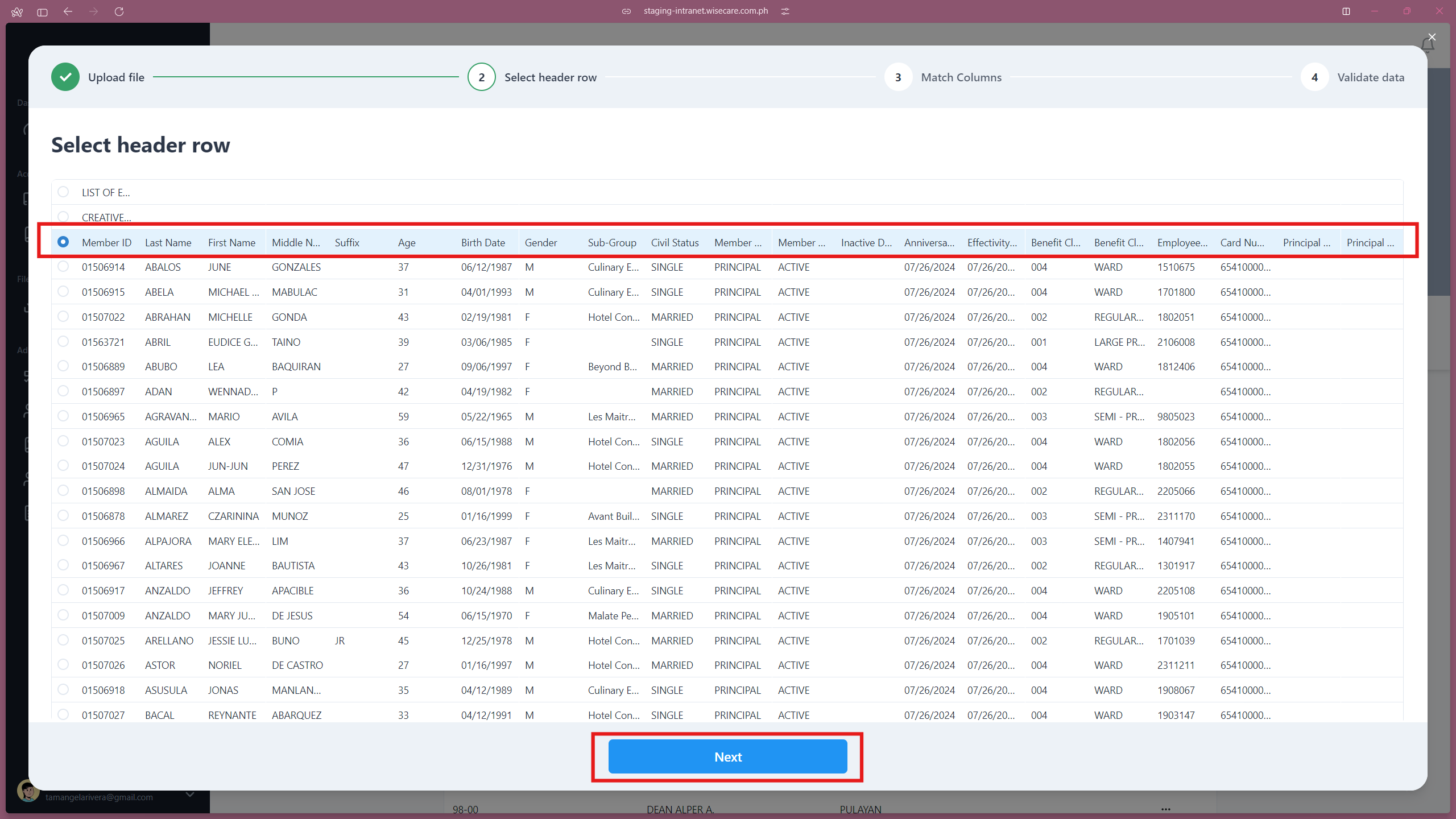
Step 2: Select Header Row
Identify and select the header row (the row containing column names) in the uploaded file.
Click "Next" to proceed.
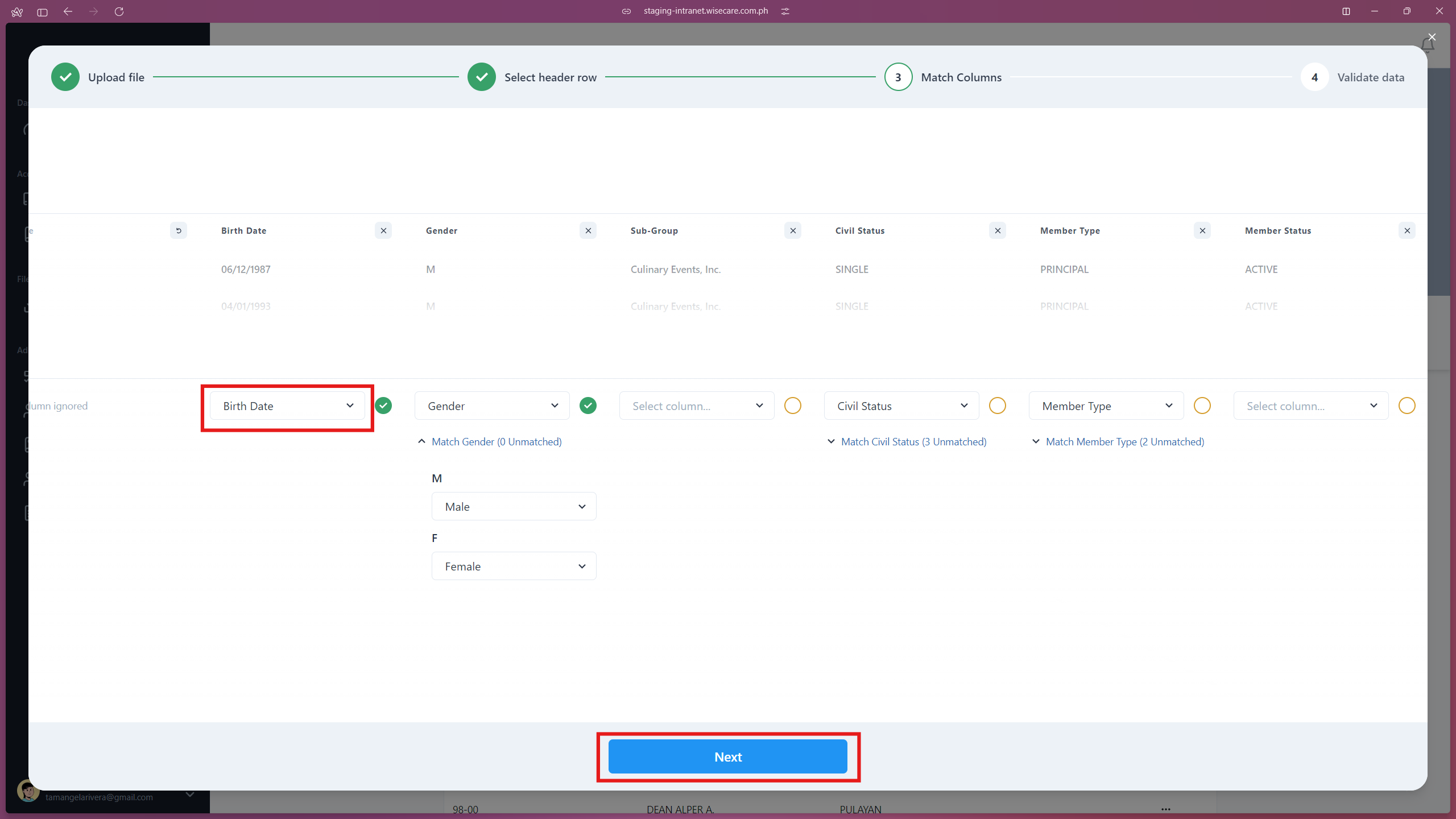
Step 3: Match Columns
Match the columns in your file to the corresponding columns in the system.
For fields with specific options (e.g., Gender or Civil Status), align the terms used in your file with the system's terms (e.g., "M" in the file = "MALE" in the system).
If a column in your file does not match any system column, you can discard it by clicking the "X" icon beside the column name. You can also bring it back by clicking the refresh icon beside the column name.
Once all columns are matched, click "Next".
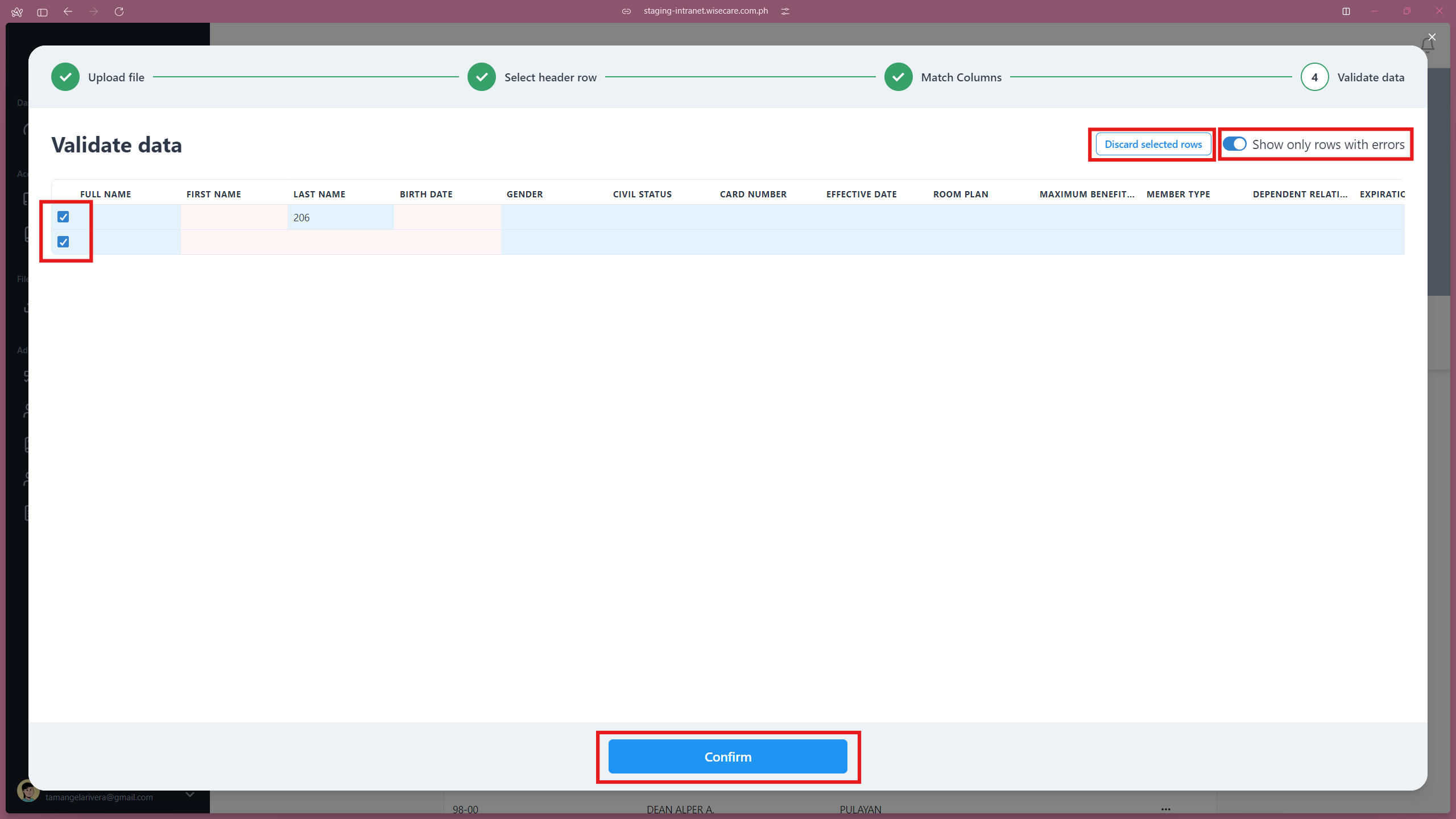
Step 4: Validate Data
Use the toggle button labeled "Show only rows with errors" to filter rows with issues.
Review the displayed rows, select them by clicking on the check box on the left most side of the rows, and click "Discard selected rows".
Confirm your changes by clicking "Confirm".
Editing Employee Details
Open the Edit Form
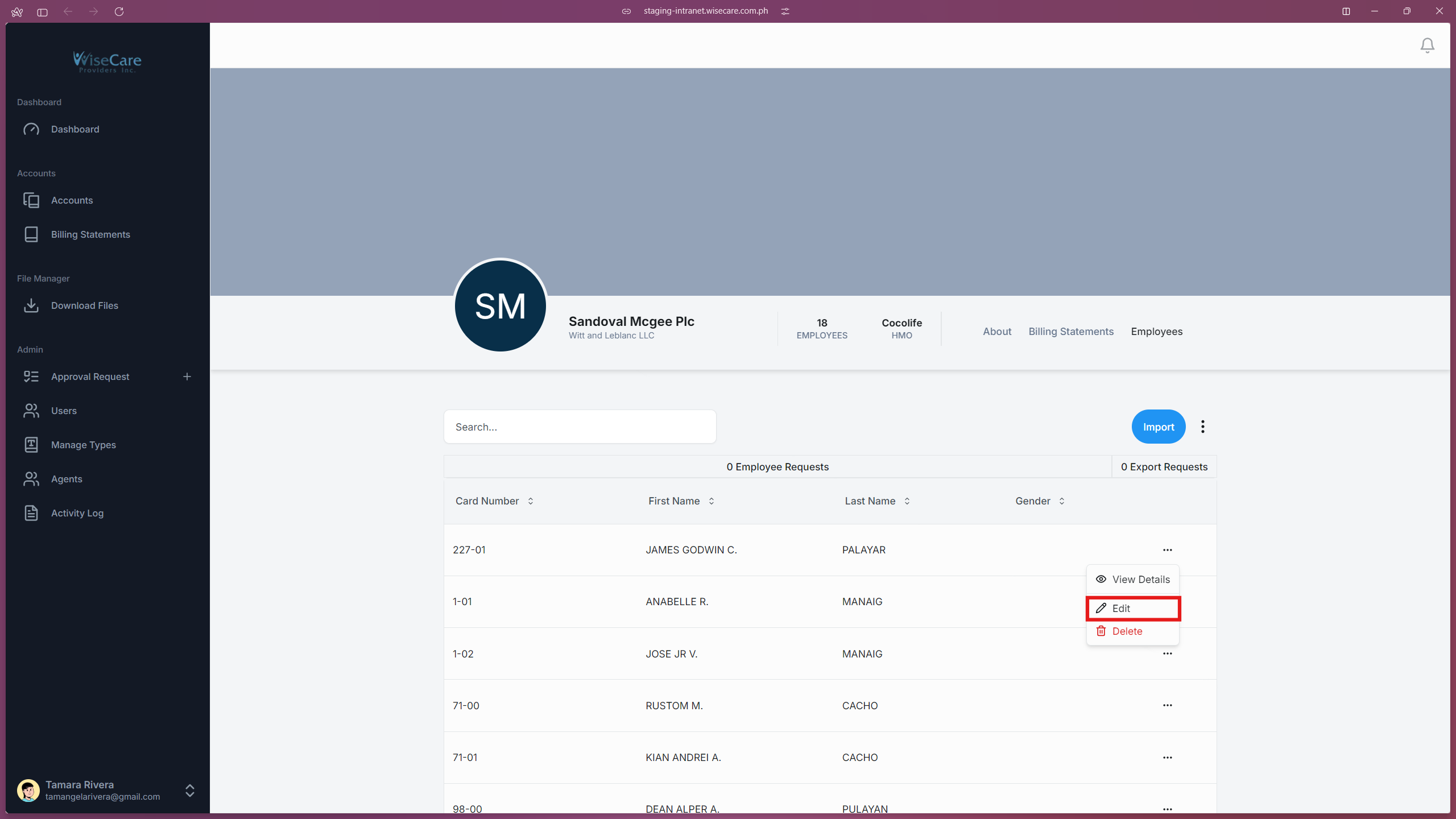
Click on the three dots at the end of the employee's row in the table.
From the dropdown menu, select "Edit" to open the form.
Update the Employee Details
Edit or update the necessary fields in the form as needed.
Submit the Changes
Once you're done, click the "Edit" button to save your changes.
Deleting Employees in an Account
You can delete employee information individually or remove all employees in the table. Follow the steps below based on your need:
Deleting an Employee Individually
Open the Delete Option
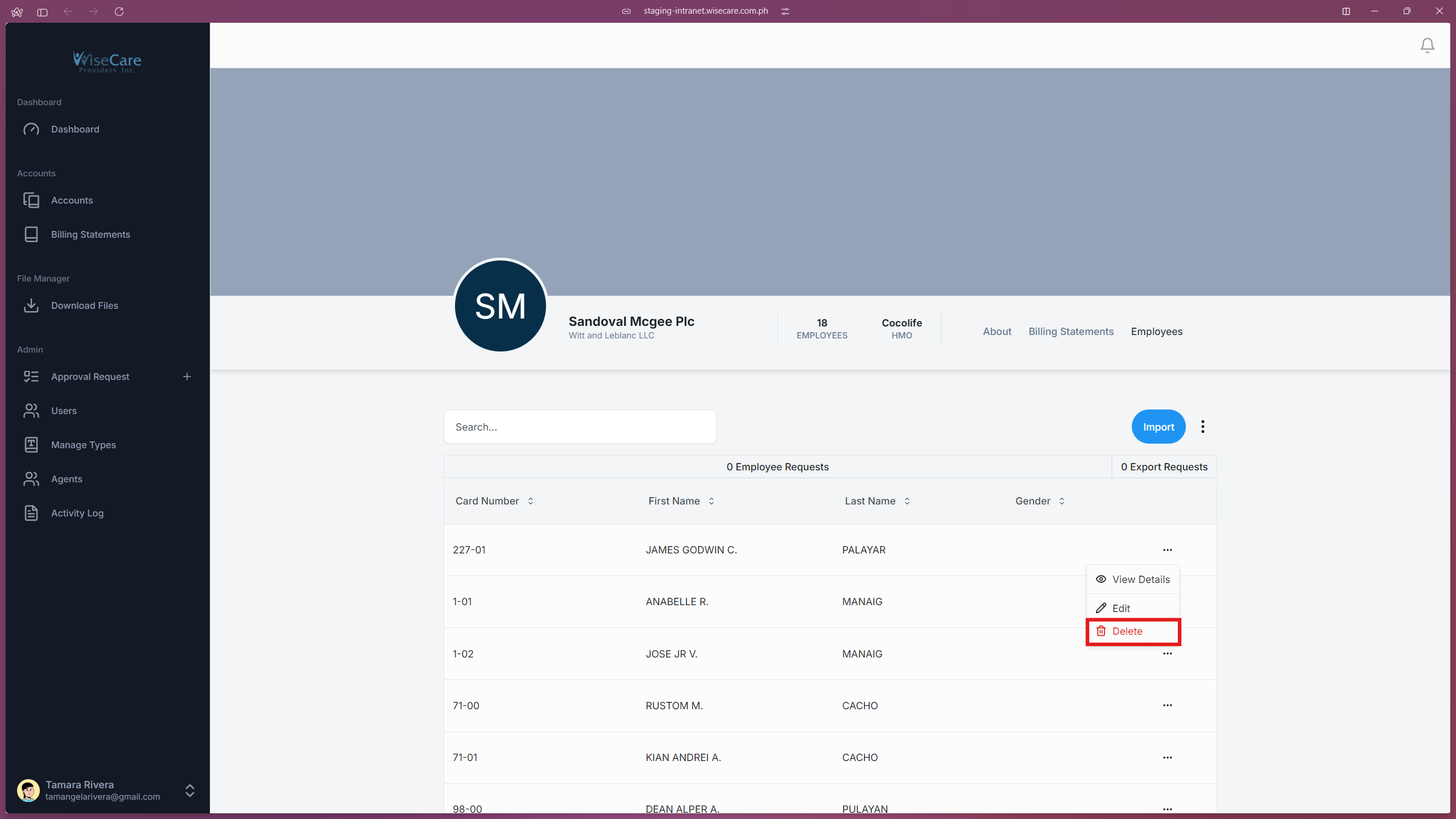
Click on the three dots at the end of the employee's row in the table.
From the dropdown menu, select "Delete".
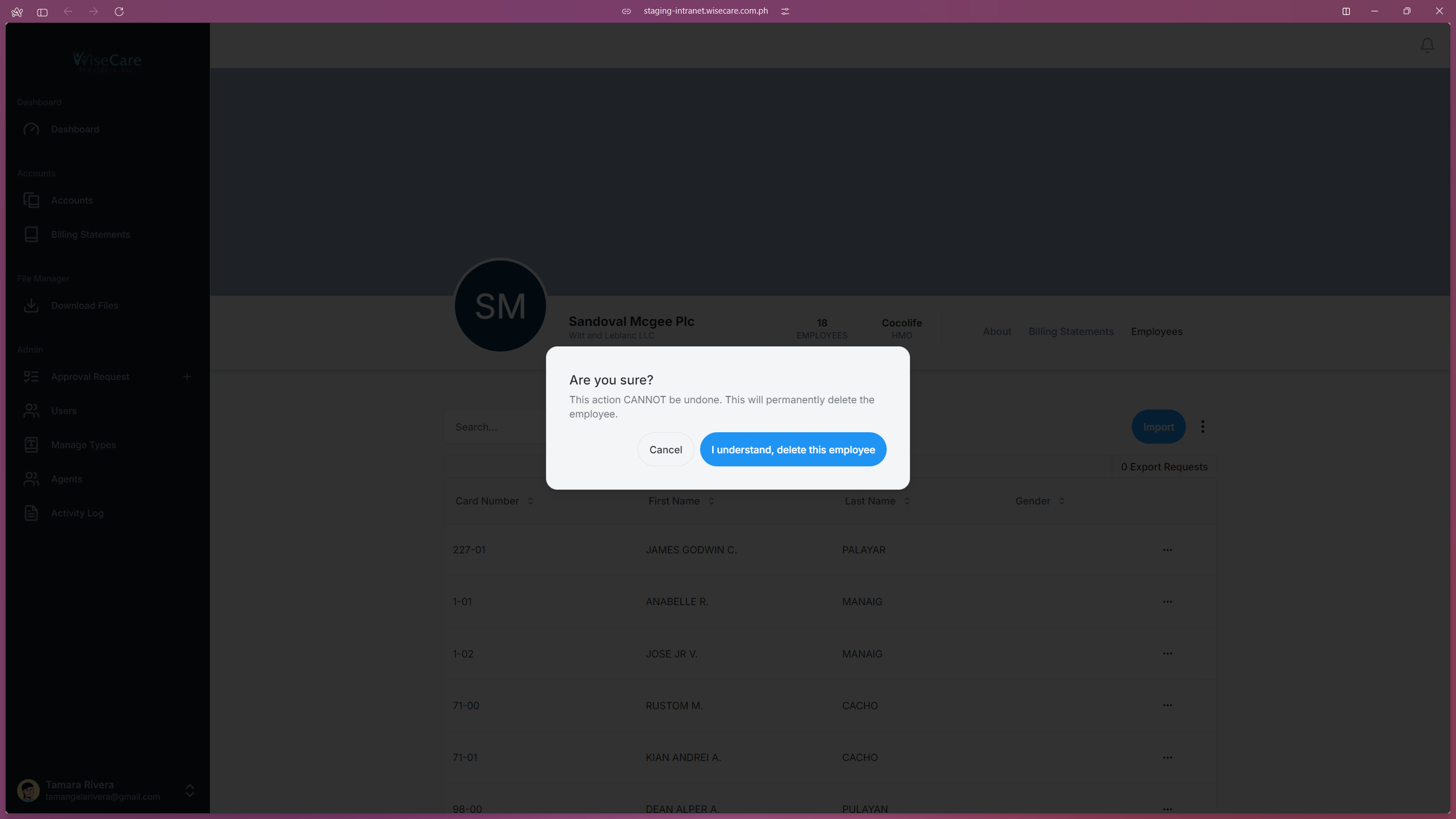
Confirm the Deletion
A modal will appear asking for confirmation.
Click on "I understand, delete this employee" to confirm.
Deleting All Employees in the Table
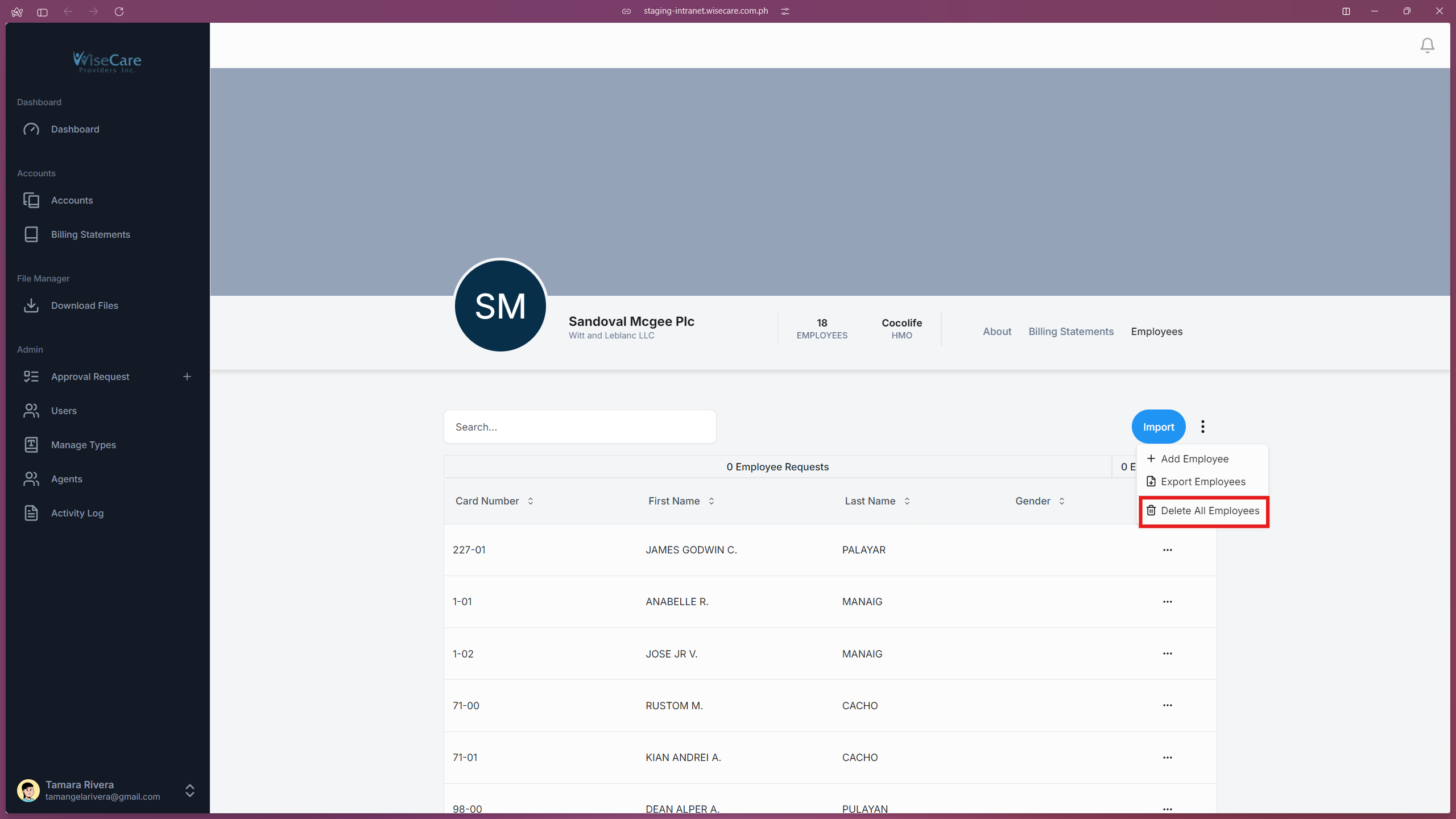
Open the Delete All Option
Click the three dots above the employee table.
From the dropdown menu, select "Delete All Employees".
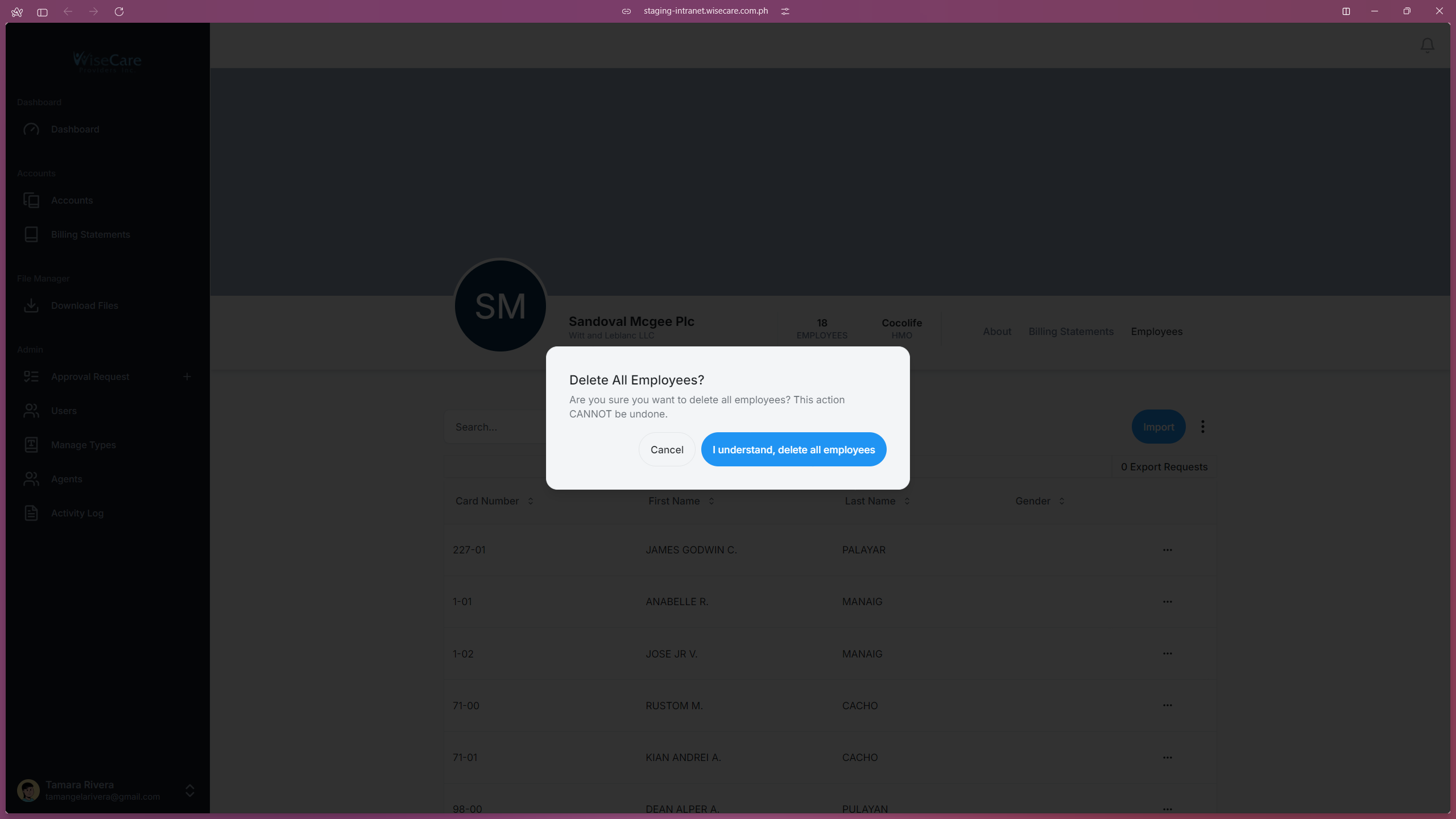
Confirm the Deletion
A modal will appear asking for confirmation.
Click on "I understand, delete all employees" to confirm.
Export Employees Data
You can make an Export Request in the "Company Profile" page or in the "Download Files" page. Refer to the Making an Export Request section for the detailed steps.
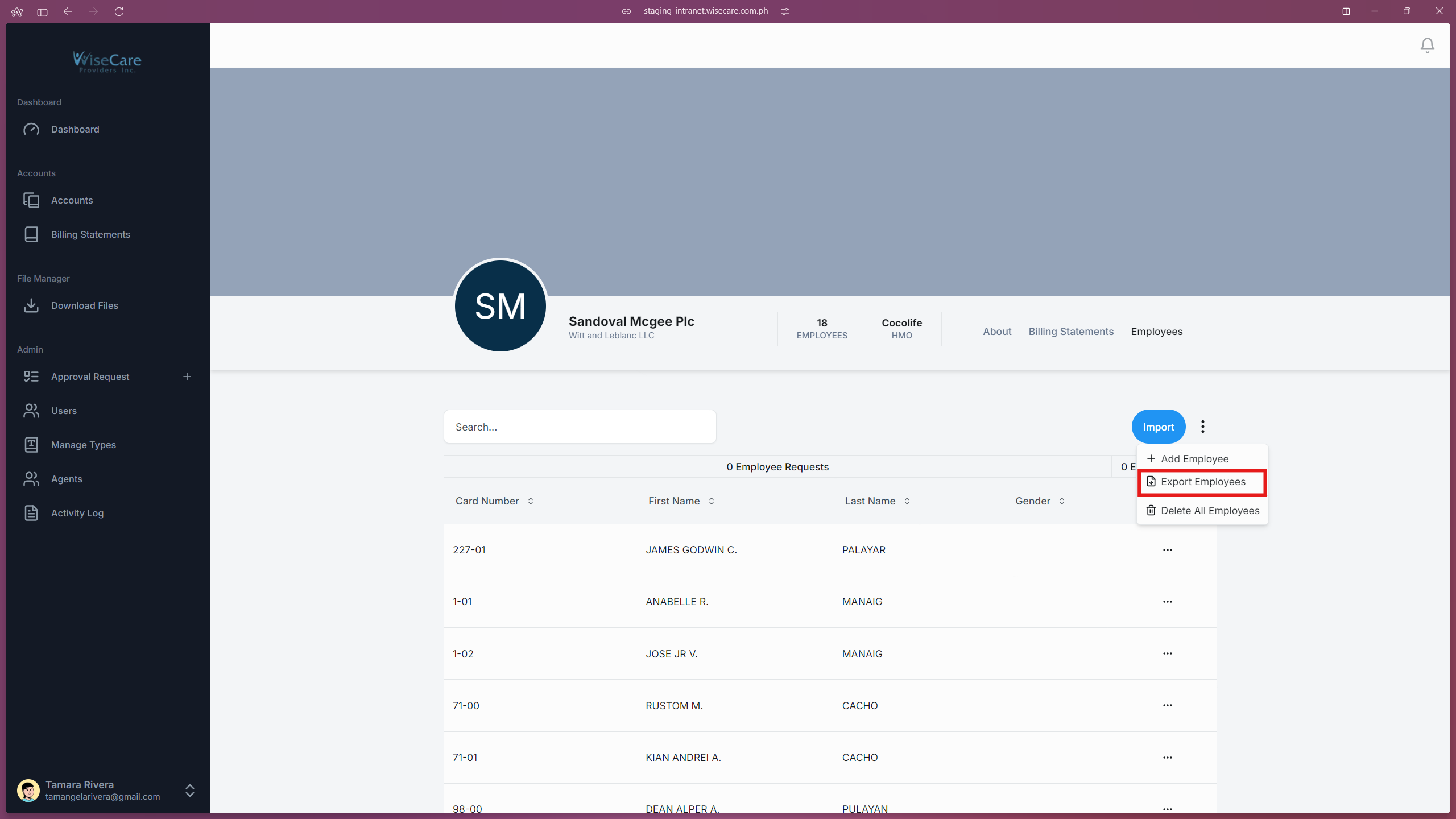
Open the Dropdown Menu
Click on the three dots located above the table to reveal a dropdown menu.
Select "Export Employees"
From the dropdown, click on the "Export Employees" option.
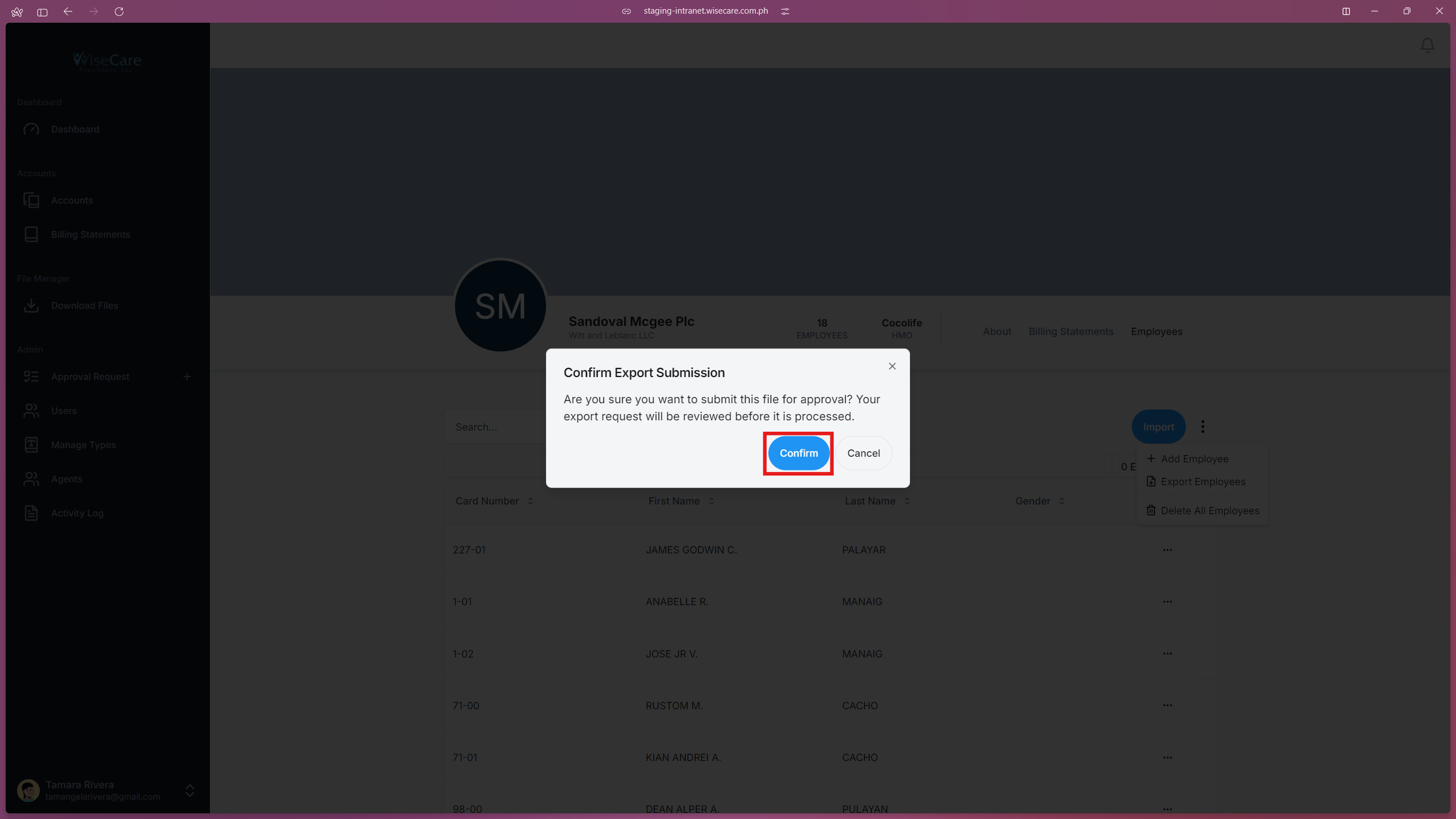
Confirm the Export Request
A window will pop up asking if you are sure you want to submit the export request.
Click on "Confirm" to proceed.
Admin Approval
Your export request will now be sent to the admin for approval.
Viewing and Cancelling Requests
Tracking Requests
Company Accounts:
For editing or deleting Company Accounts, you can view requests in the Requests tab within the Accounts Table.
Refer to the Viewing and Cancelling Requests section in the "Accounts Table Features" chapter for detailed steps.
Employees Data:
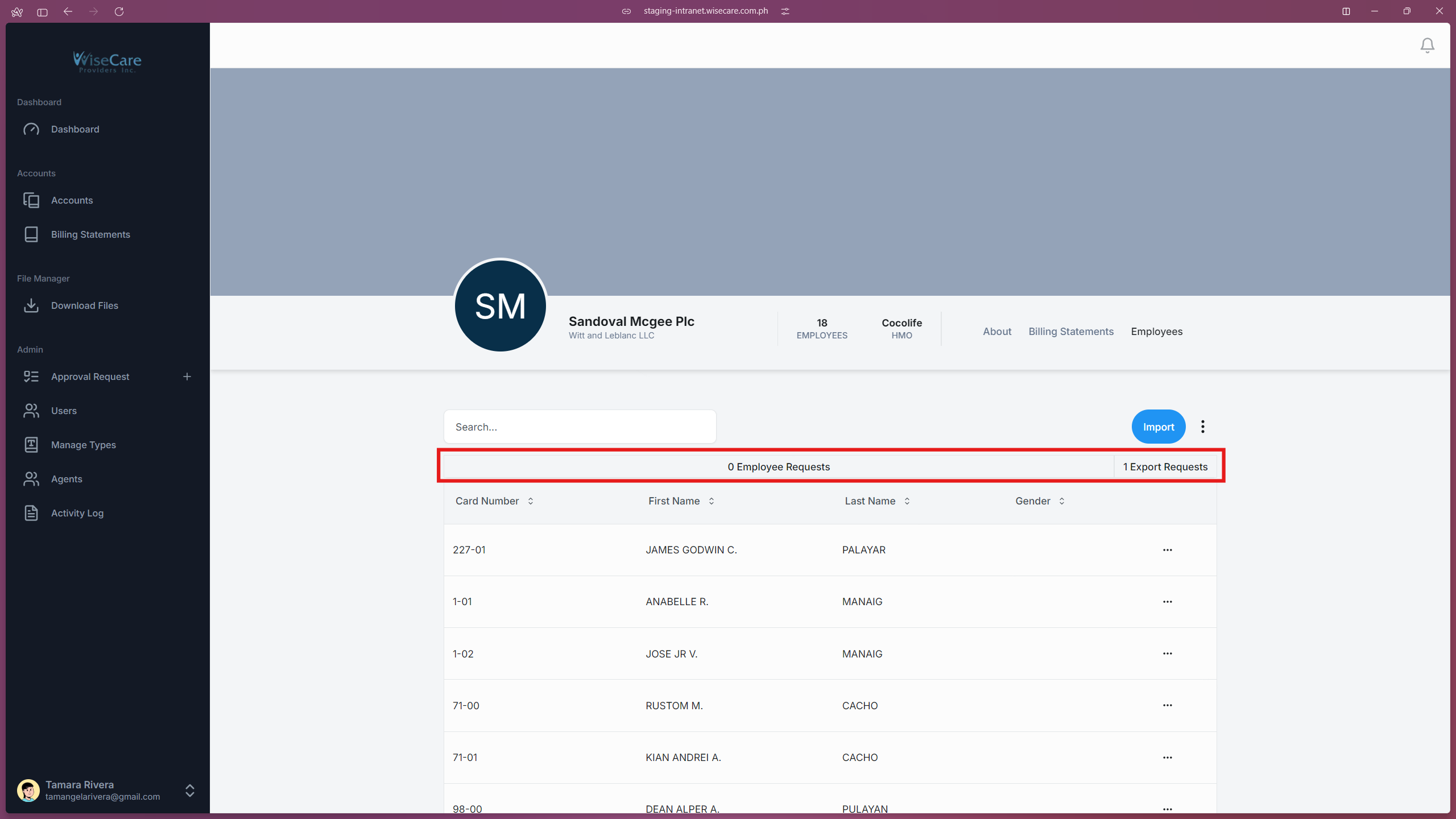
For exporting employee data, you can view requests in the Export Requests tabs within the Employees Table on the Company Profile page.
Cancelling Requests
Employee Export Requests:
Click on the three dots above the Employees Table to reveal a dropdown menu.
Select "Export Employees".
A window will pop up, indicating you have a pending request.
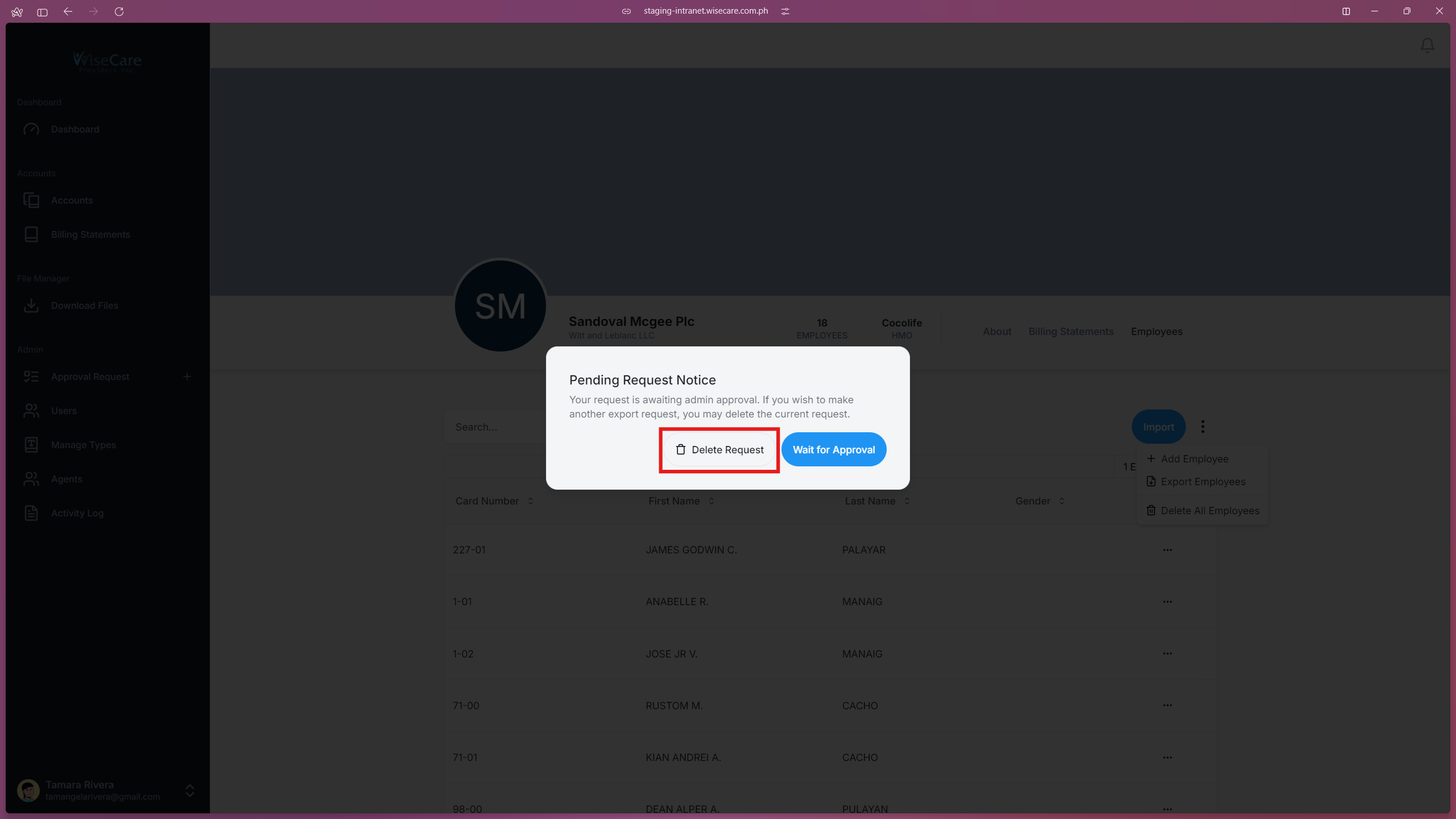
Click on "Delete Request" to cancel the export request.