Download Files
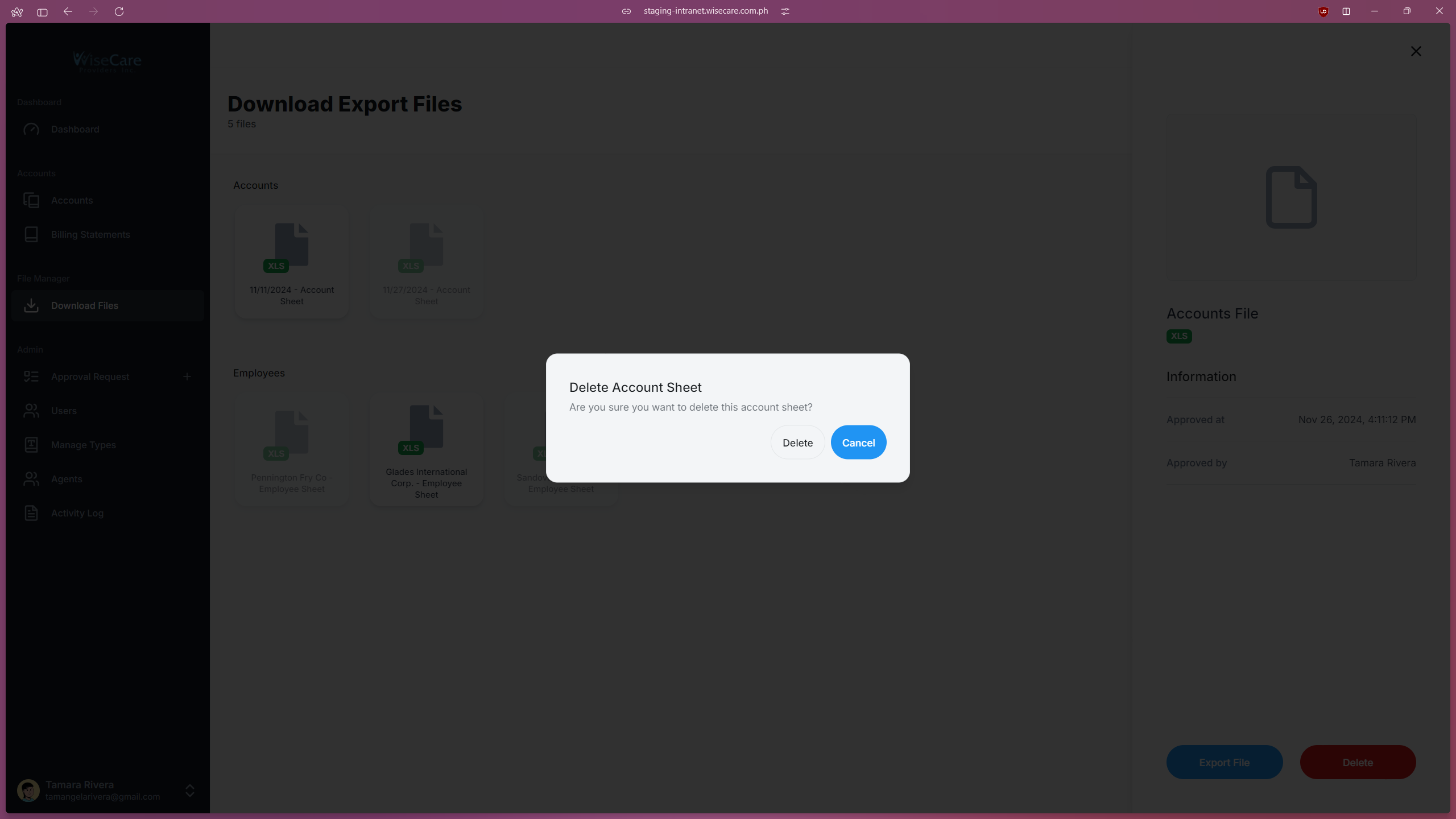
Overview of the Download Files Page
The Download Files page displays all exported files, both approved and not approved.
It includes your exported Account Files and exported Employee Data files.
Viewing File Details
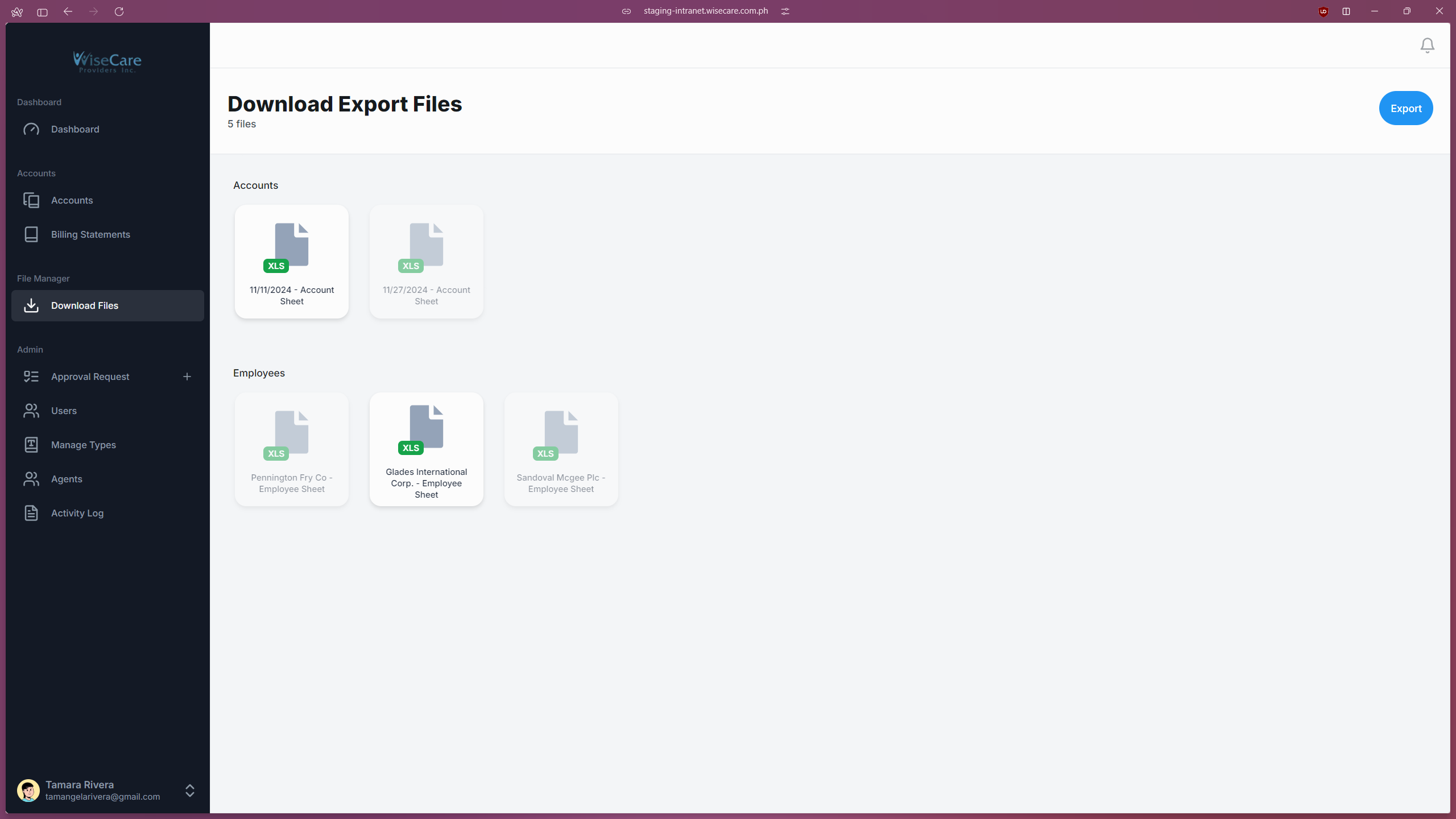
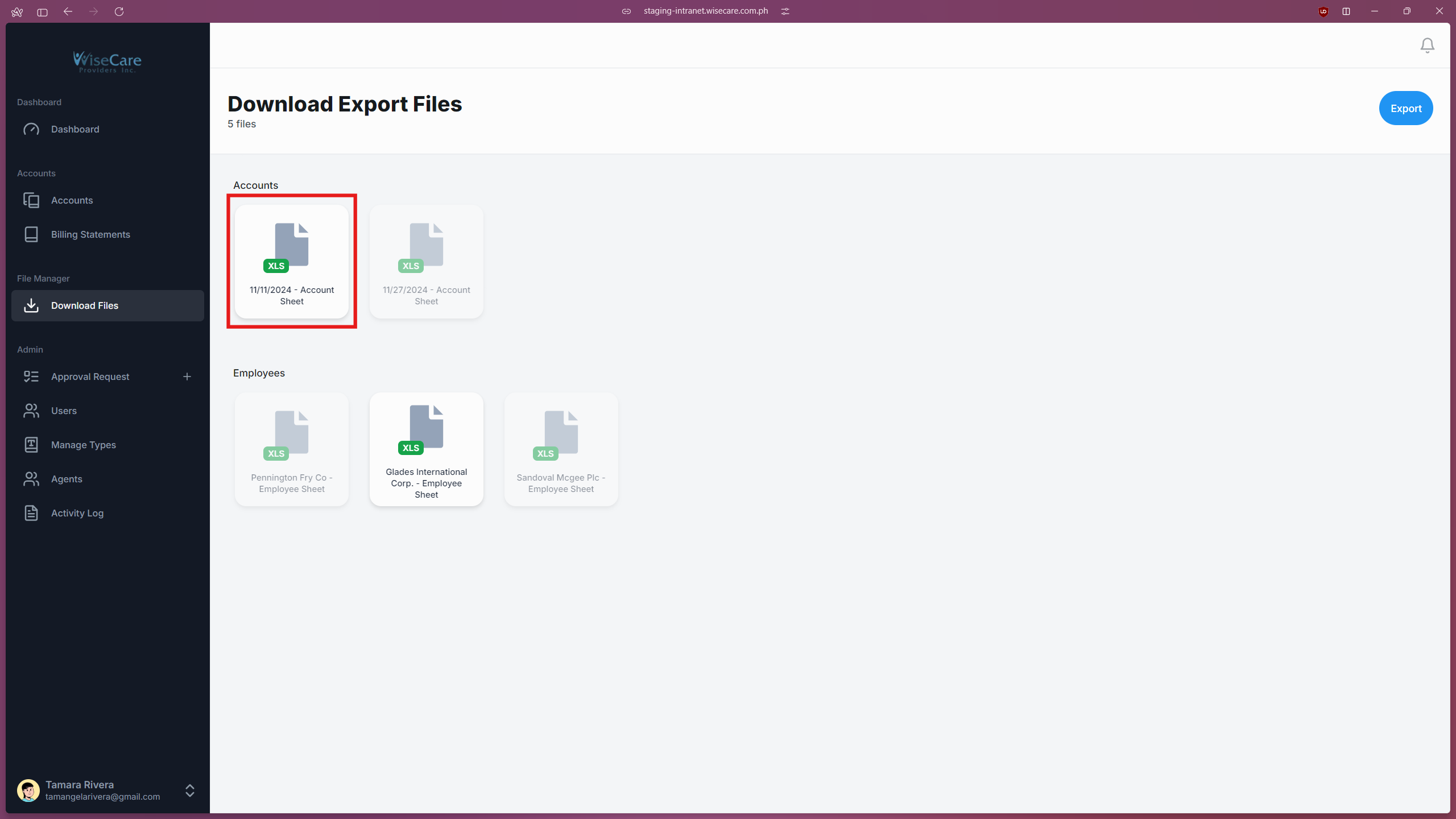
Click on an approved file to view its details.
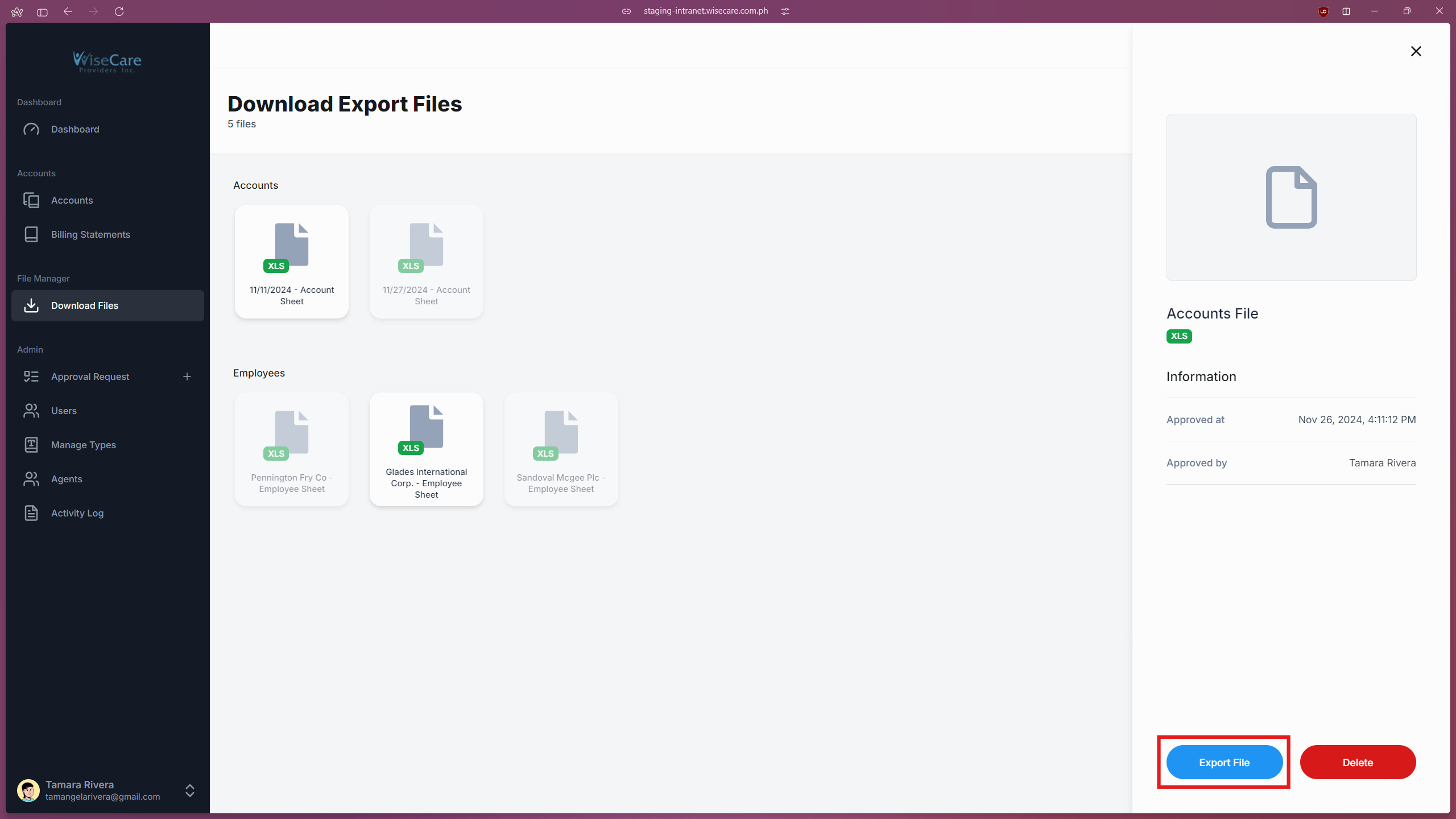
The file details include export information and options for downloading or deleting the file.
Making an Export Request
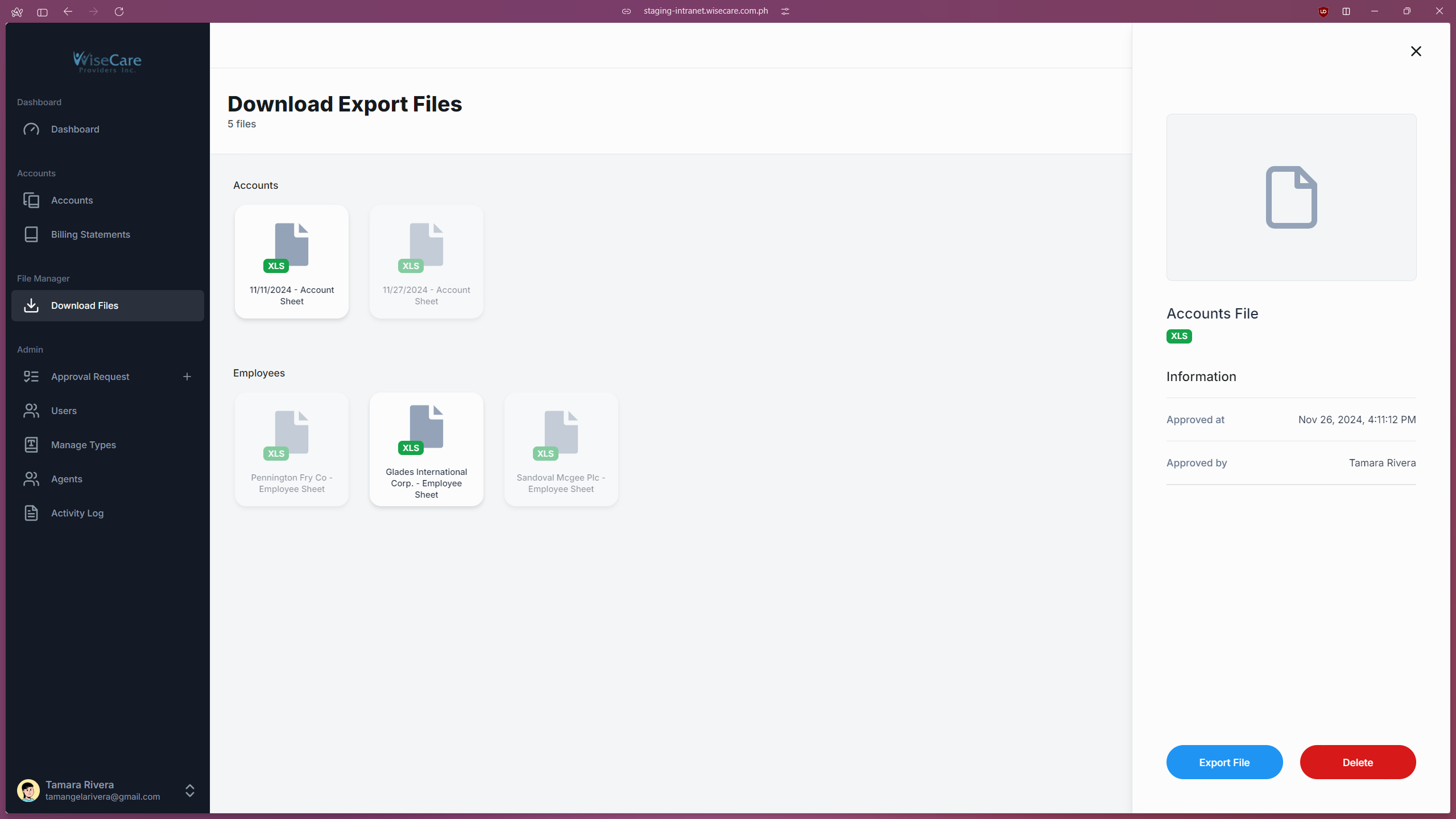
To request a new export, click on the "Export" button located at the top right of the page.
Handling Unapproved Files
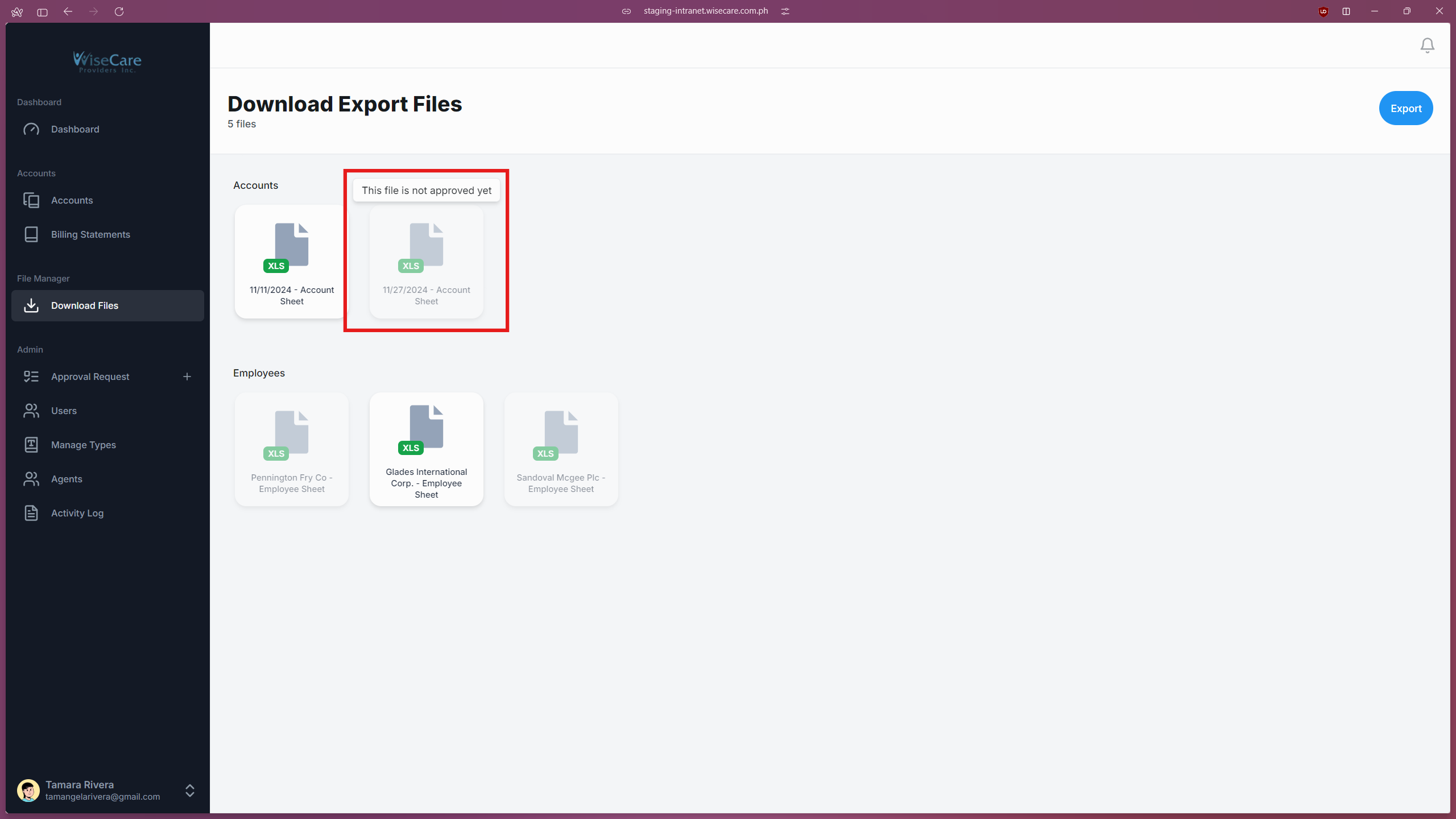
Files that are not yet approved will be inaccessible.
Clicking on an unapproved file will display a notification that the file is not yet approved.
Making an Export Request
Initiating an Export Request
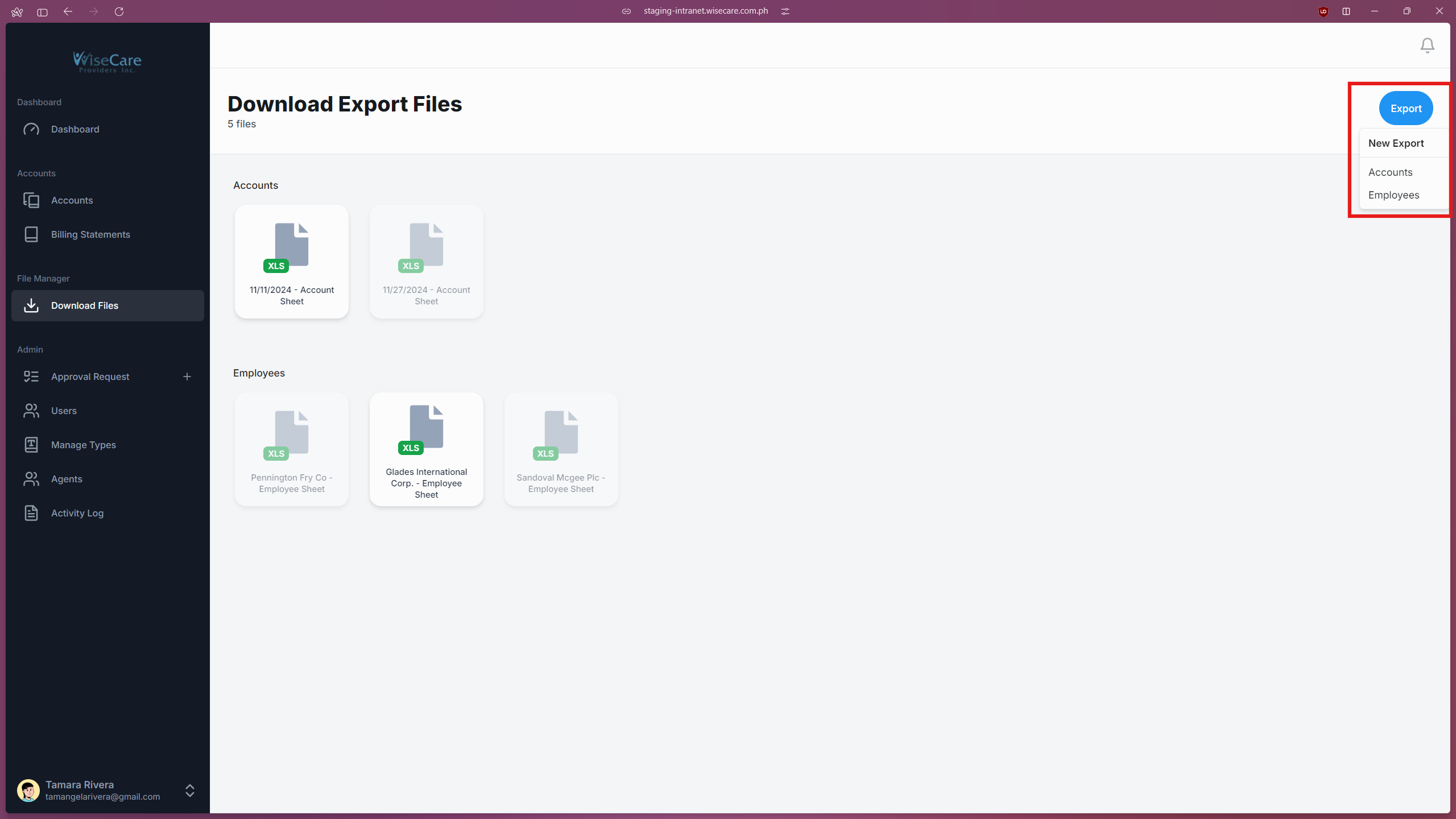
Click on the "Export" button located at the top right of the page.
A dropdown menu will appear with two options: "Accounts" or "Employees".
Exporting Accounts
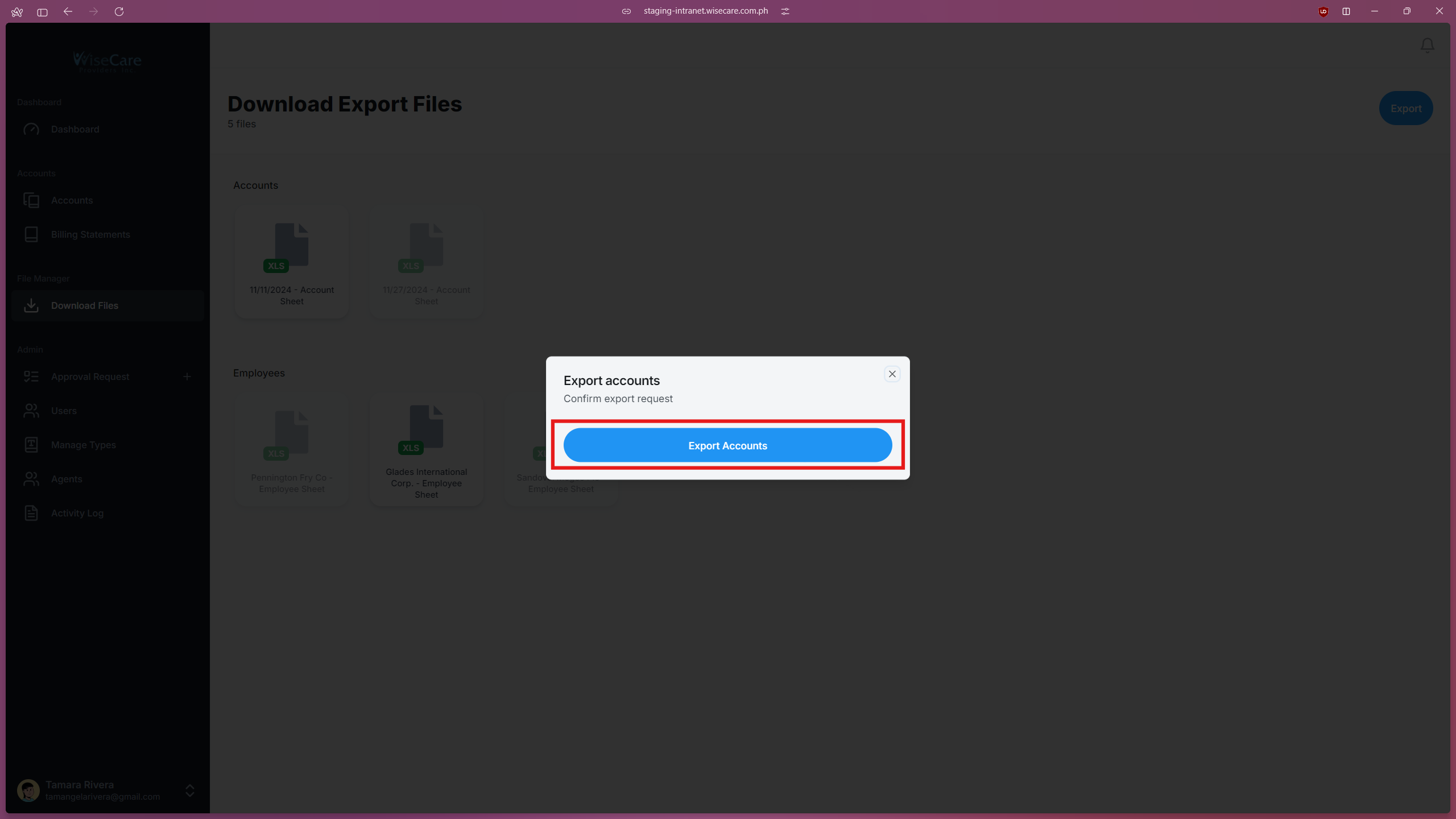
Select "Accounts" from the dropdown menu.
A window will pop up with a button labeled "Export Accounts".
Click on the button to send your export request to the admin.
Exporting Employee Data
Select "Employees" from the dropdown menu.
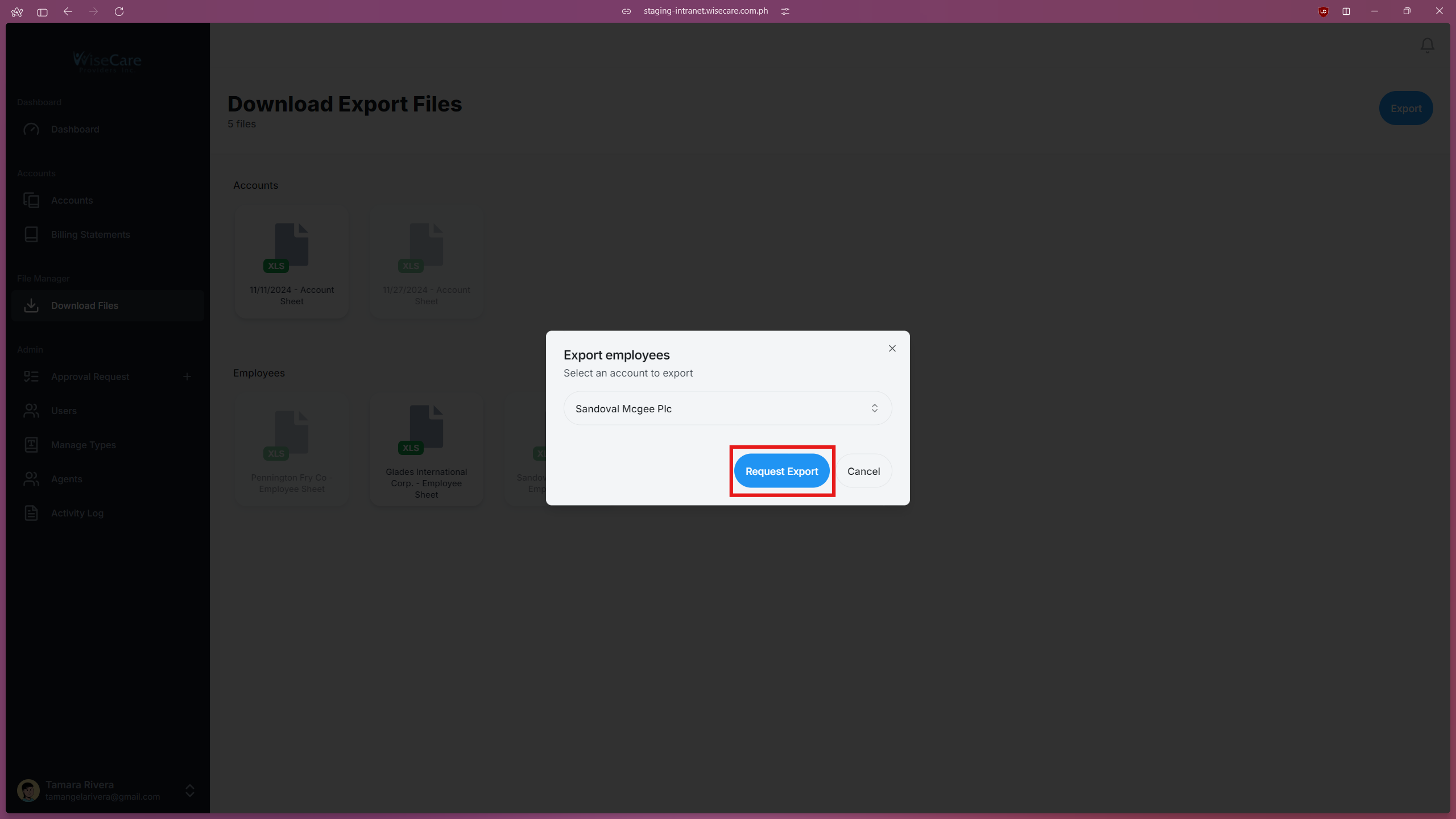
A window will pop up with a select option to choose the Account you wish to export employee data from.
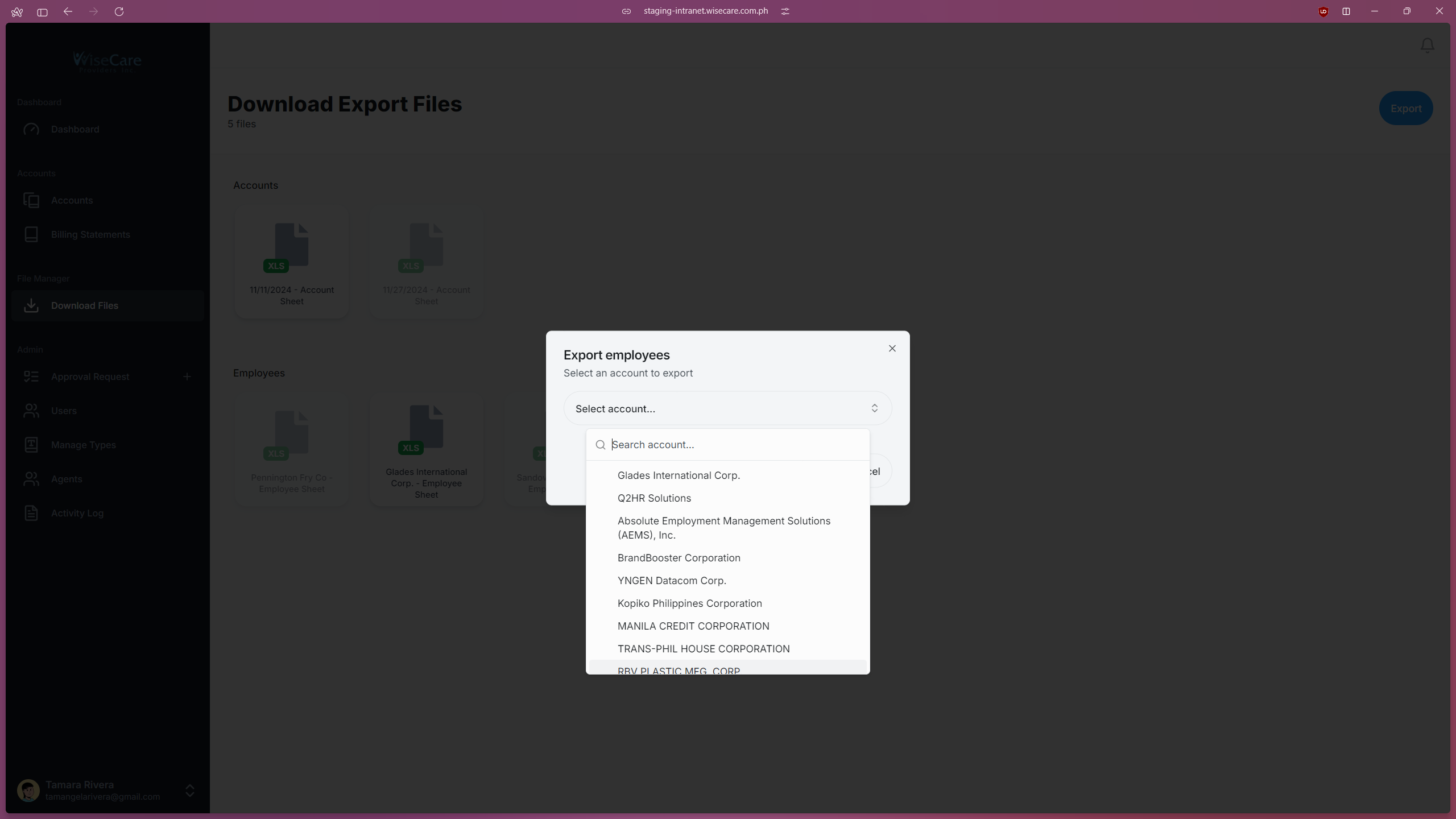
After selecting the Account, click "Request Export" to send your request to the admin.
File Availability
All files sent for export will appear on the page.
If a file is not yet approved, it will be inaccessible, and attempting to access it will display a notification indicating the pending approval.
Exporting or Deleting Approved Files
Downloading an Approved File
Click on an approved file to view its details.
Click on the "Export File" button, and the file will be downloaded to your device.
Deleting an Approved File
Click on an approved file to view its details.
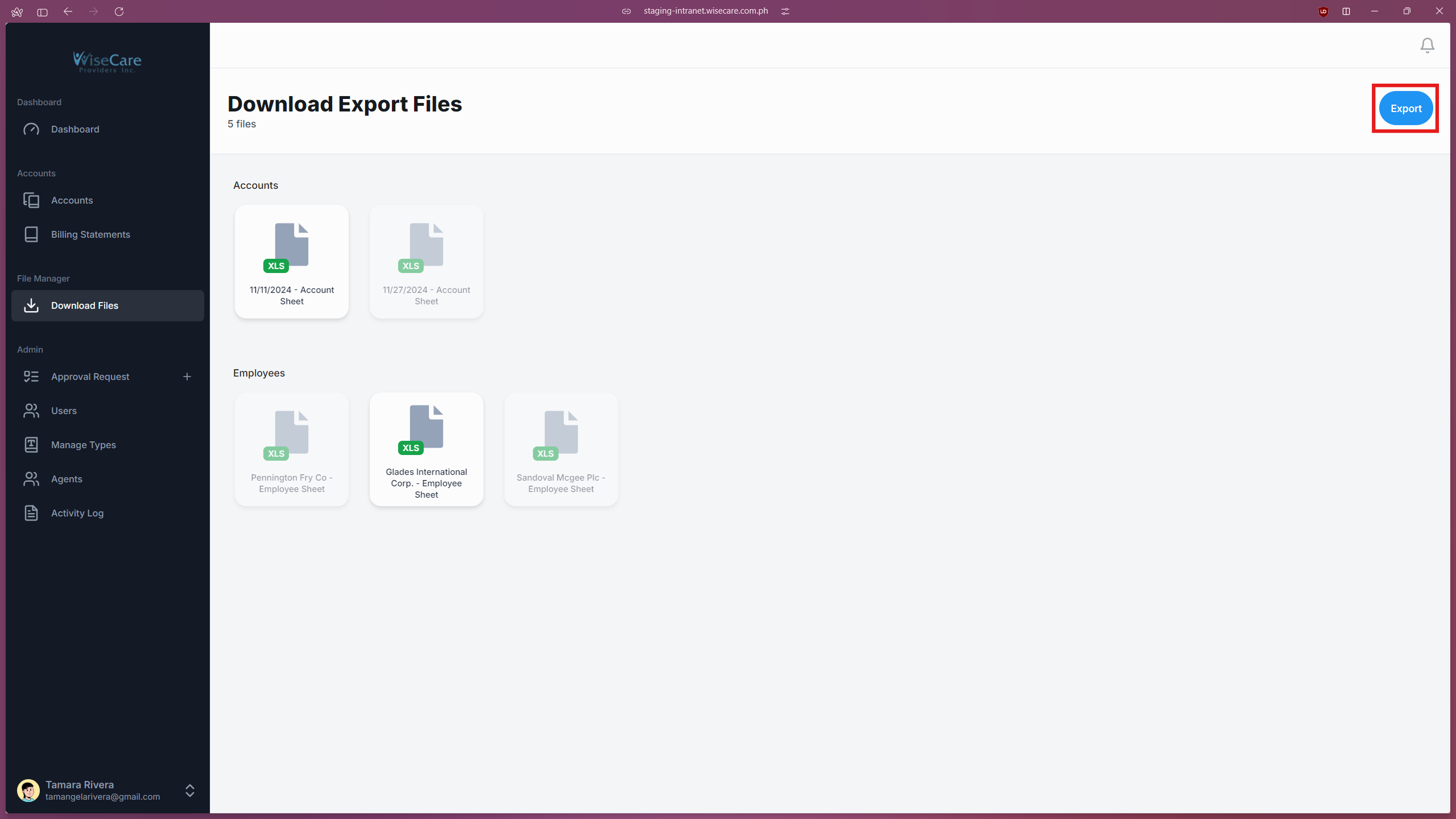
Click on the "Delete" button, and a confirmation window will appear asking if you are sure you want to delete the file.

Click "Delete" in the confirmation window to permanently remove the file.