Approval Requests
The Approval Requests pages contain tables similar in functionality to other tables within the intranet, with slight differences in purpose. These pages are accessible only by the admin and are used to manage submitted requests for approval.
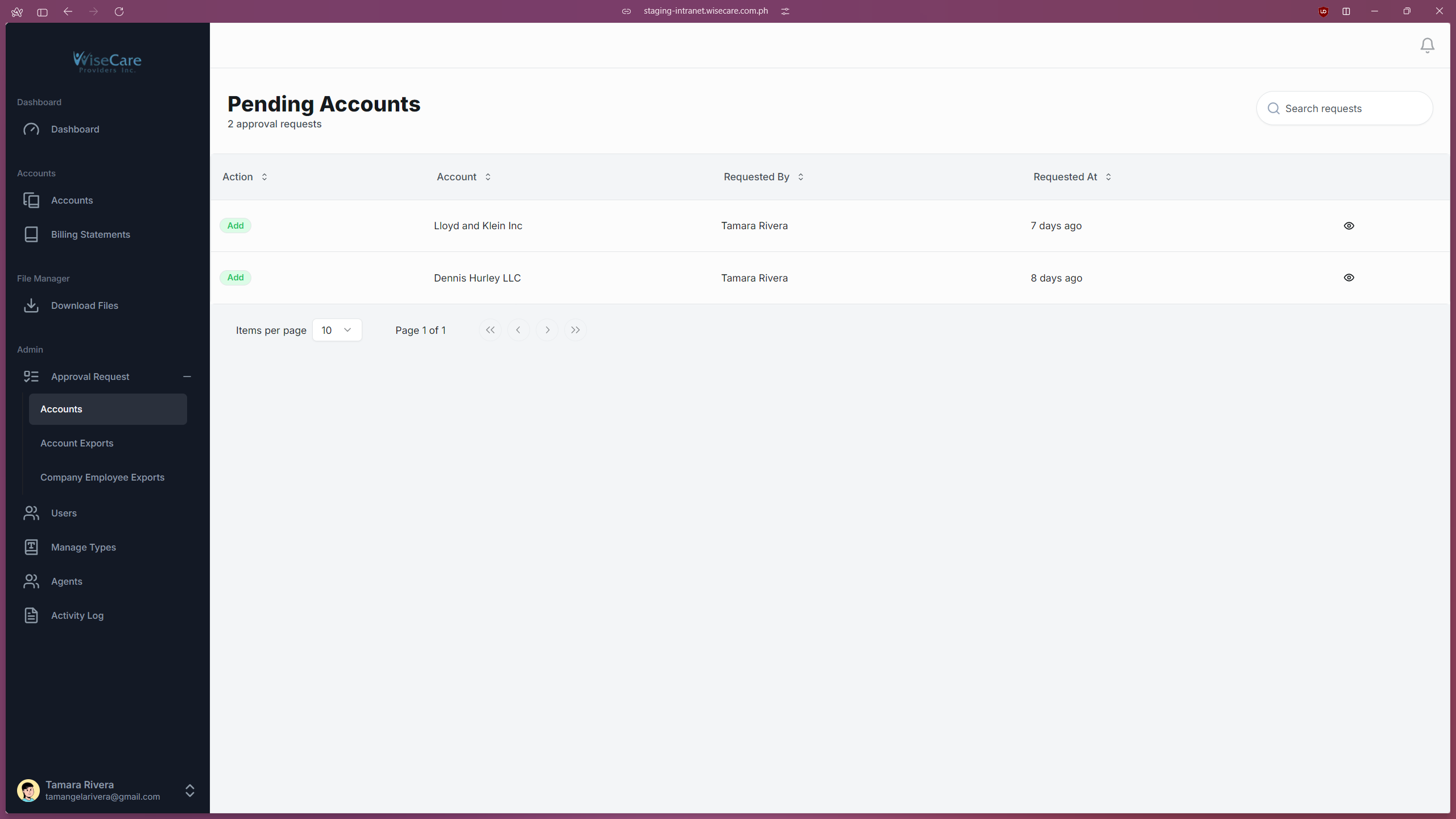
Accounts Approval Requests
Displays a list of requests submitted by employees.
Includes details such as:
Requested By: Who made the request.
Requested At: When the request was submitted.
Account: The account modified by the request.
Action: Whether the request is for adding, editing, or deleting an account.
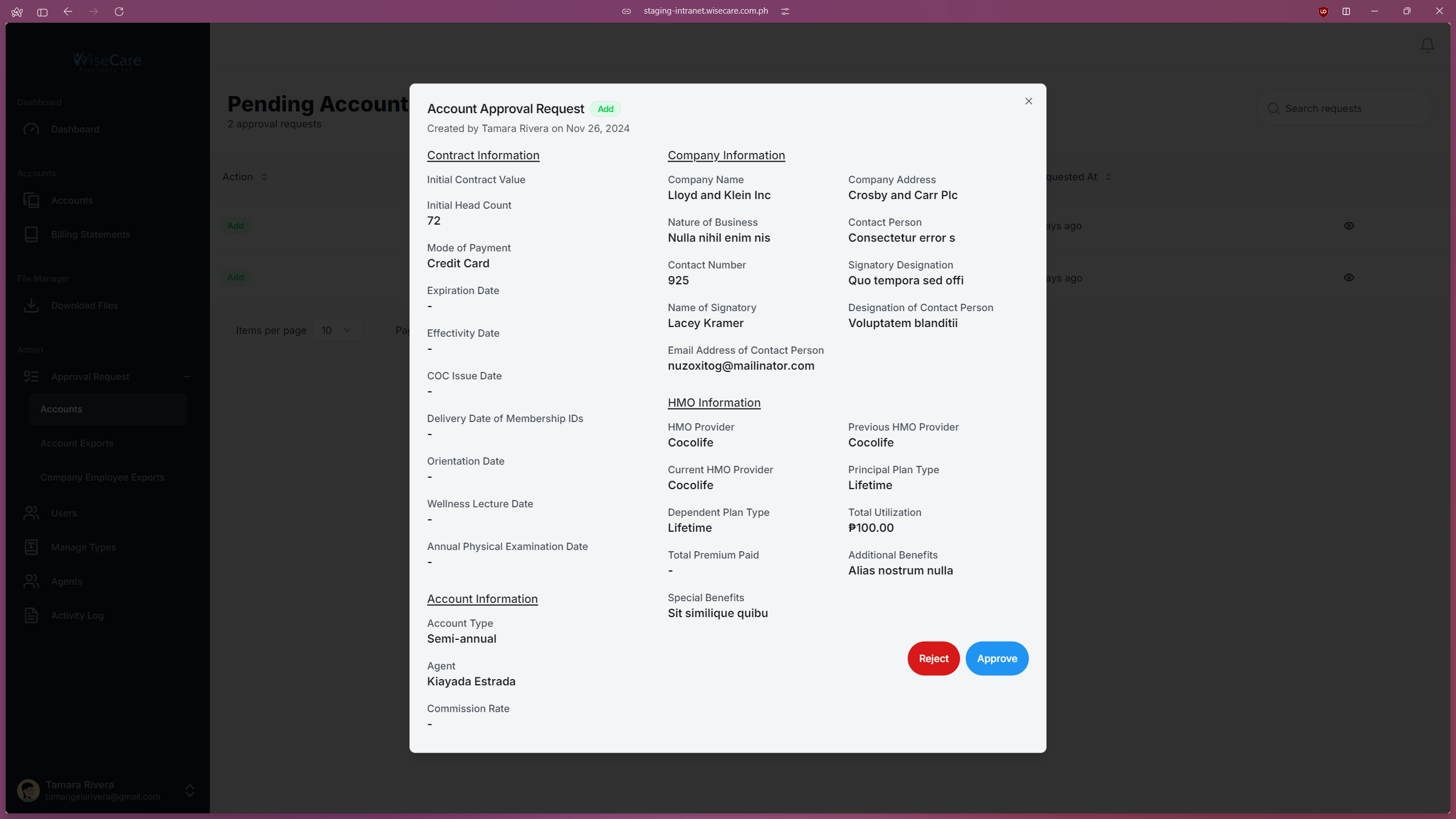
Admins can click on each row to view the changes made by the requester.
Contains "Reject" and "Approve" buttons for each request.
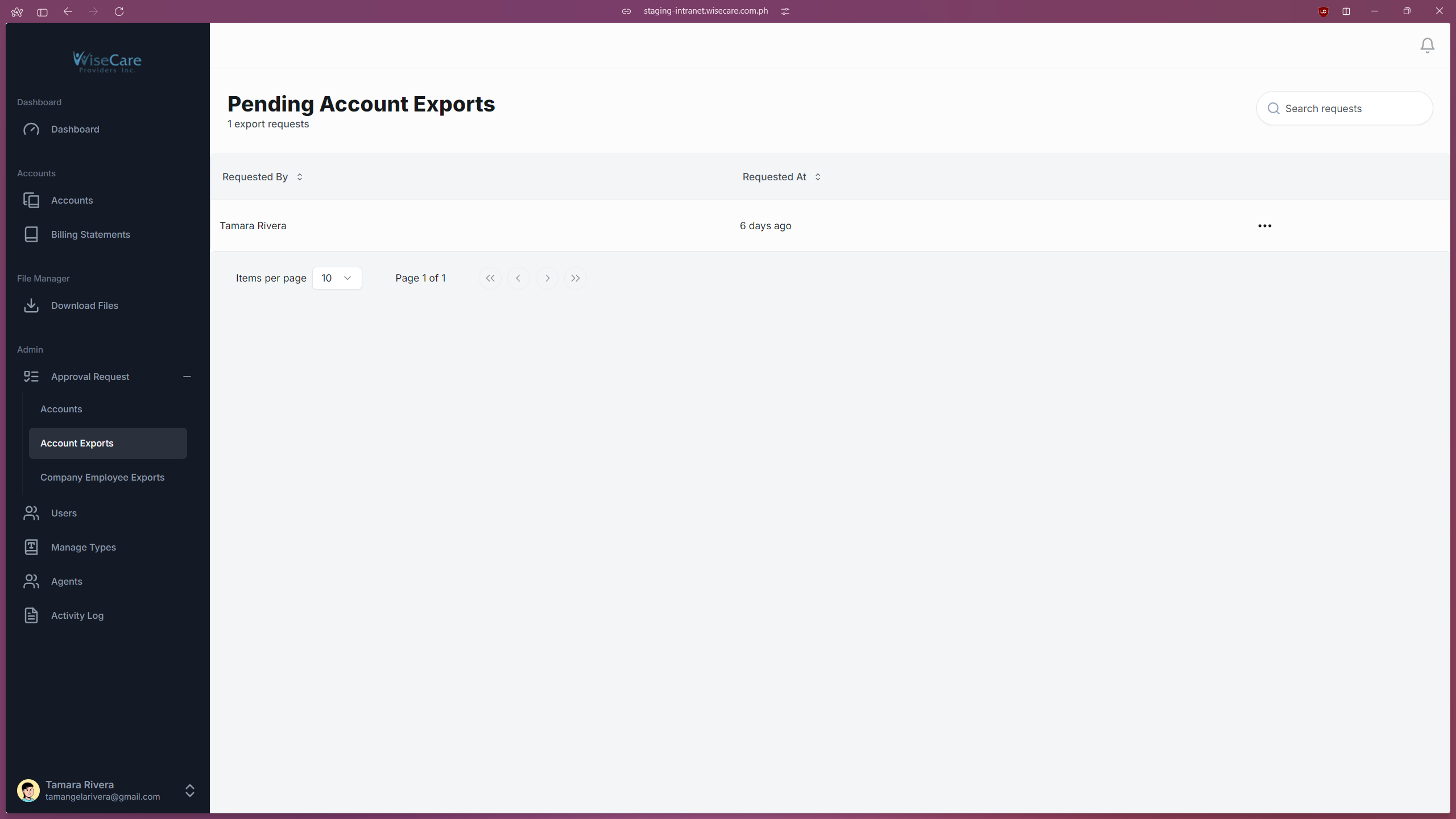
Account Exports Requests
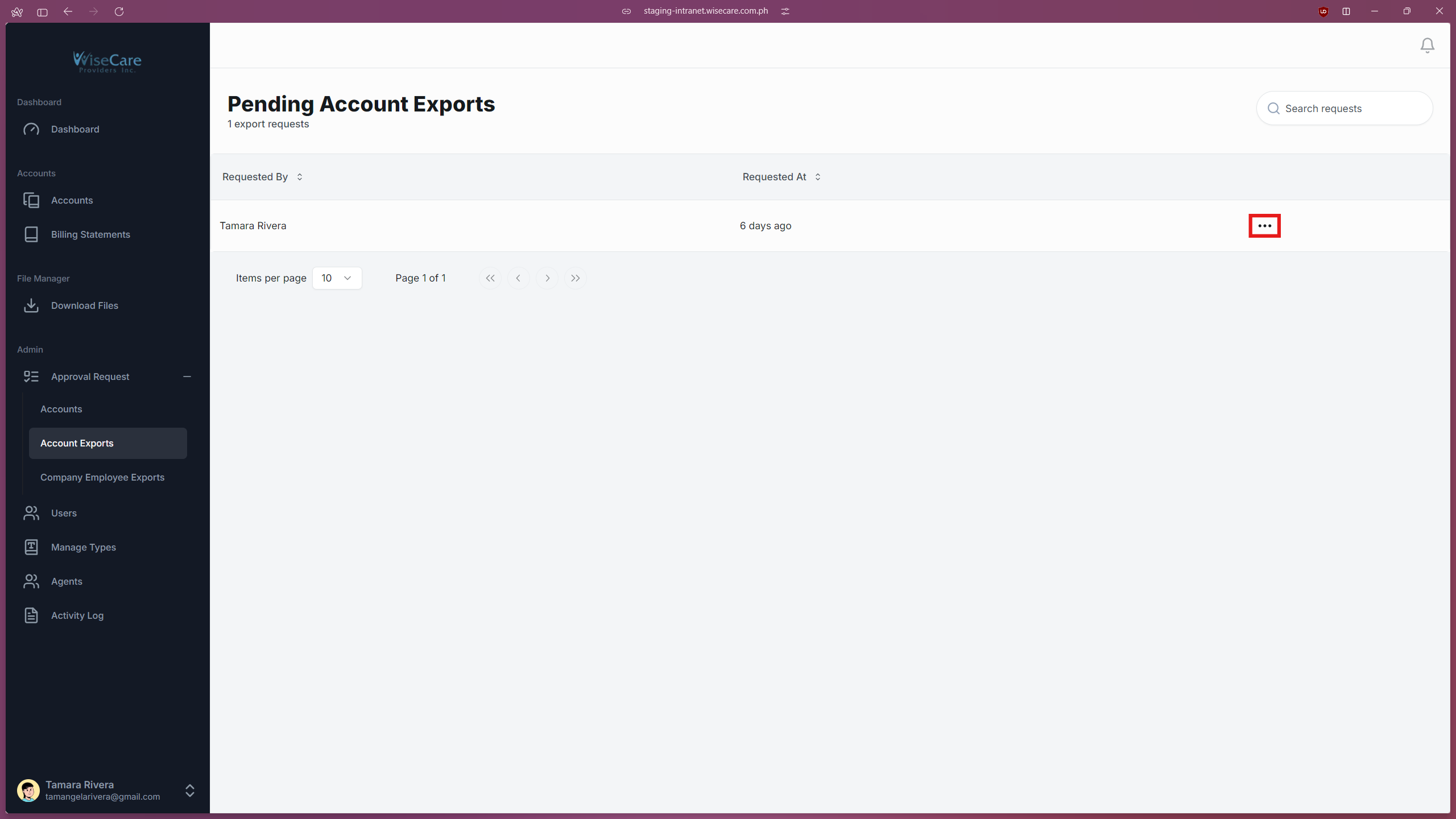
Contains a table showing:
Requested By: Who made the export request.
Requested At: When the request was submitted.
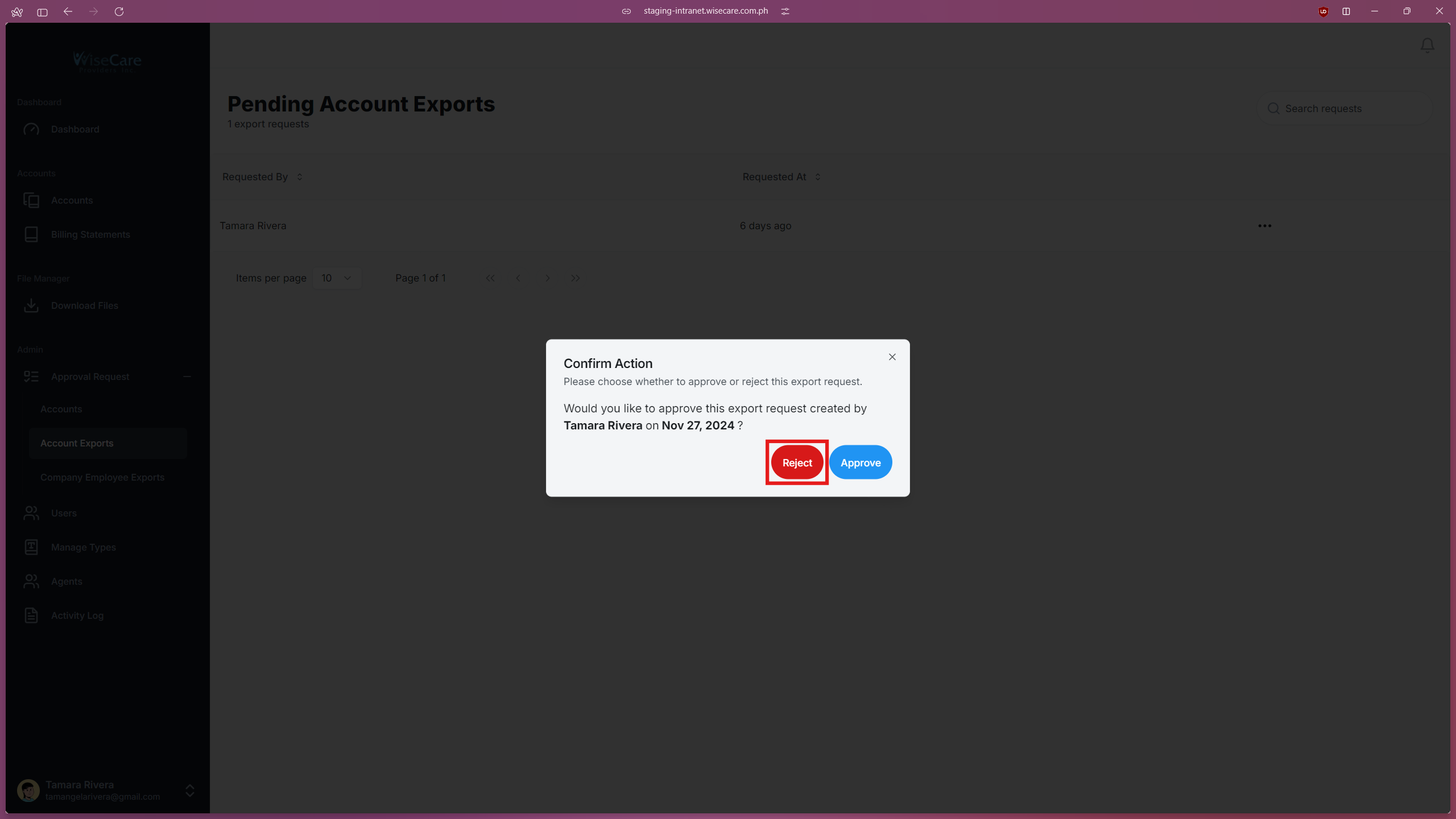
Clicking on a row allows the admin to view details and either reject or approve the export request.
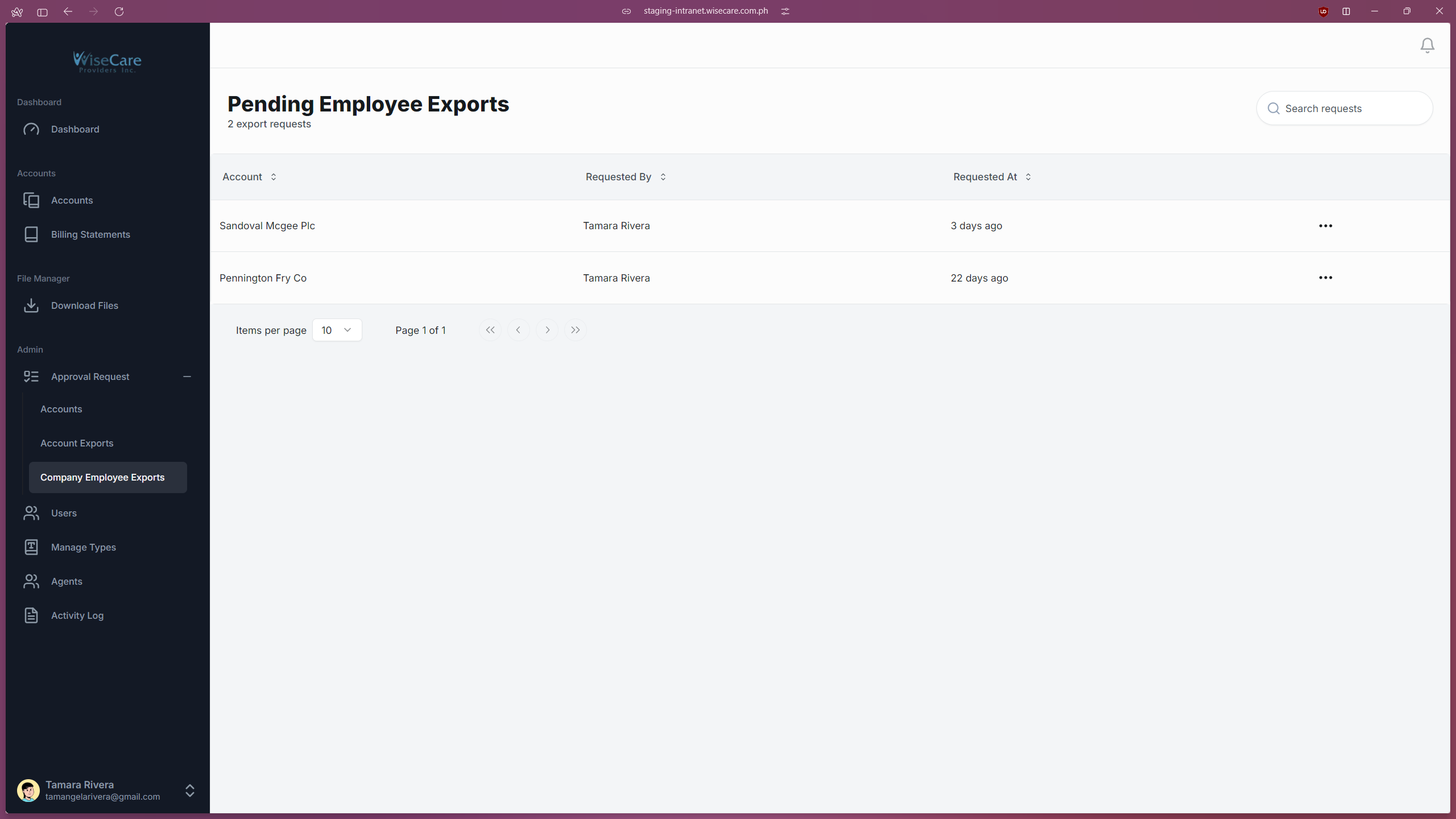
Company Employees Exports Requests
Similar functionality to the Account Exports page.
Displays the Account, Requested By and Requested At for each request.
Admins can click on rows to approve or reject export requests.
Approving Accounts Requests
View Request Details
Click on the "Eye" icon at the end of the row in the table.

A window will pop up showing the details or changes made to the account by the requester.
Approve or Reject
At the bottom right side of the window, you will see two buttons:
"Reject"
"Approve"
Approve the Request
Click "Approve" to accept the changes.
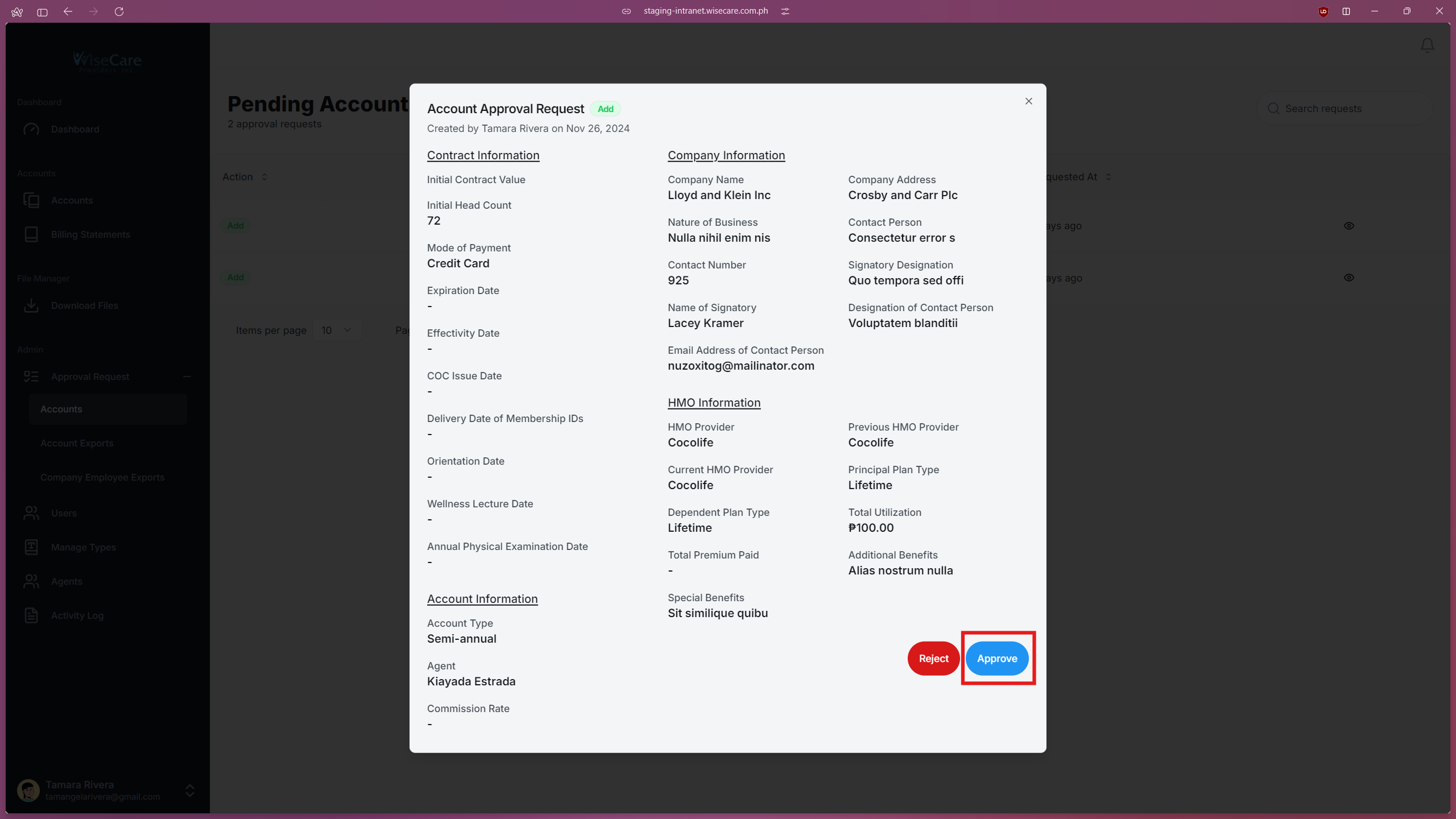
The modifications will now reflect in the "Accounts" table and on the "Company Profile" page.
Reject the Request
Clicking "Reject" will decline the request.
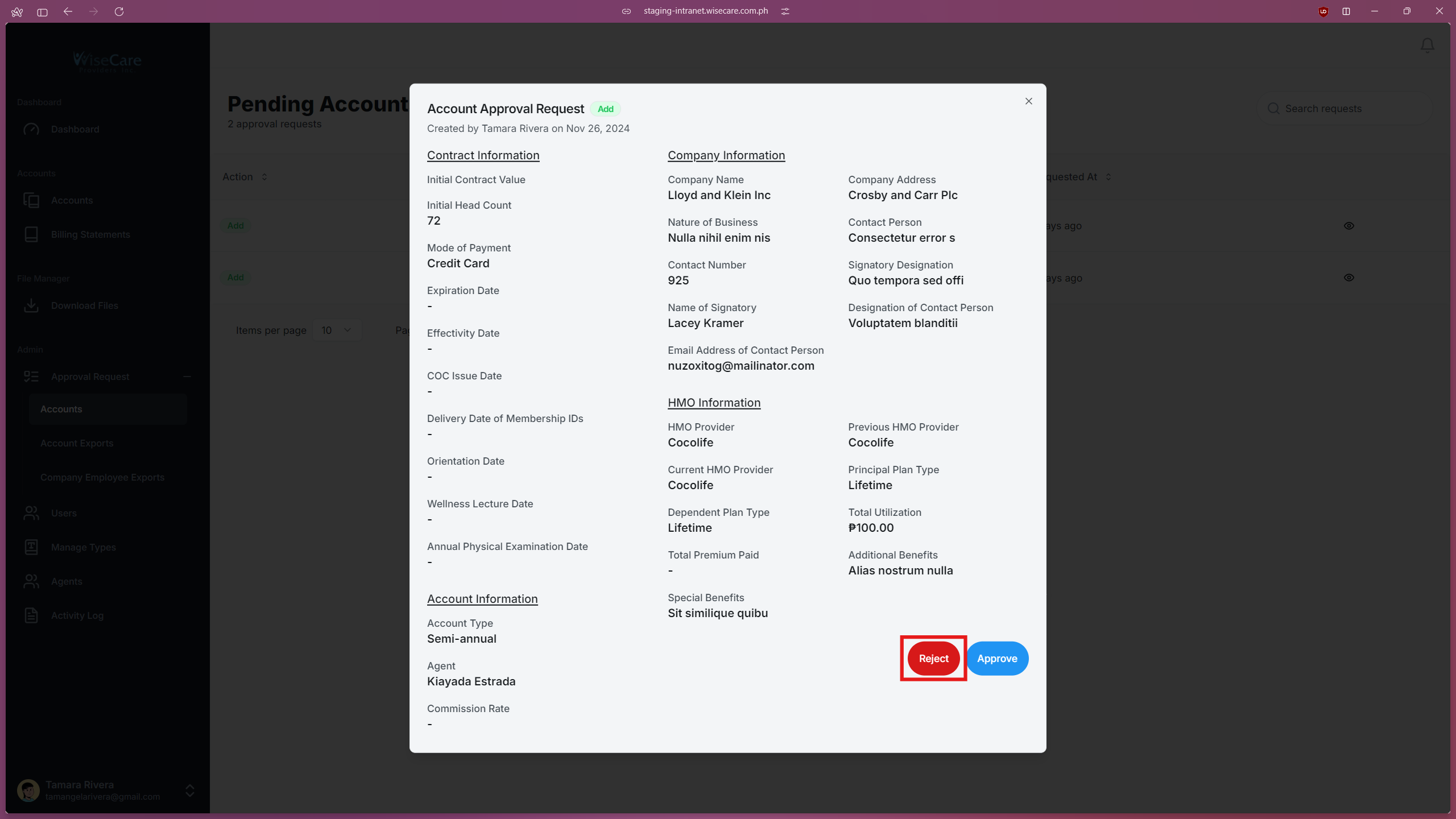
The changes will not be applied to the "Accounts" table or the "Company Profile" page.
Approving Account and Company Employees Exports Requests
Access the Request
Click on the three dots at the end of the row in the table.
Confirmation Window
A window will pop up asking for your confirmation regarding the action.

Approve the Request
Click "Approve" to grant access.
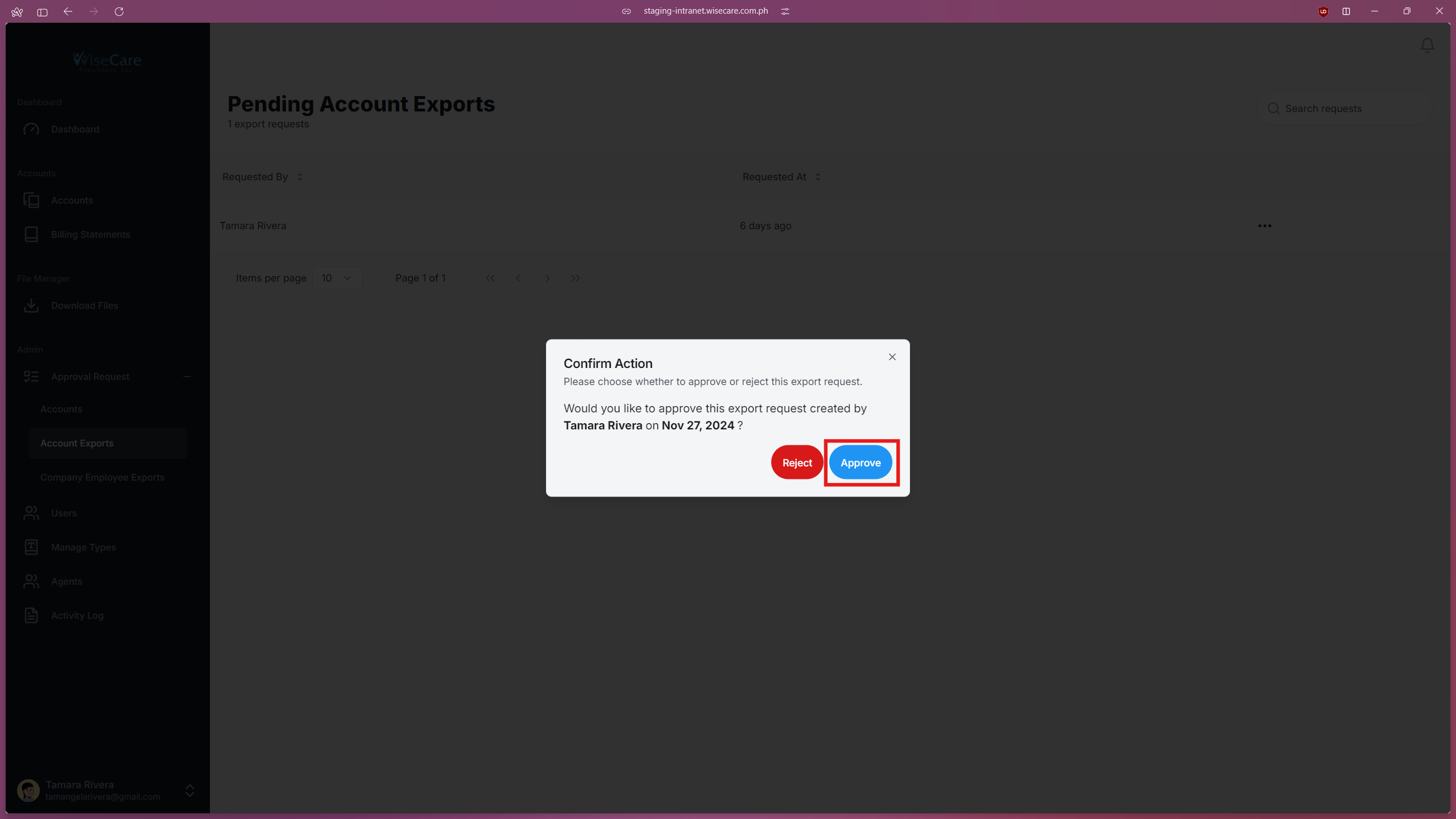
The file will now be accessible by the requester on the "Download Files" page.
Reject the Request
Clicking "Reject" will prevent the requester from accessing and downloading the file.