Users
The "Users" page is exclusively accessible to Admins.
View User List
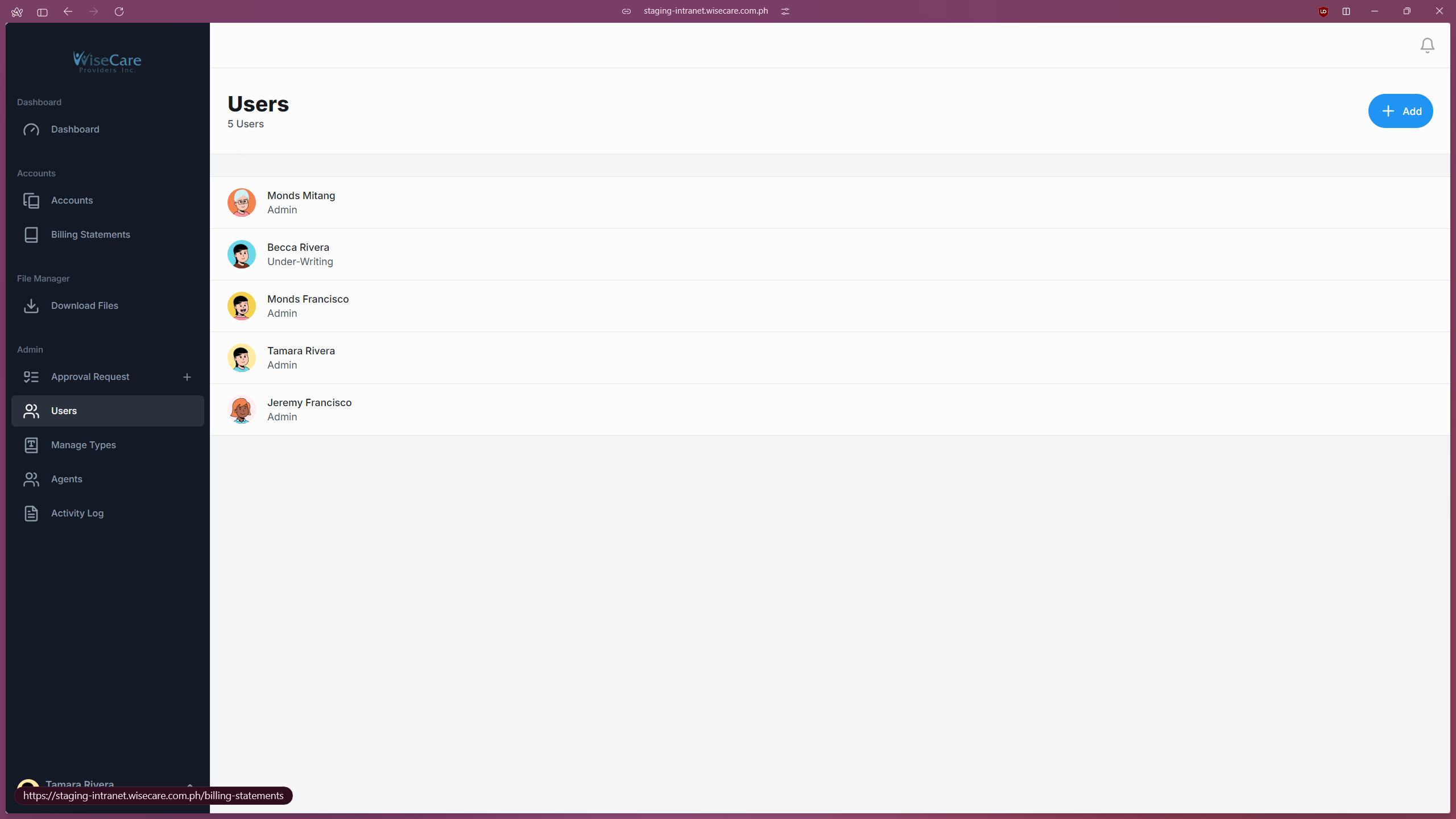
The page displays a list of users who have access to the intranet.
It includes their name and the department they belong to.
Add Users
Admins can add new users to the intranet through this page.
Edit User Details
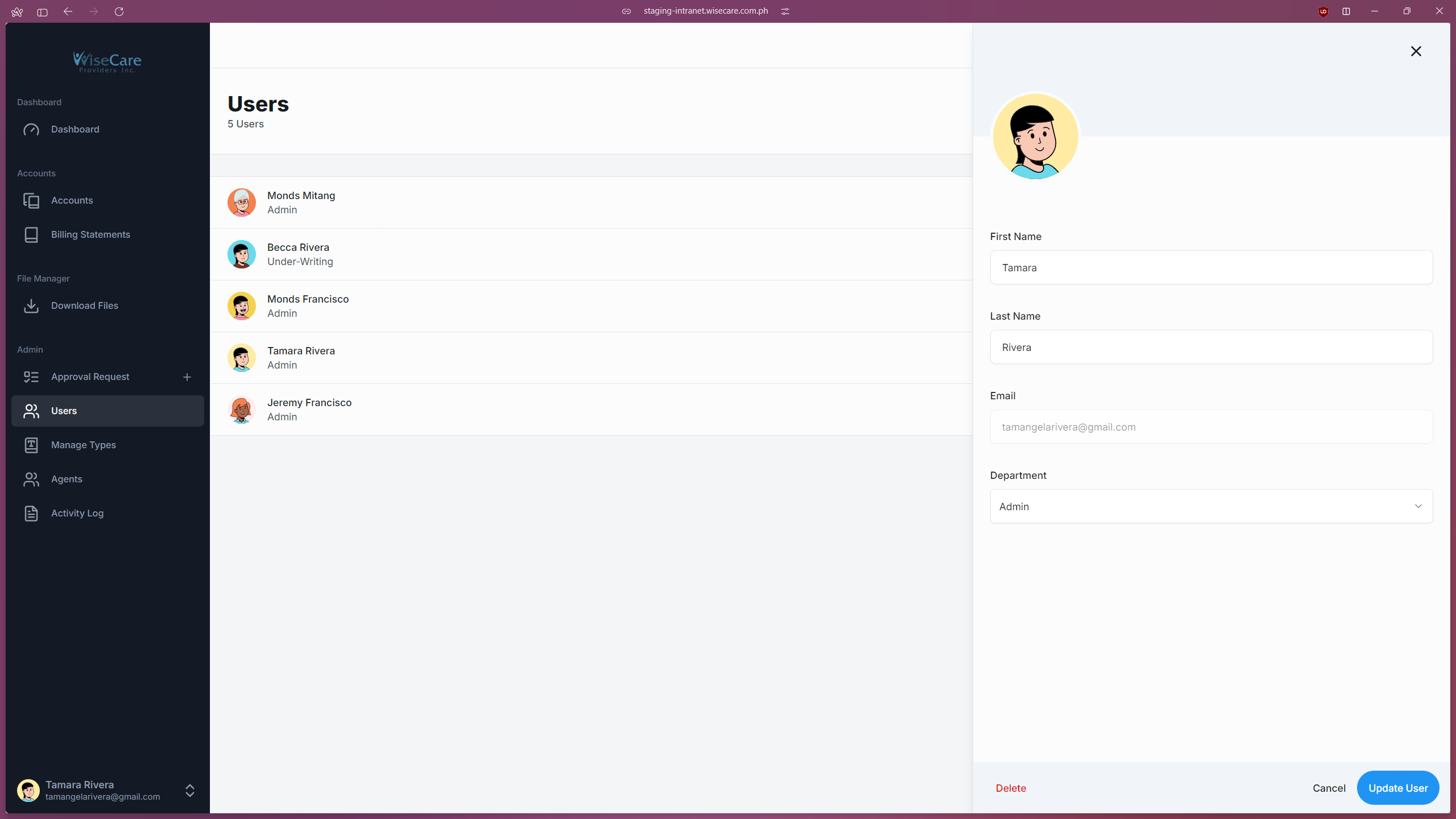
Admins can update or modify the details of existing users.
Adding a User
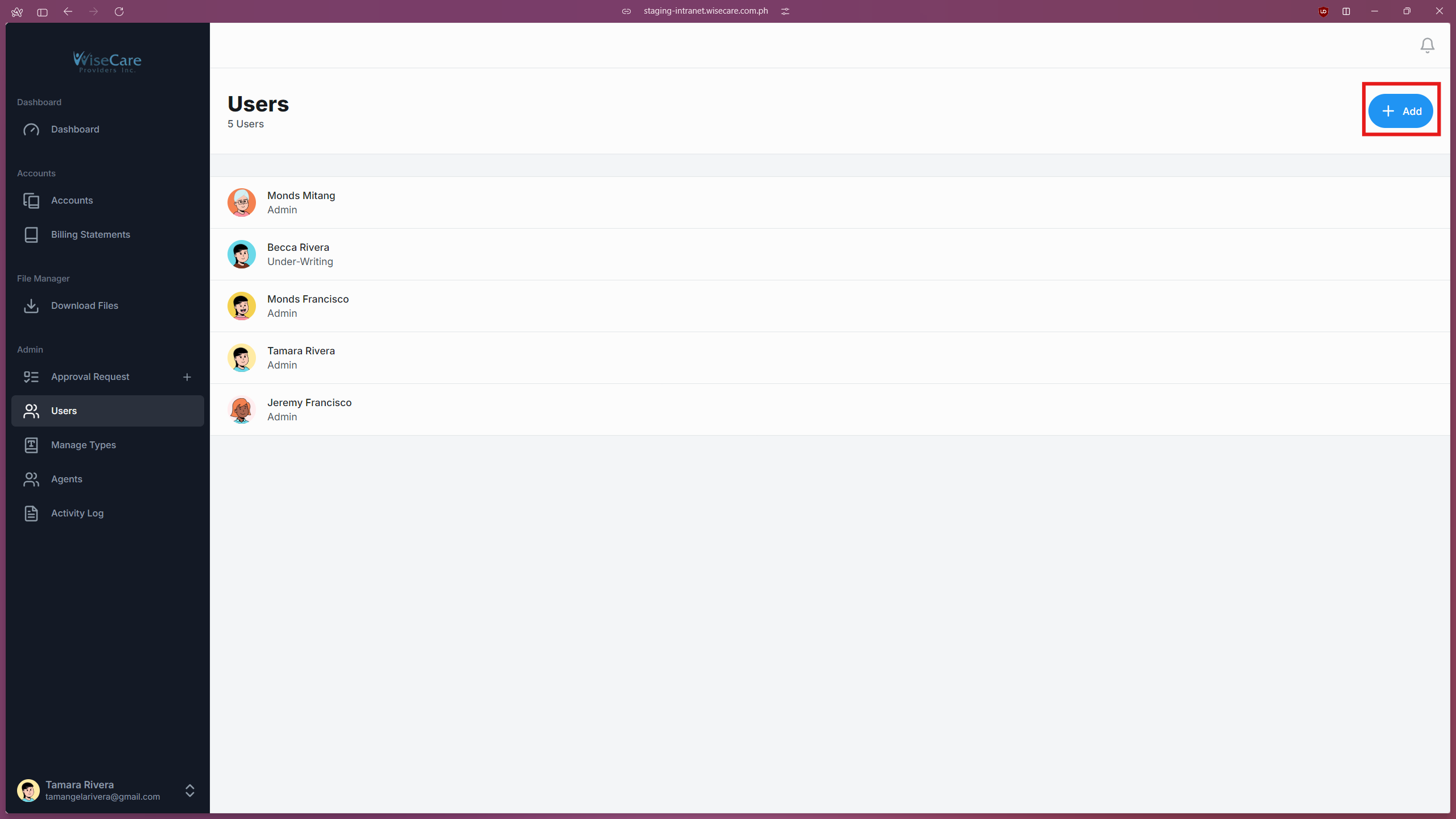
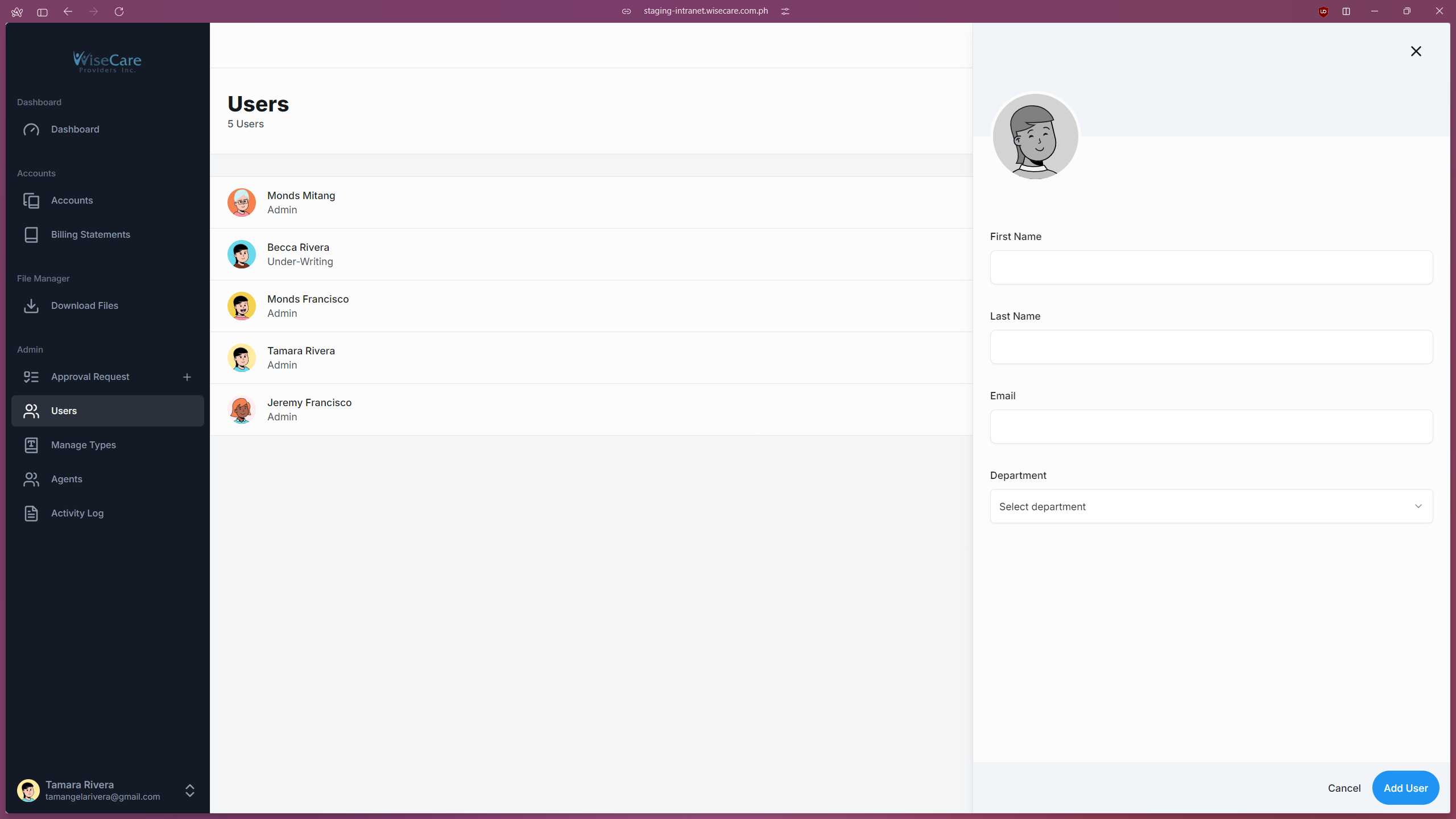
Open the Add User Form
Click on the "Add" button located at the top-right side of the page.
Enter User Details
Fill in the following fields in the form:
First Name
Last Name
Email
Department
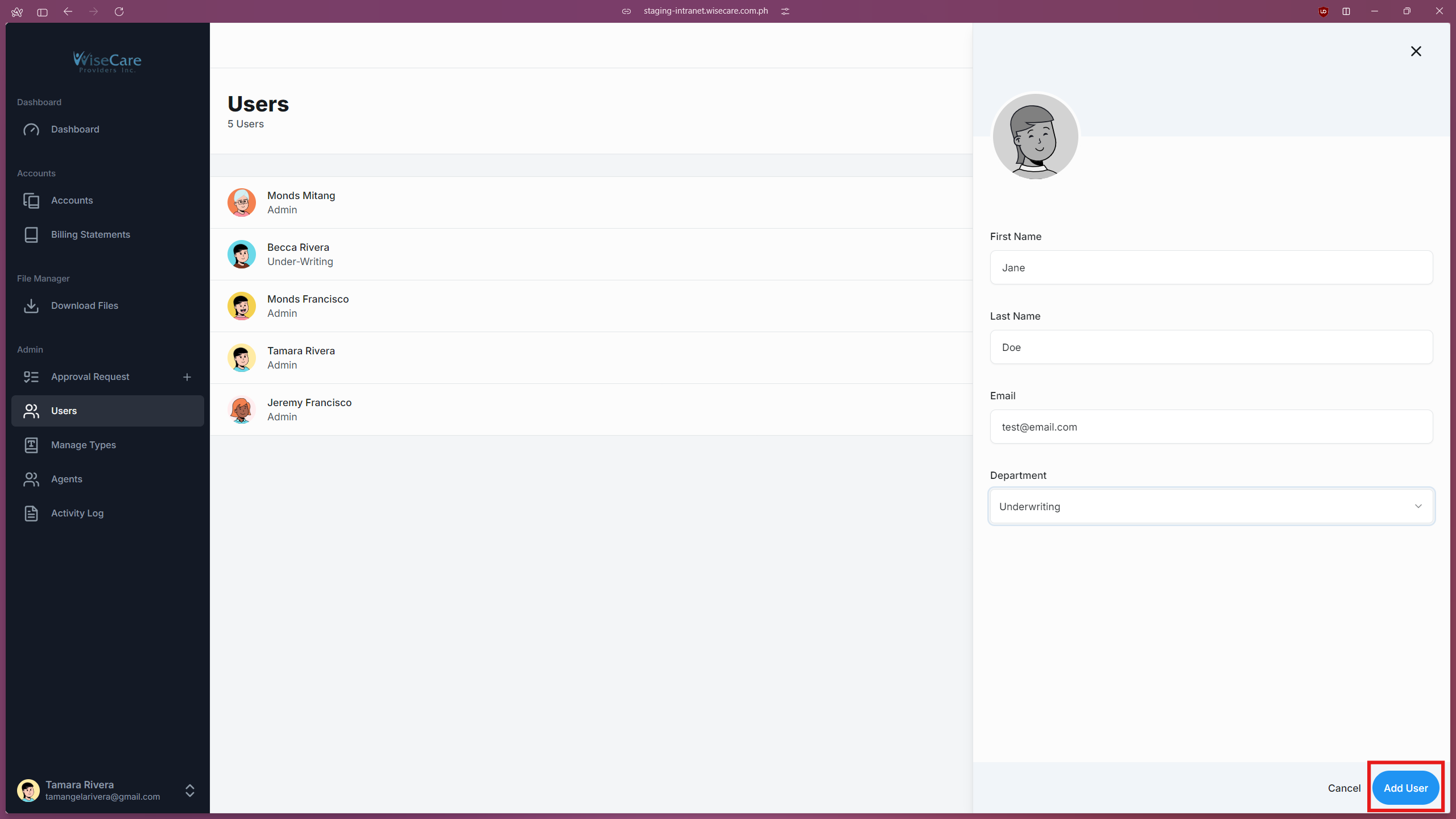
Submit the Form
Click the "Add User" button at the bottom-right side of the form.
Password Setup Link
A link will be sent to the user's email, allowing them to set their password.
Editing a User's Details
Select a User
Click on the user whose details you want to edit.

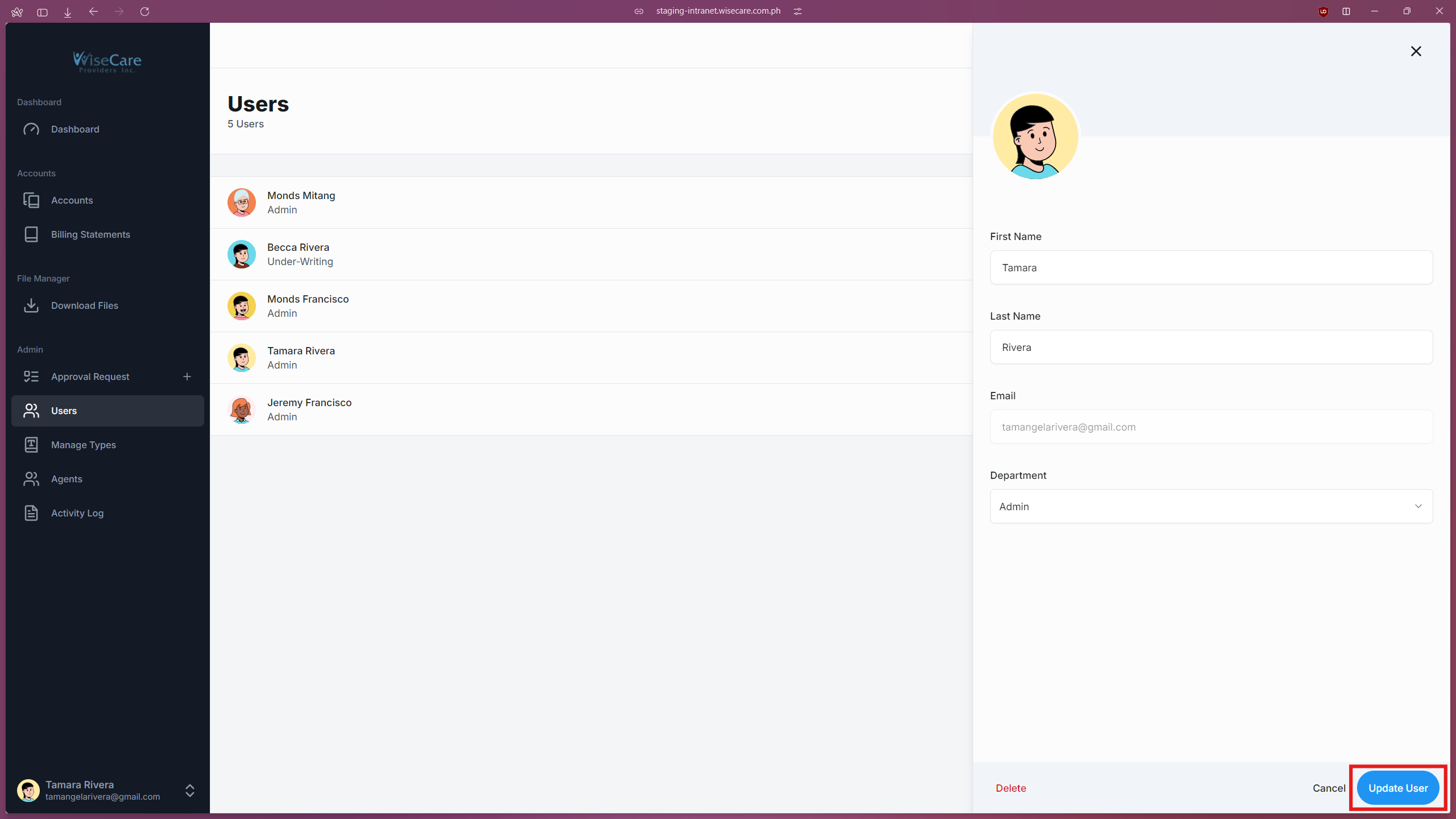
Update Information
Modify or update the necessary fields in the form.
Save Changes
Click the "Update User" button located at the bottom-right side of the form.
Deleting a User
Select a User
Click on the user you want to delete.
Initiate Deletion
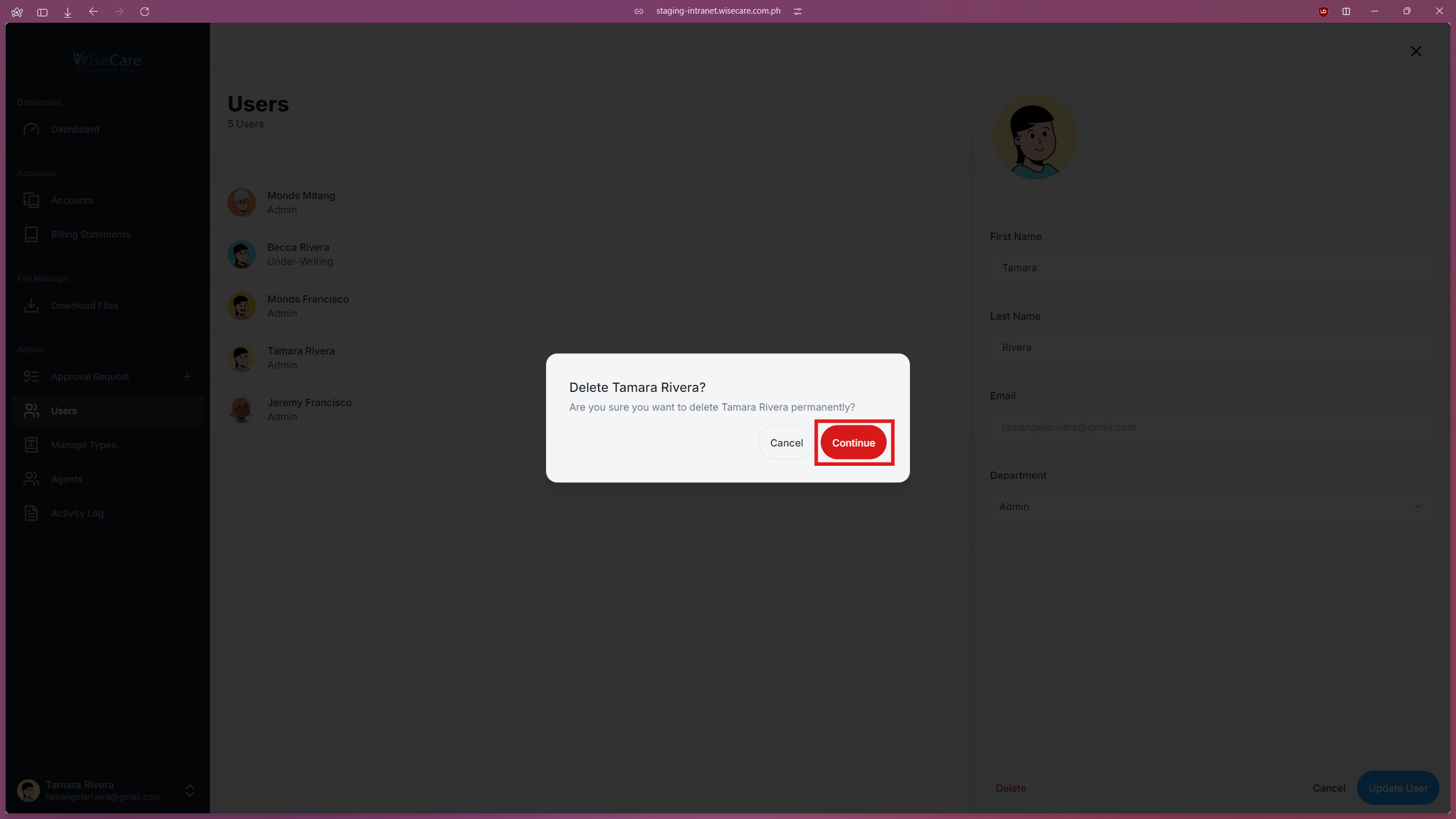
Click on the "Delete" button located at the bottom left side of the form.

Confirm Deletion
A pop-up window will appear, asking for confirmation of your action.
Delete the User
Click on the "Continue" button to confirm and delete the user.