Manage Types
Access Control
The "Manage Types" page is restricted to admin users only.
Purpose
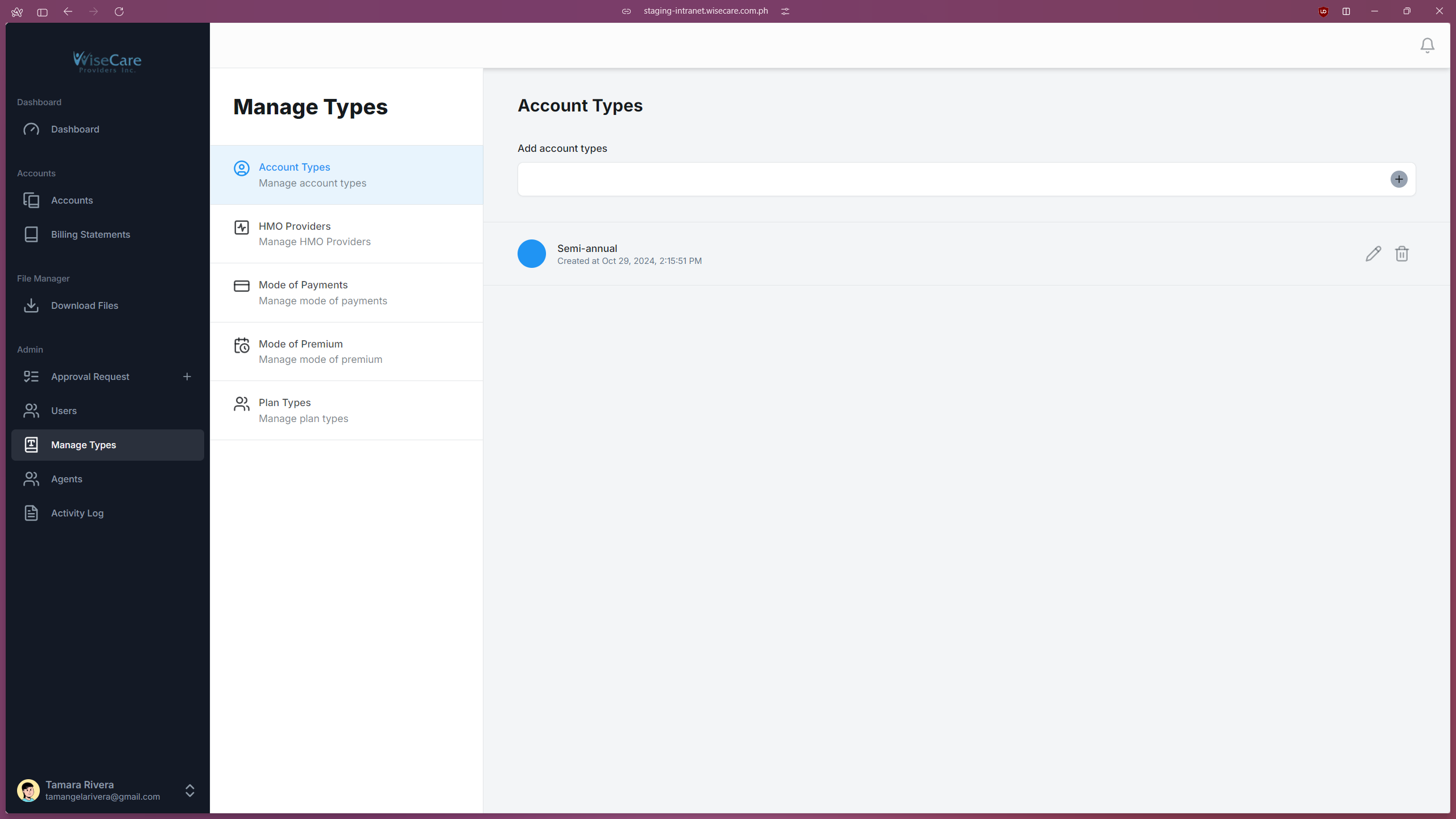
This page is used to manage the following types:
Account Types
HMO Providers
Mode of Payments
Mode of Premium
Plan Types
Functionality
The added types will appear in the forms for adding and editing accounts on the "Accounts" page and the "Company Profile" page.
Actions
Add Types: Add new types to the system.
Edit Types: Modify the details of existing types.
Delete Types: Remove types no longer needed.
View Details: Check when a type was created as well as the list of existing types.
Adding a Type
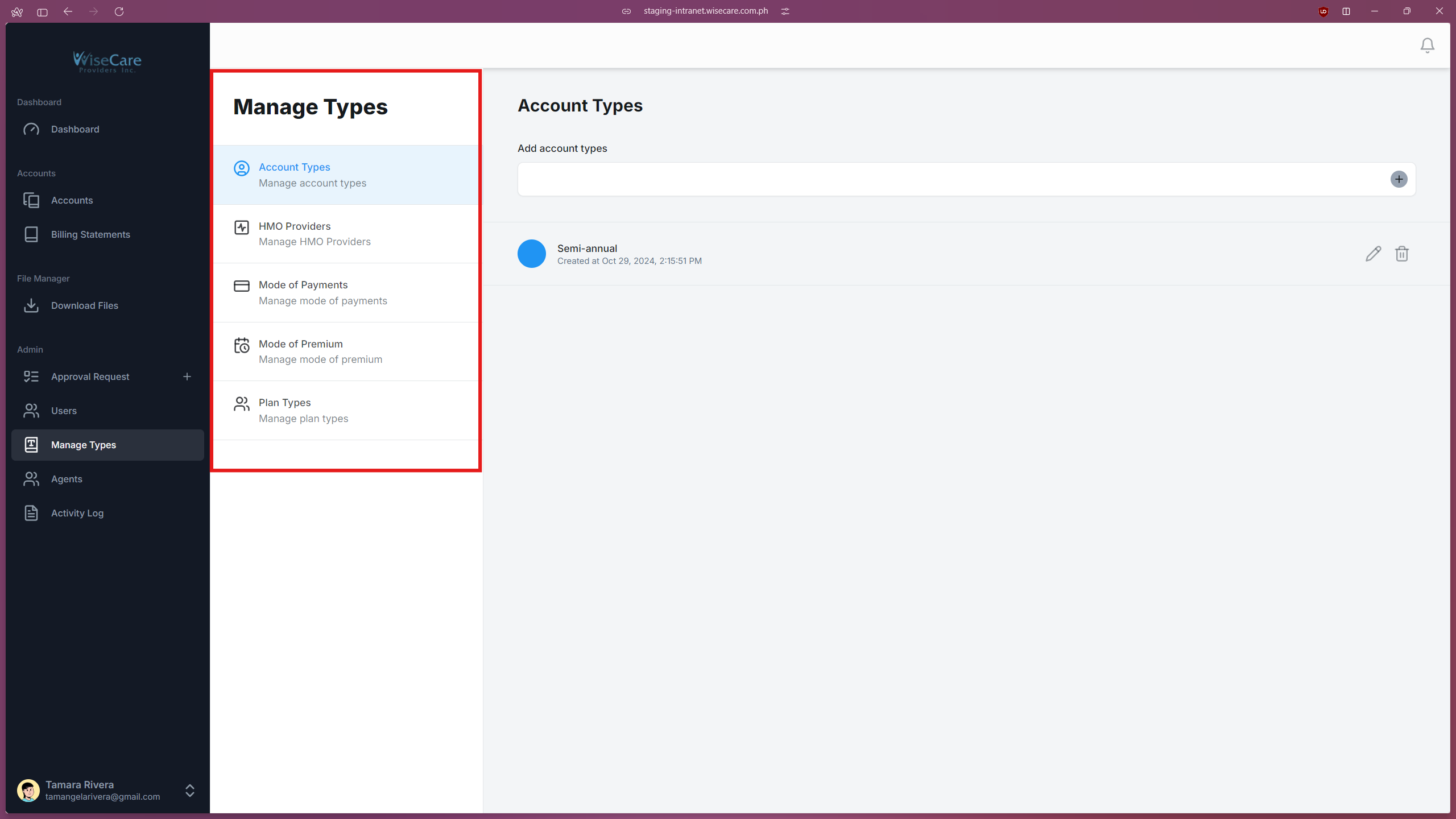
Select Type
Click on the sidebar navigation to choose the type you want to add (e.g., Account Types, HMO Providers, etc.).
Enter Type Name
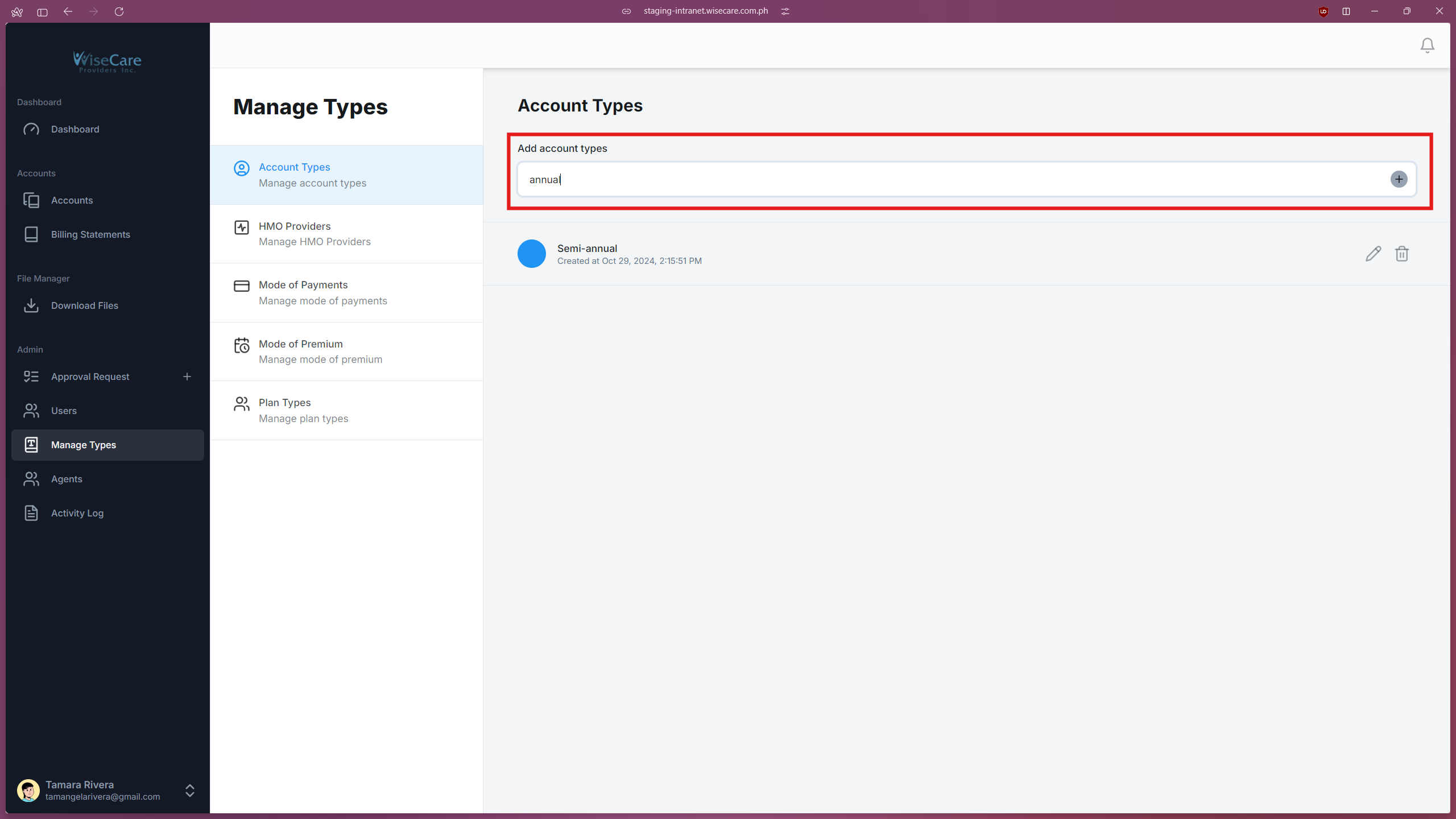
Locate the input field labeled "Add account types" (or a similar label depending on the type selected).
Enter the desired type name into the input field.
Add Type
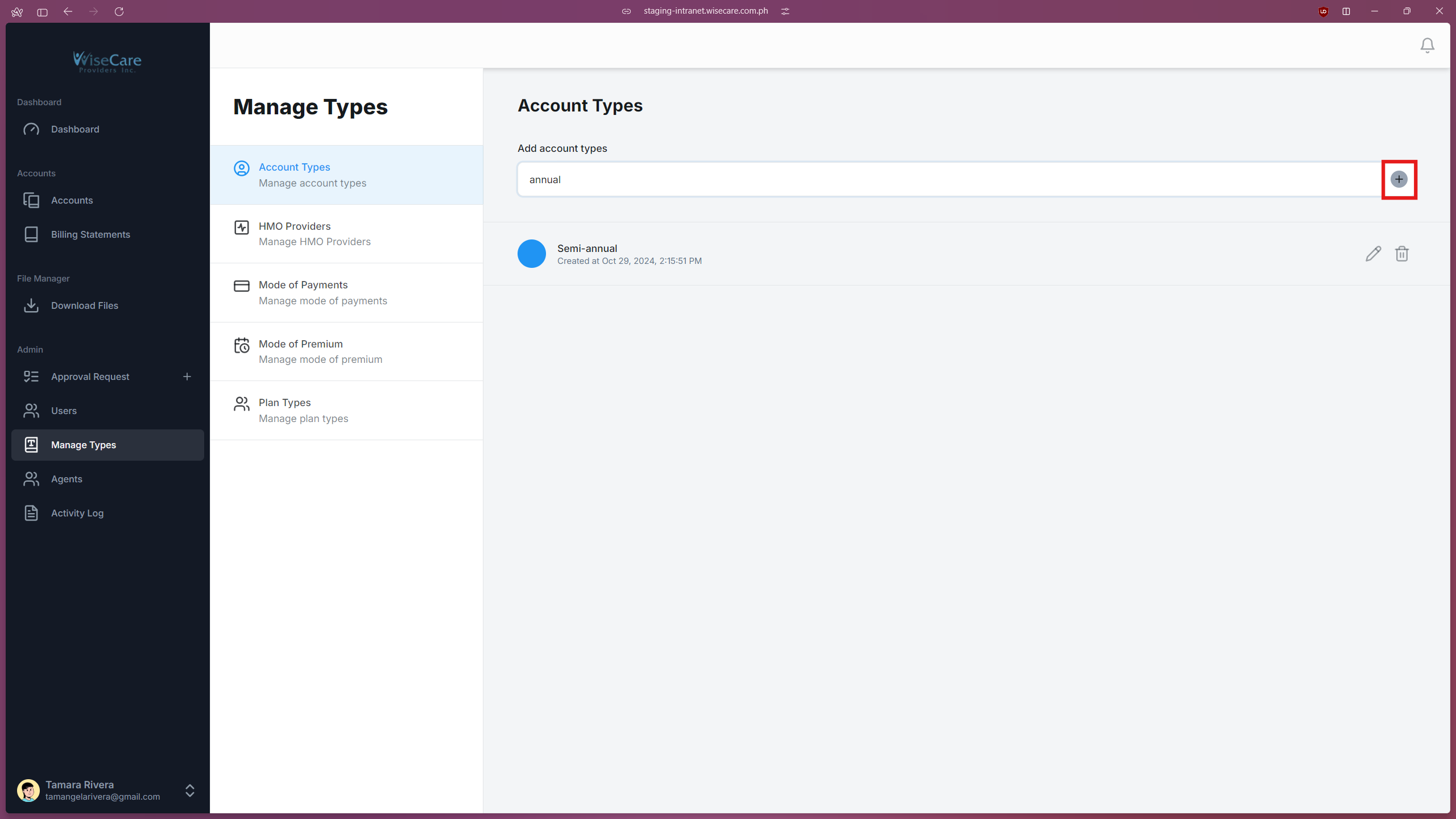
Click on the "Plus" icon at the end of the input field.
Confirmation
After adding, the type will appear in the list below the input field.
The newly added type will also be available in the forms for adding and editing accounts on the "Accounts" page and "Company Profile" page.
Editing a Type
Select the Type to Edit
Click on the "Pencil" icon beside the name of the type you want to edit.
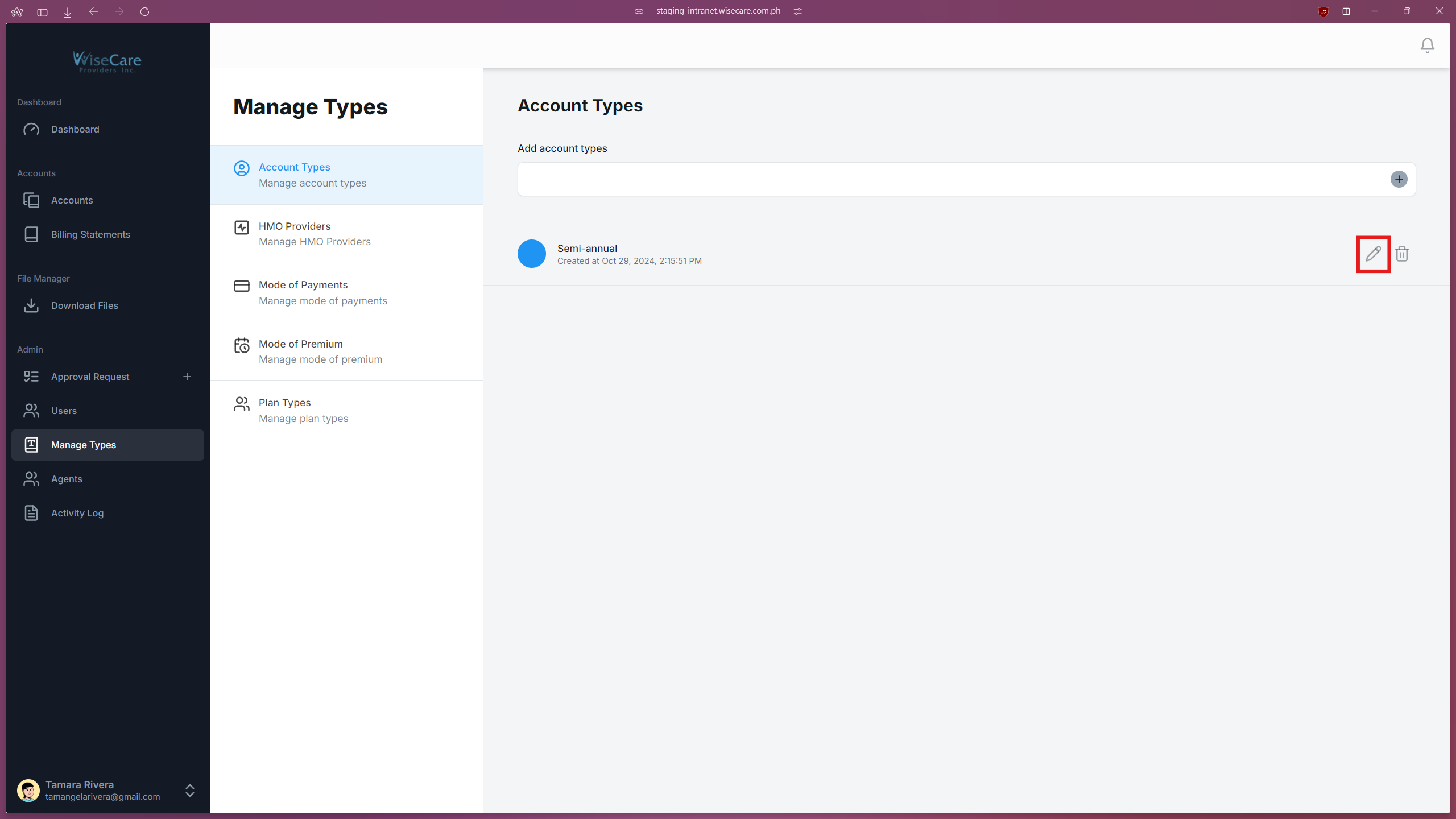
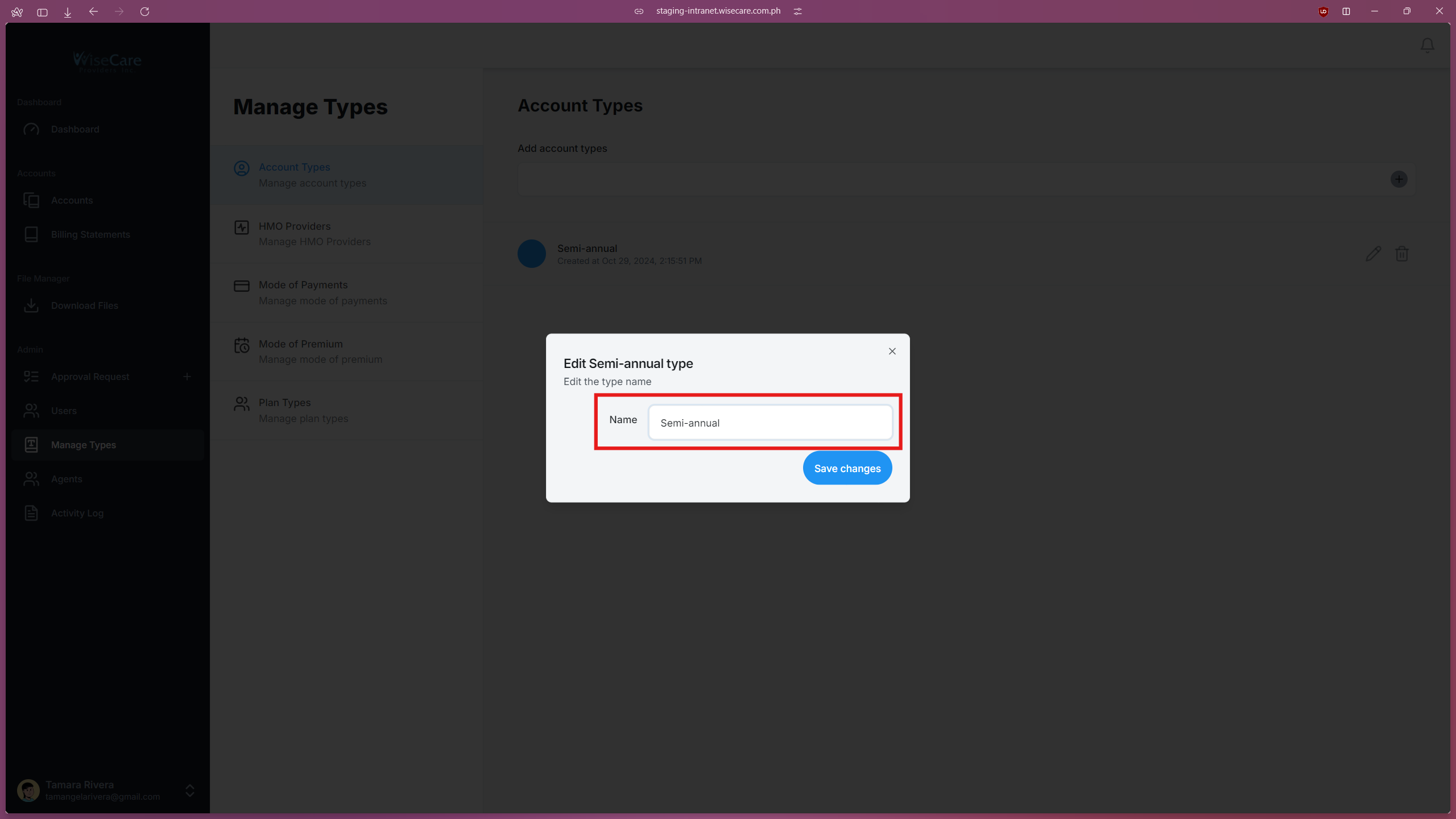
Edit the Type
A pop-up window will appear with an input box.
Type your changes in the input box.
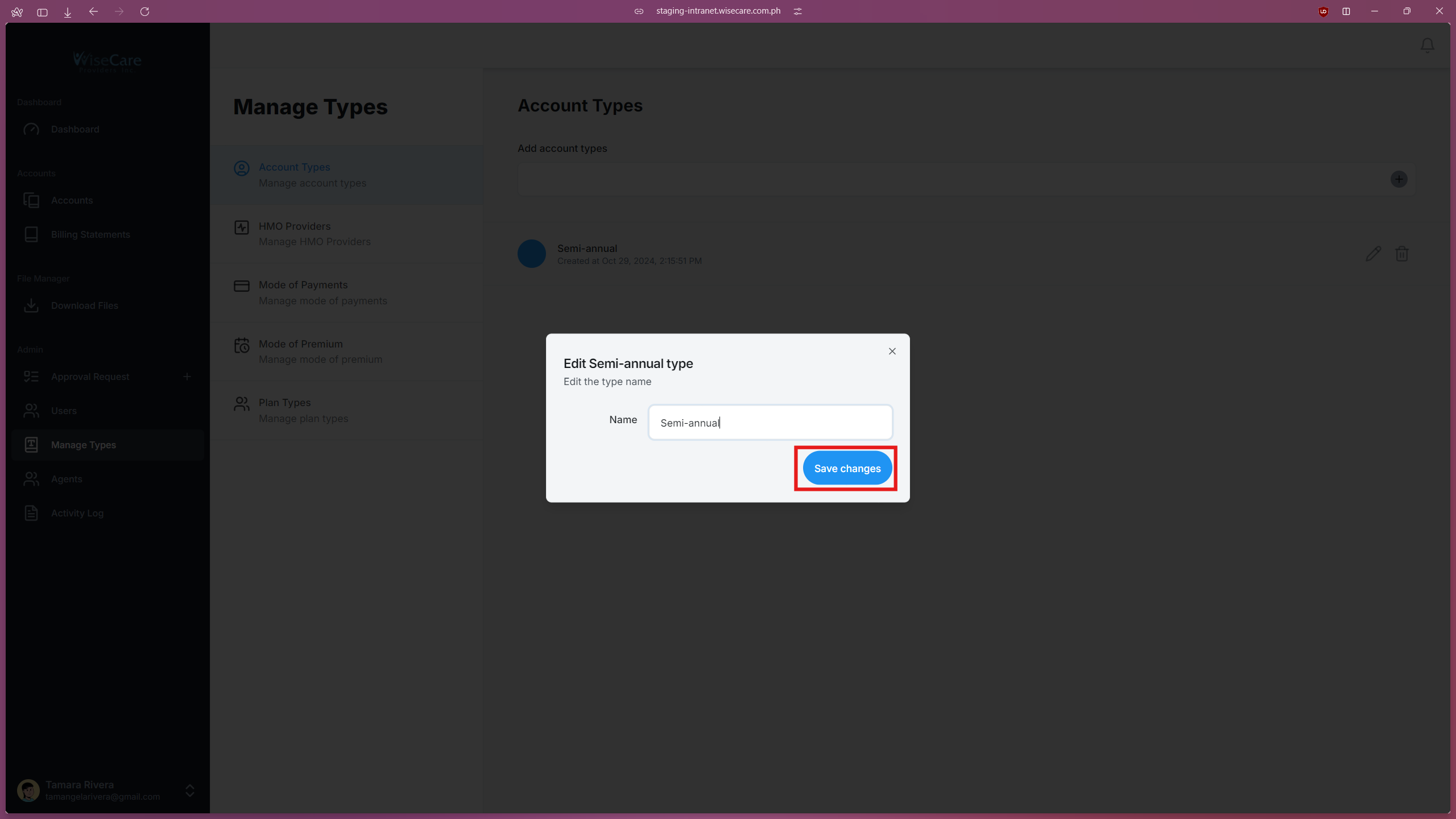
Save Changes
Click on the "Save Changes" button to apply the updates.
The updated type will now be reflected in the relevant forms on the "Accounts" page and the "Company Profile" page.
Deleting a Type
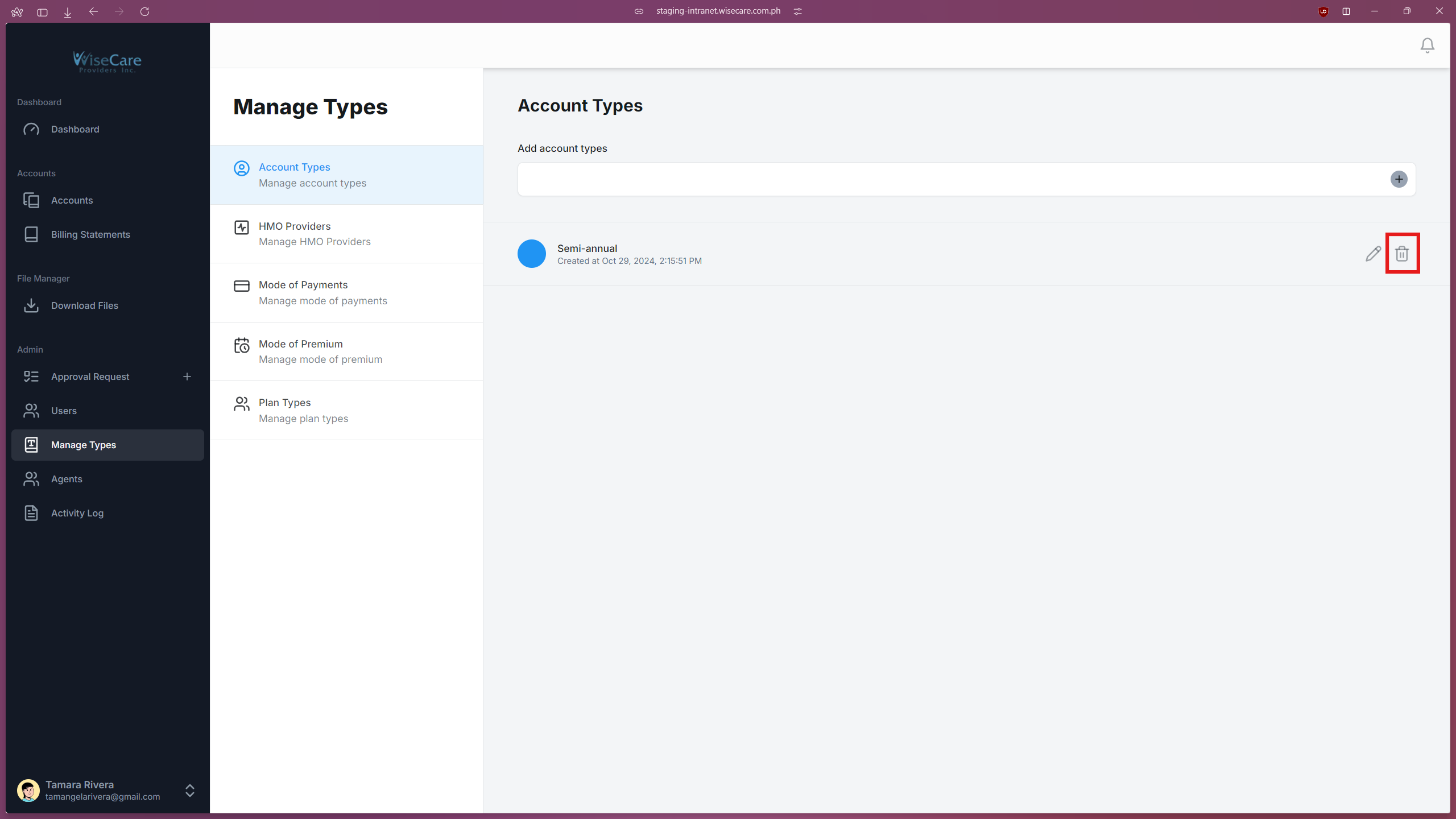
Select the Type to Delete
Click on the "Trash" icon beside the name of the type you want to delete.
Confirm Deletion
A pop-up window will appear, asking for confirmation of the deletion.
Delete the Type
Click on the "Continue" button to confirm and delete the type.
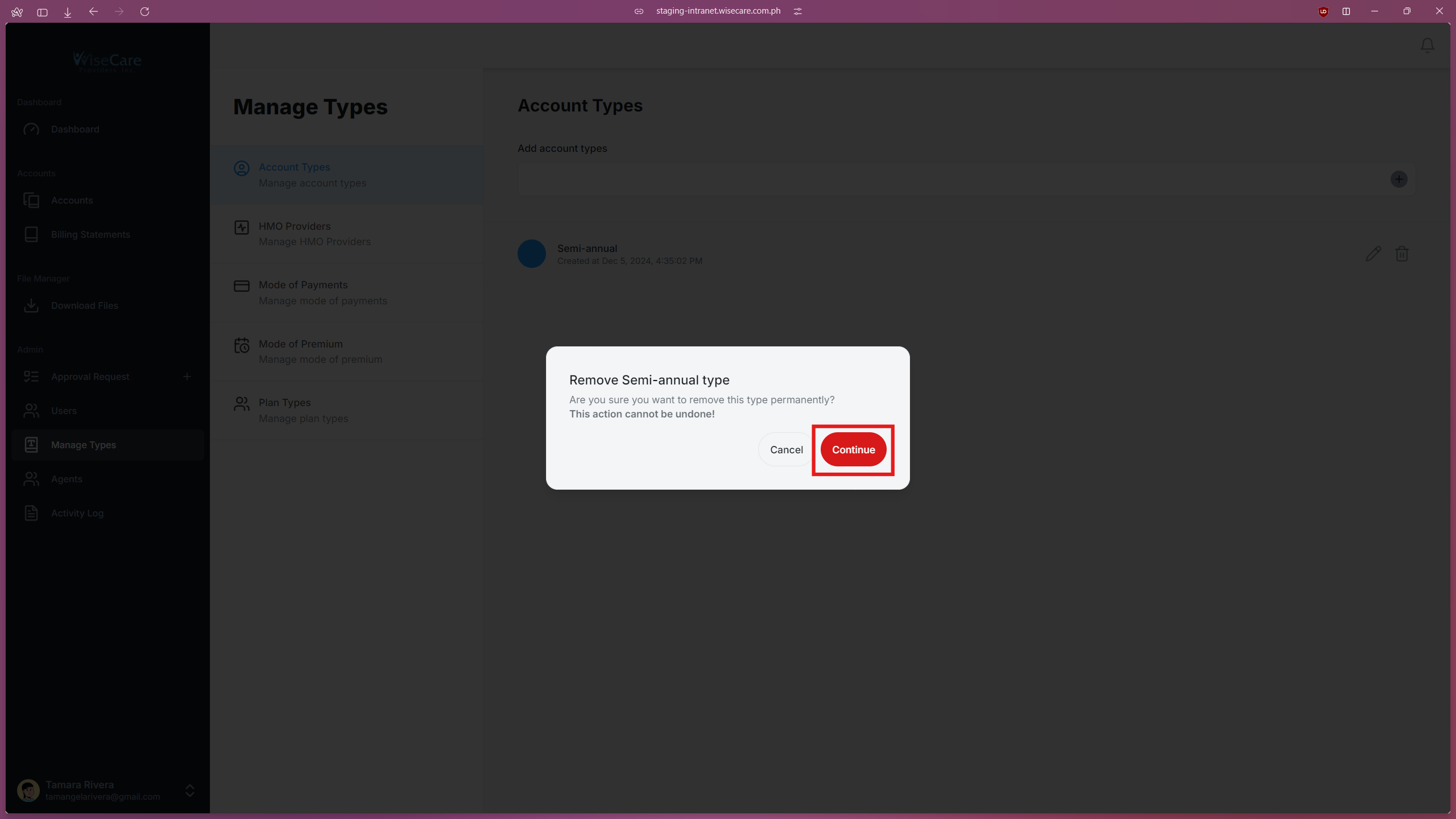
The type will now be removed and will no longer appear in the relevant forms on the "Accounts" page and the "Company Profile" page.