Billing Statements Table
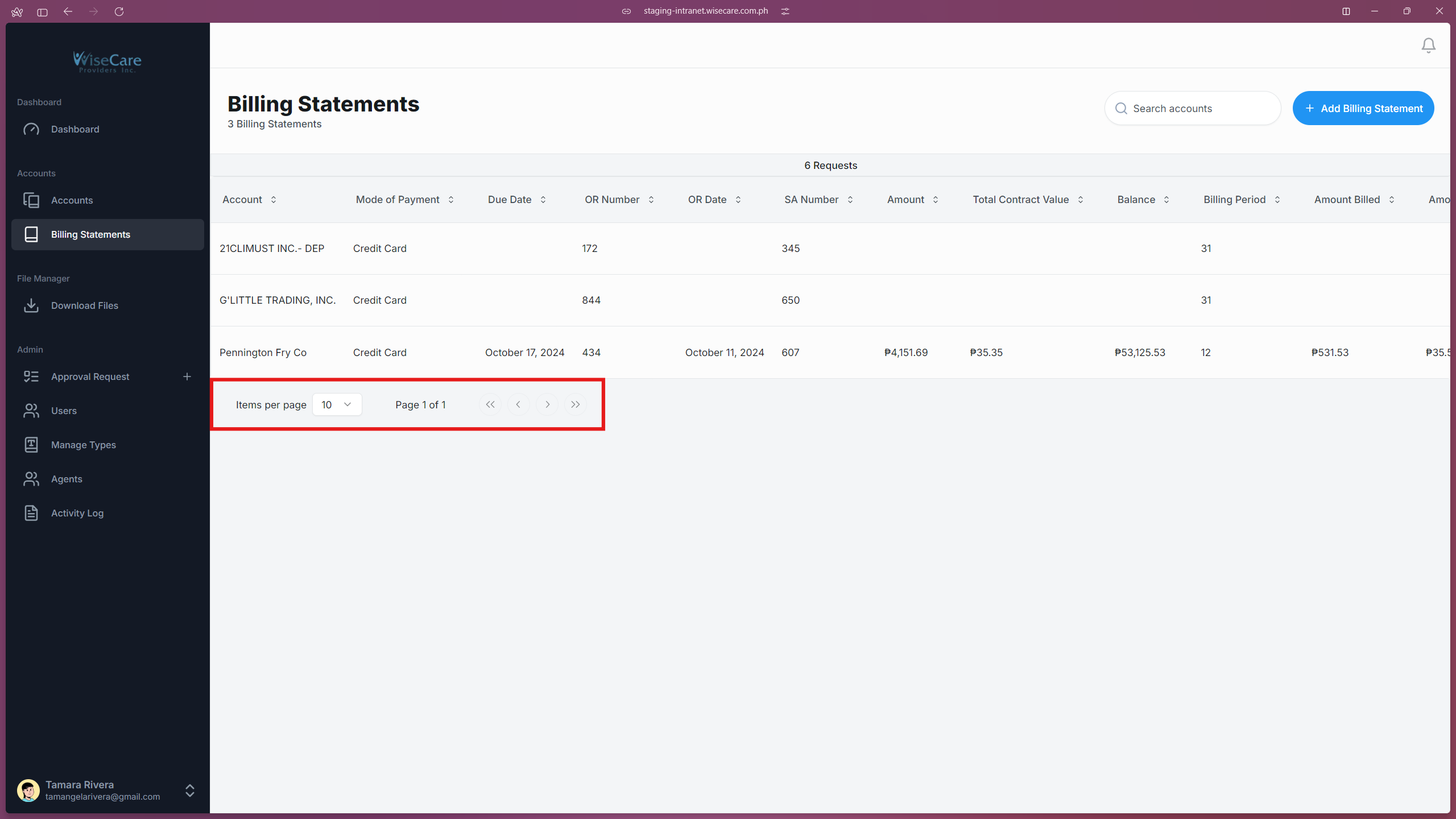
The Billing Statements table comes with several useful features:
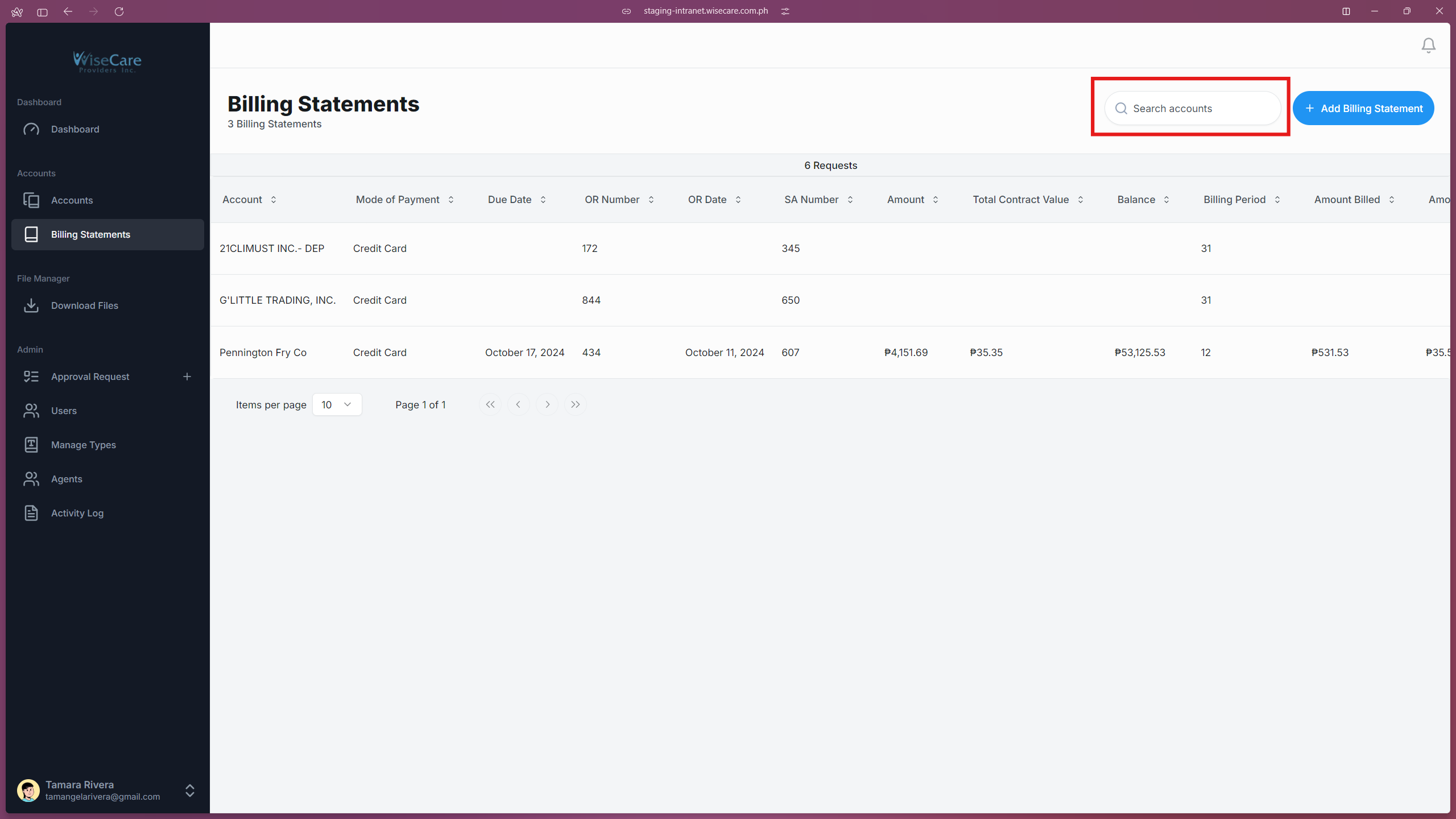
Search for Information
You can search the contents of the table by typing in the search bar.
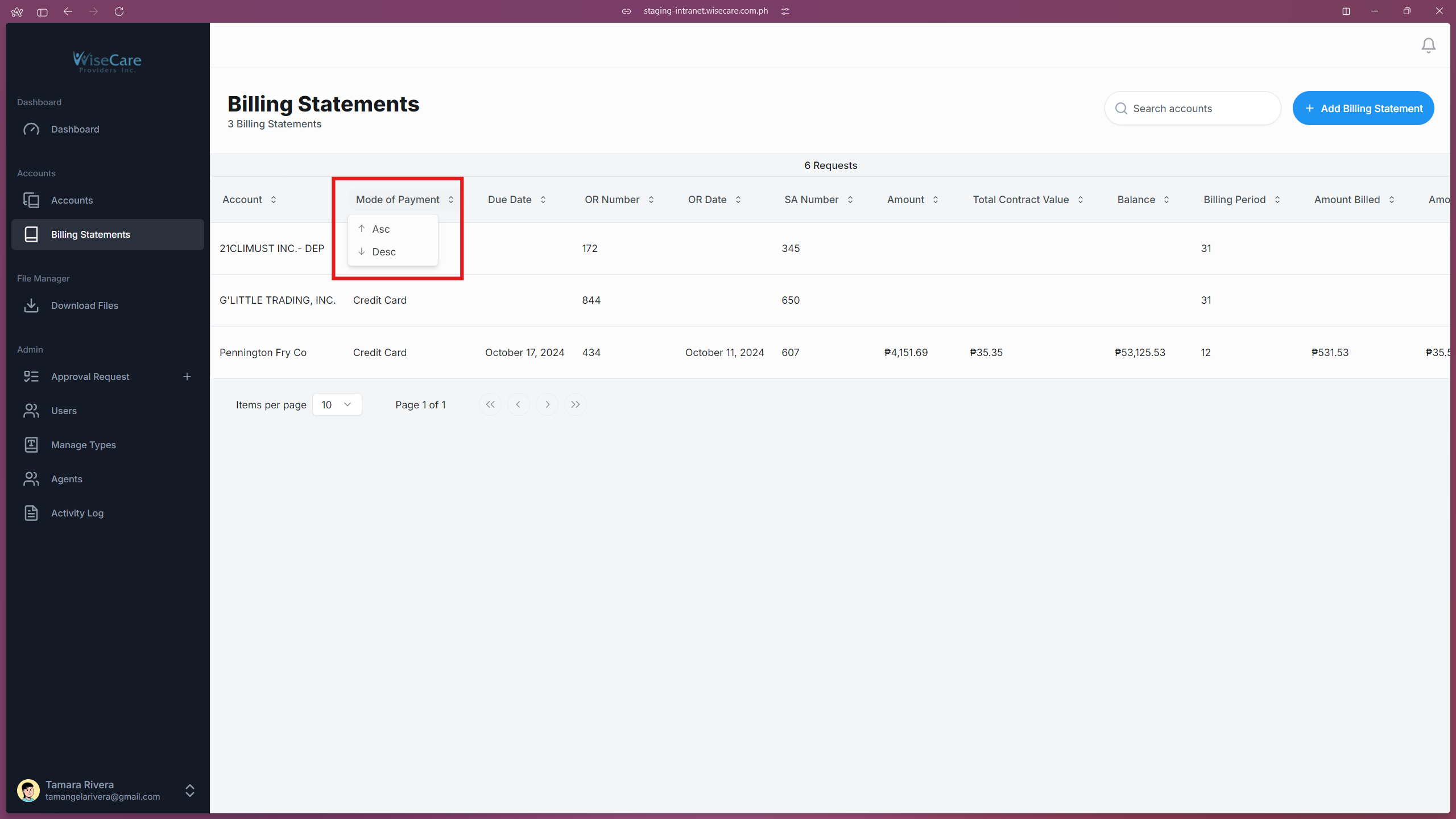
Sort the Table
Click on the arrows beside the column's title to change the order of the items in that column.
A dropdown will appear with "Asc" (ascending) and "Desc" (descending) options to sort the data.
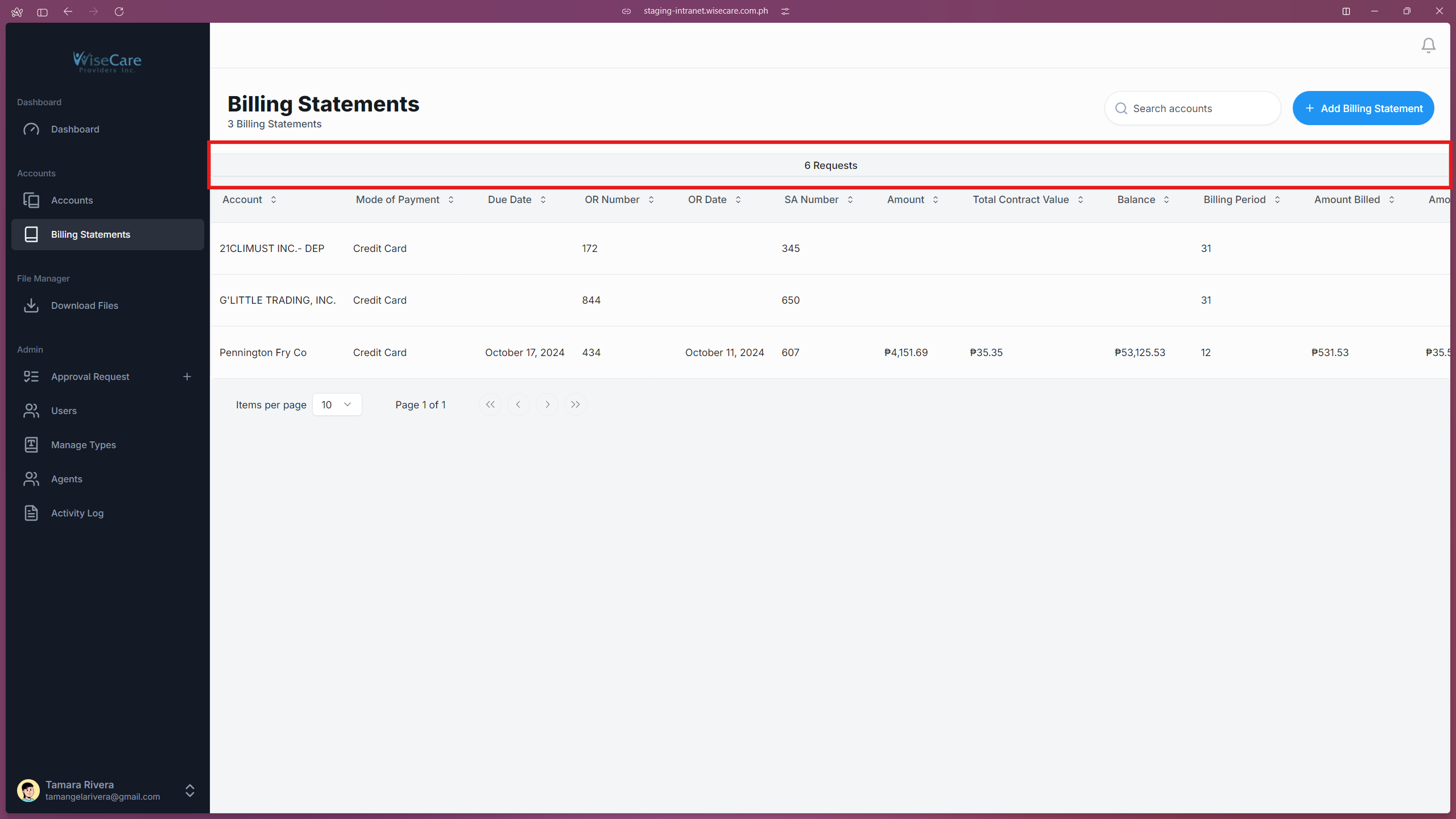
Requests Tab
Click on the "Requests" tab to view a list of your requests for adding, editing, or deleting billing statements.
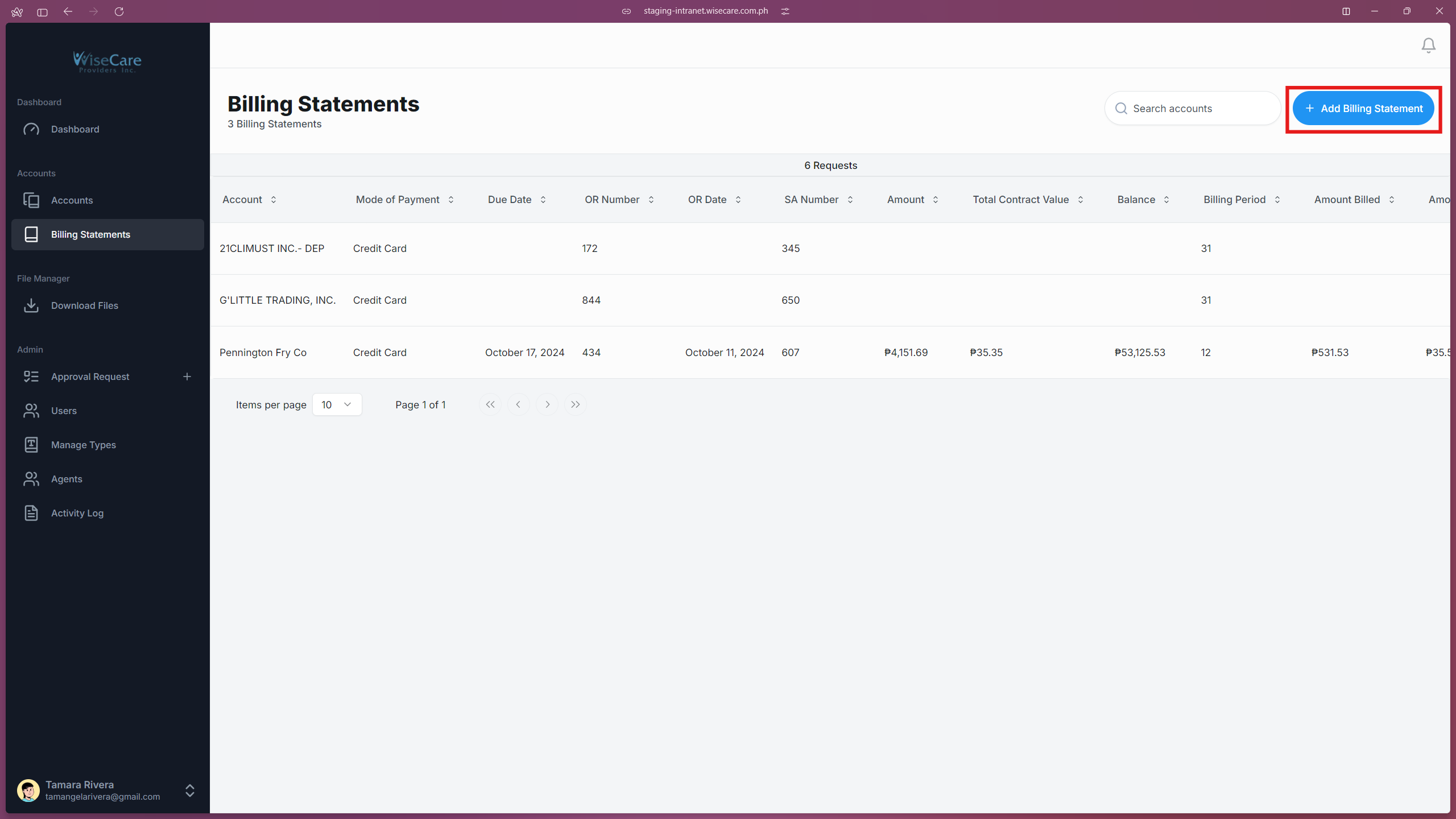
Add Billing Statement
Click on the "Add Billing Statement" button to add a new billing statement for an account.
Adjust Table Items and Navigation
Use the "Items per page" dropdown at the bottom of the table to change how many items are shown per page.
You can also click the arrow buttons to navigate to the next page of the table.
Adding a new Billing Statement
Click the "Add Billing Statement" Button
On the Billing Statements page, click the "Add Billing Statement" button. A form will pop up in a modal window.
Fill Out the Form
Enter all the required details in the fields of the form.

Submit the Billing Statement
Once you've filled out the form, click "Add Billing Statement" and this will now reflect on the "Billing Statements" Table and "Billing Statements" Tab in the "Company Profile" page.
Editing a Billing Statement
Select the Billing Statement
Go to the "Billing Statements" page and click on the row of the billing statement you wish to edit.
Edit Billing Statement Details
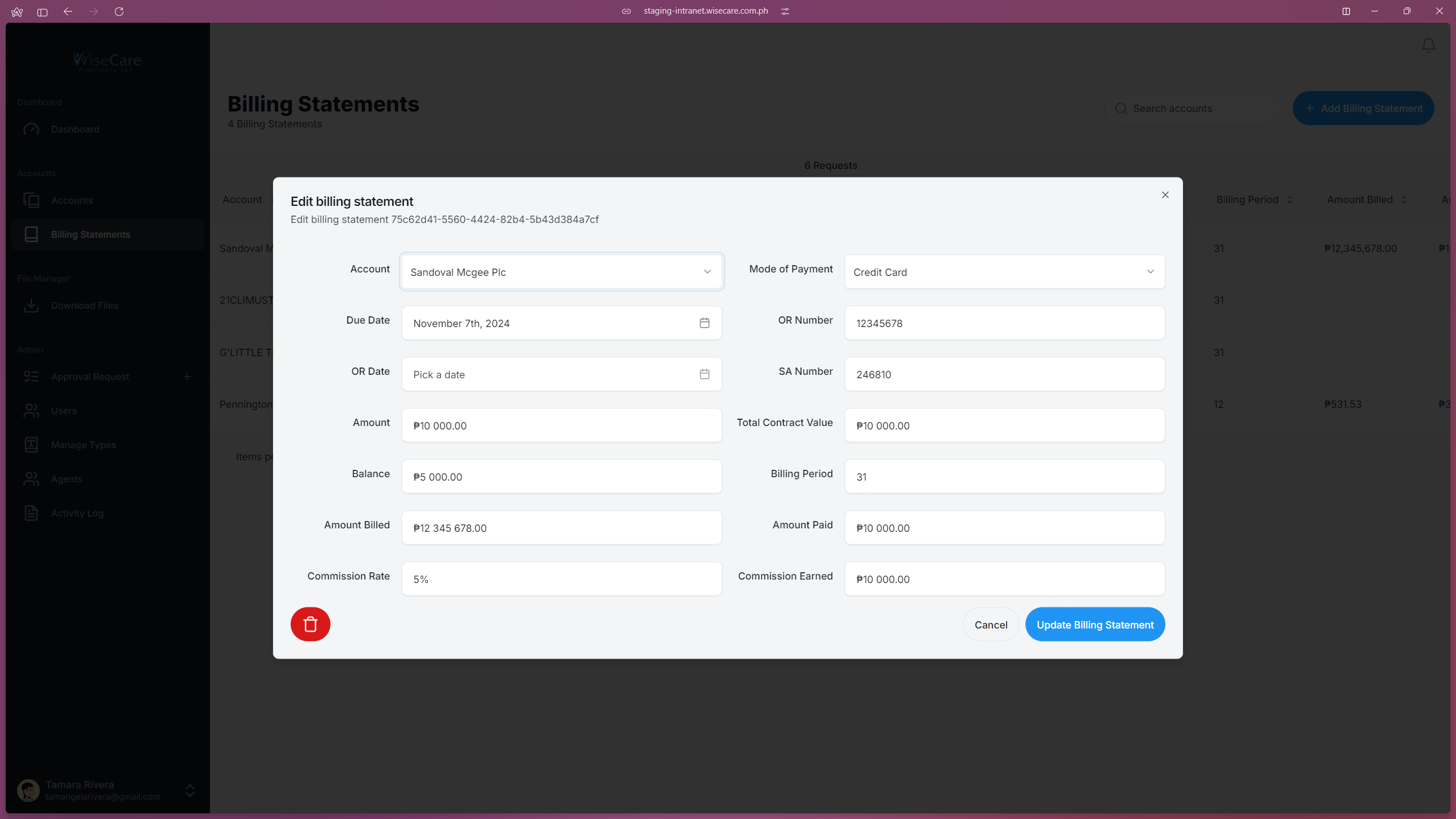
After selecting a row, a form will appear with the details of the chosen billing statement.
Update the necessary fields in the form.
Save Changes
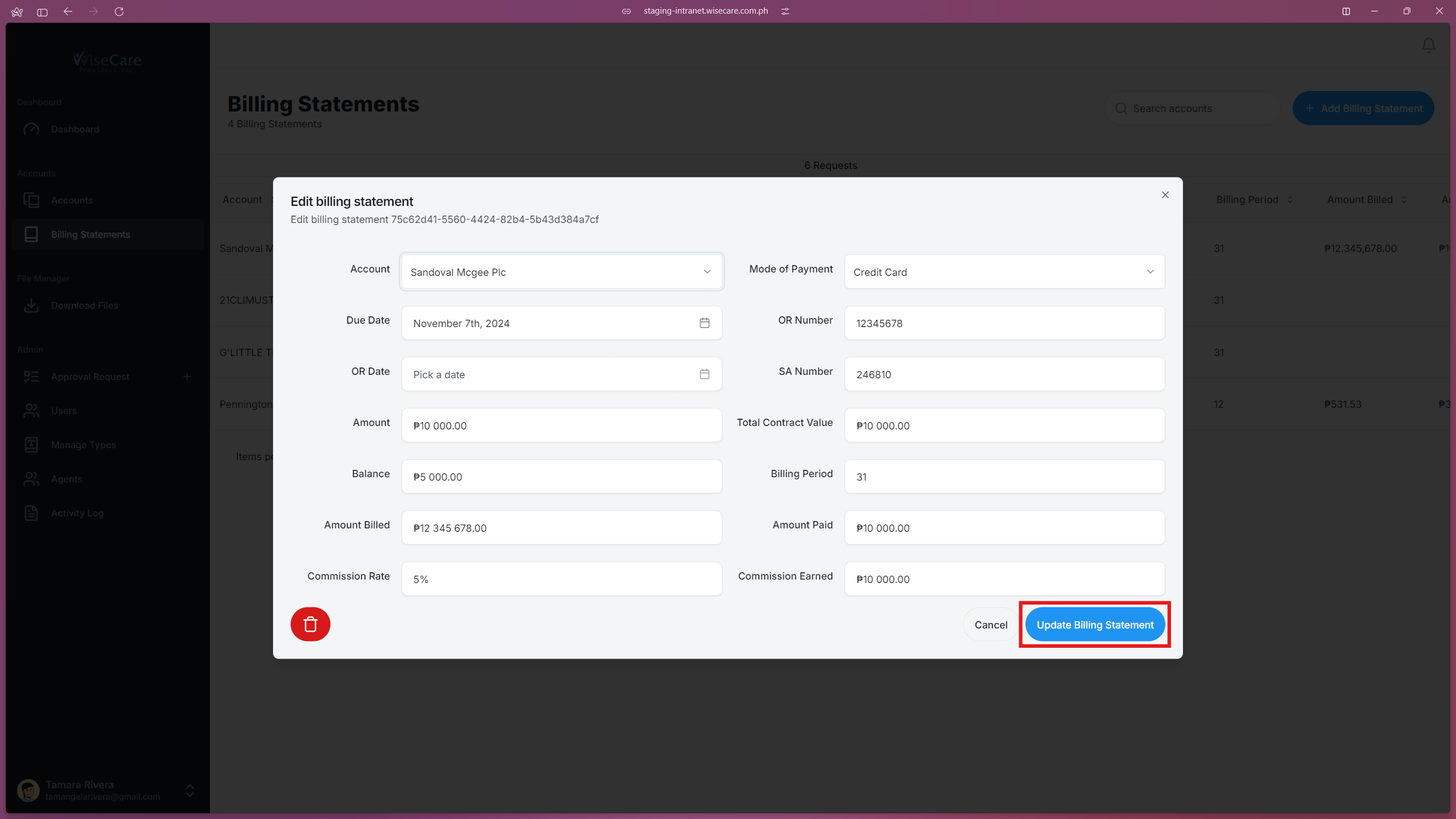
Once you’ve made the required edits, click on the "Update Billing Statement" button to save your changes.
Review Updated Billing Statement
The updated billing statement will now appear in:
The "Billing Statements" Table.
The "Billing Statements" Tab on the "Company Profile" page.
Deleting a Billing Statement
Select the Billing Statement
Go to the "Billing Statements" page and click on the row of the billing statement you wish to delete.
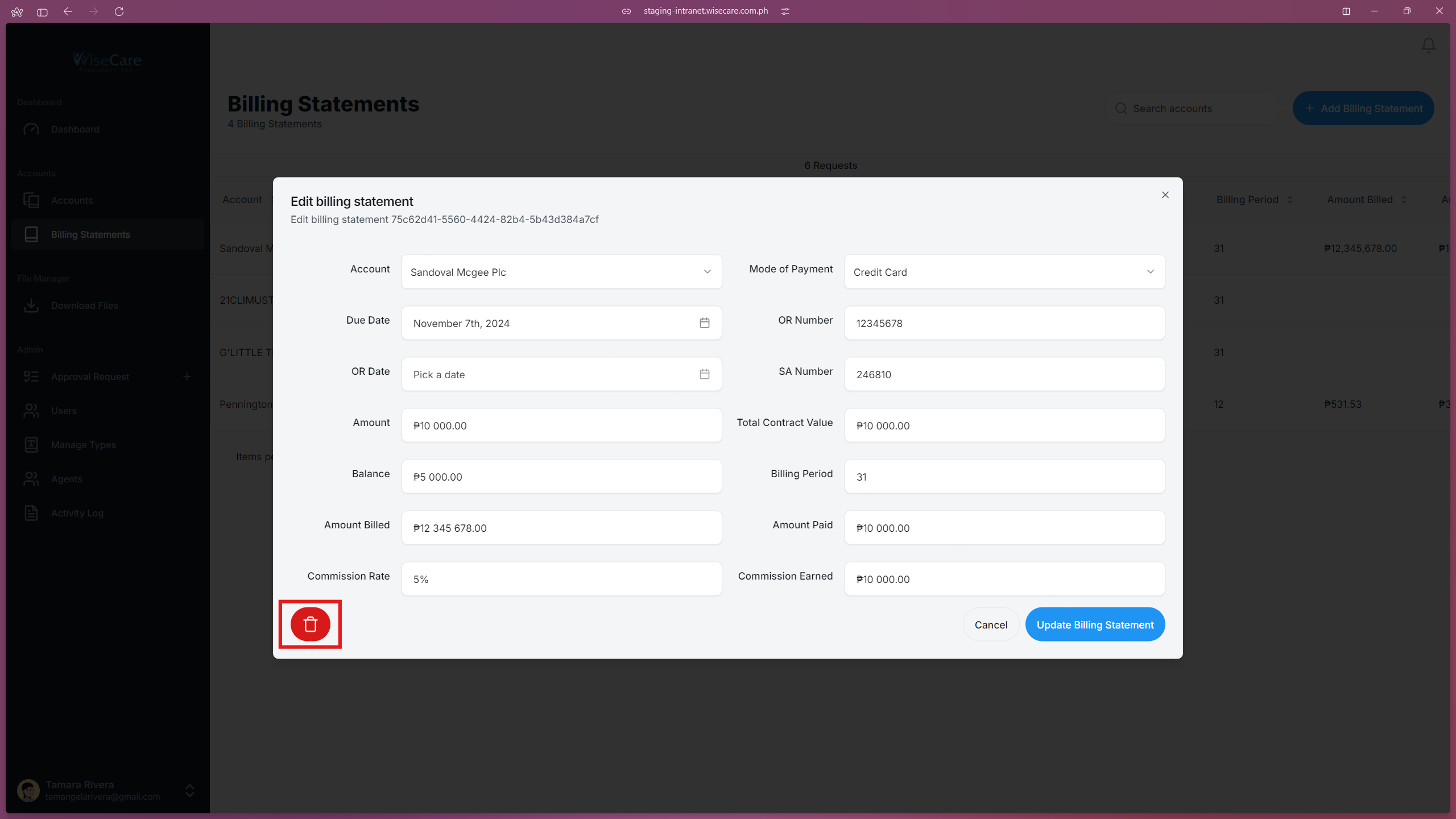
Access the Delete Option
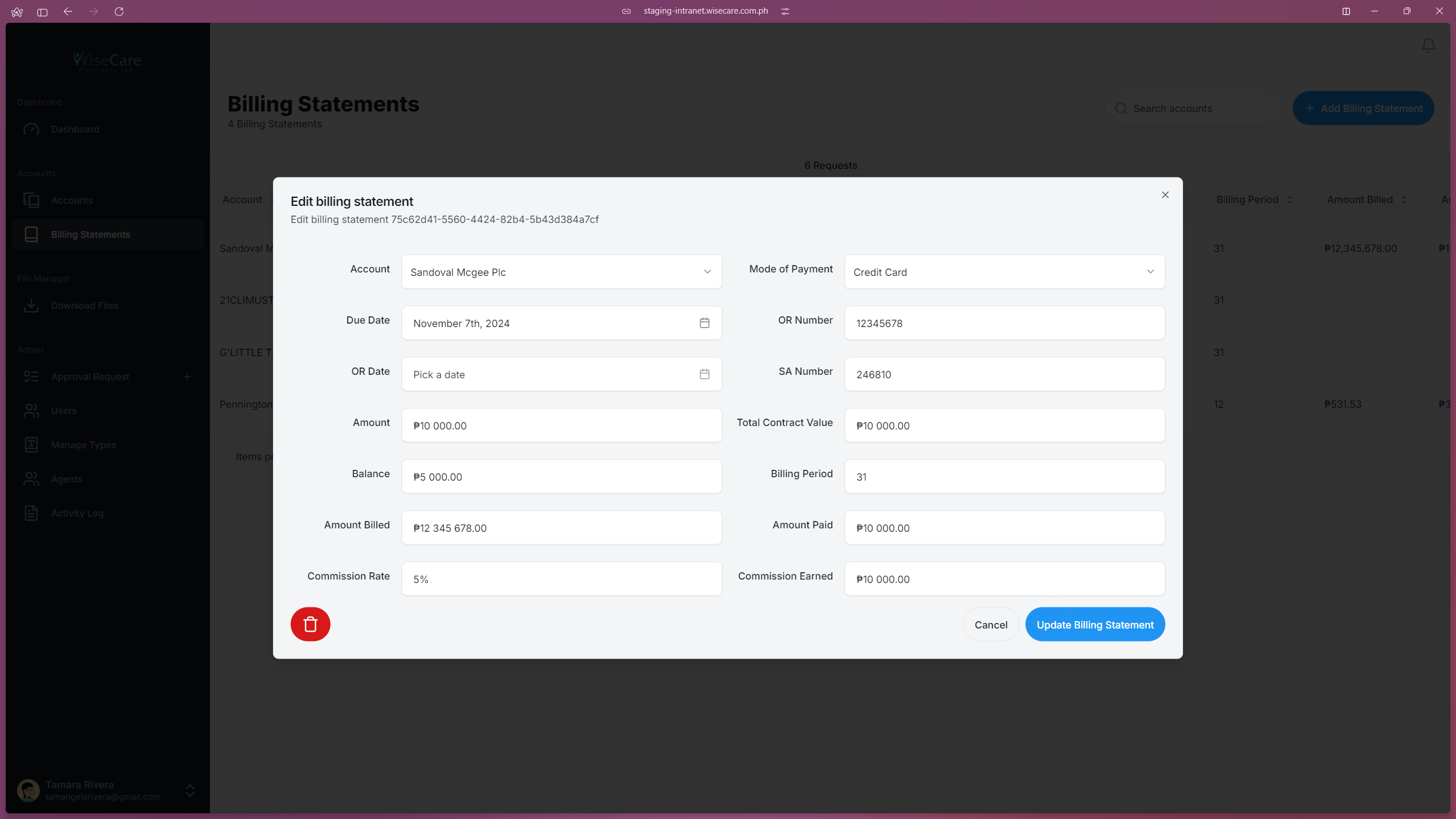
A form will pop up displaying the details of the selected billing statement.
Locate and click the "Trash" icon at the bottom leftmost side of the form.
Confirm Deletion
A confirmation window will appear asking if you are sure you want to delete the billing statement.
Click on "I understand, delete this billing statement" to proceed with deletion.
Review Deletion
The billing statement will be removed from the "Billing Statements" Table and "Billing Statements" Tab.